How to Format a Camera Memory Card Safely
Learn when and how to format an SD or CFexpress card in your camera without losing photos, plus what quick and full formats actually do.
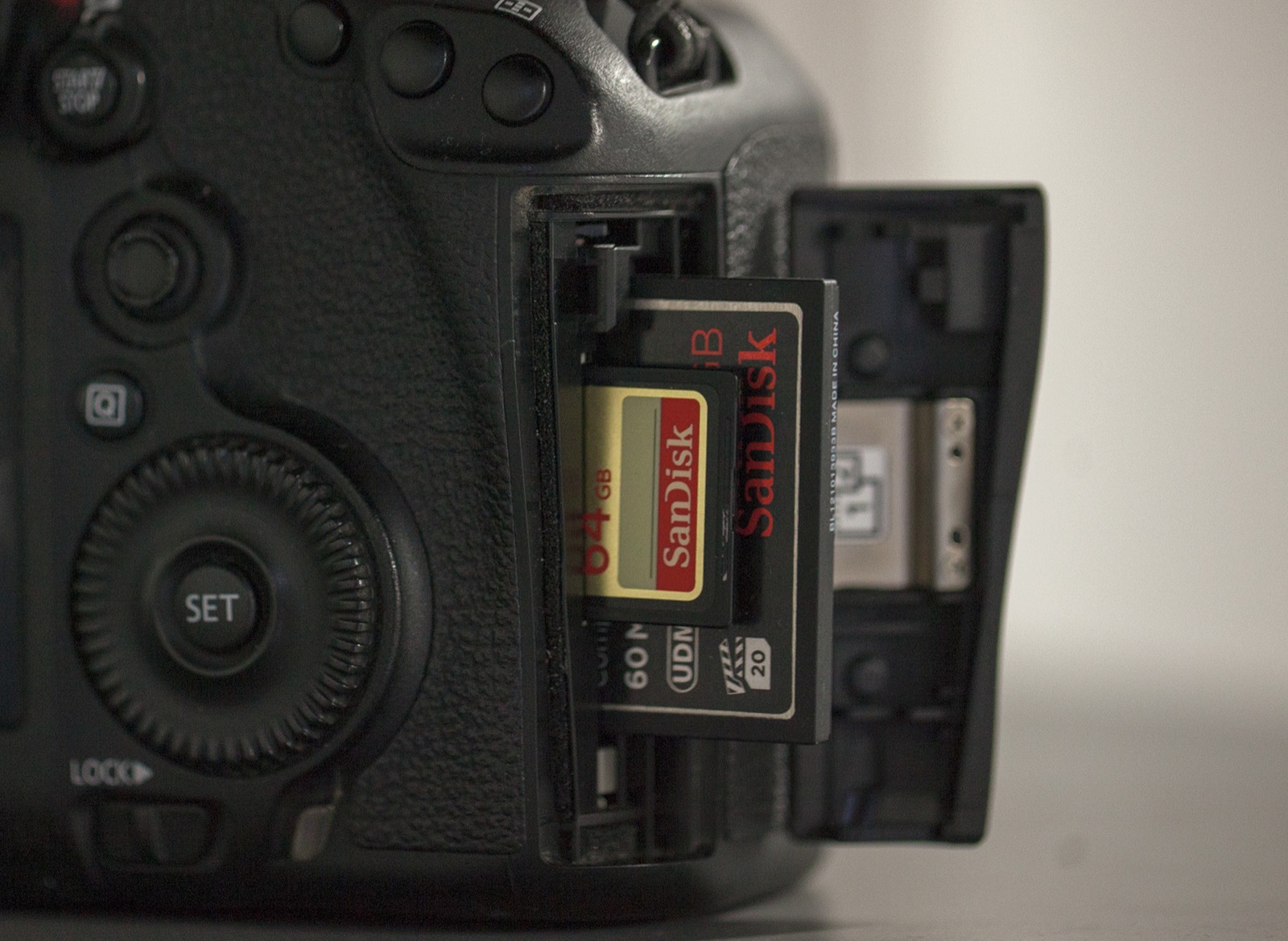
What formatting actually does
A memory card contains both image data and a file system—the directory structure the camera uses to find files and track free space. Formatting initializes that structure and lets the camera create the folders and management files it expects.
That is different from erasing one photo at a time. Deleting removes selected directory entries. Formatting resets the card for a new shooting cycle. Neither process should be treated as a backup or a reliable method of securely destroying sensitive data.
Why in-camera formatting is the normal choice
Camera makers generally recommend formatting a card in the camera that will use it. The camera chooses a compatible file system and creates its own folder structure. This reduces the chance that an operating system, another camera, or a utility leaves an unexpected layout.
A card used in one body may appear to work in another, but it can also trigger a database rebuild, unfamiliar folders, playback limitations, or a format prompt. If you move a card to a different camera, copy everything first and format it in the new body before recording important work.
When should you format a card?
Format after a successful offload, before starting a new job or trip, and when placing a new or repurposed card into a camera. Many photographers format at the beginning of a shoot rather than at the end of the previous one. That creates a final pause in which yesterday's files can still be recovered from the card if the backup was incomplete.
You do not need to format after every few frames. A sensible cycle is:
- shoot;
- copy the files to primary storage;
- create a second copy;
- verify the files open and the counts make sense;
- return the card to the camera; and
- format before its next assignment.
Before you press Format
Make this short checklist automatic:
- Confirm the card. Check the slot number and card label, especially in a dual-slot body.
- Confirm the destination. Make sure the files are on the drive you intended, not merely visible through the connected camera.
- Open samples. View several JPEGs, RAW files, and video clips from different points in the shoot.
- Check the count. Compare the card and destination folders. Hidden sidecar, audio, or proxy files can make simple counts imperfect, so inspect the folder structure too.
- Confirm a second copy. One laptop drive is not a complete backup for valuable work.
- Charge the battery. Do not begin a format with a nearly empty battery.
How to format a card in a camera
Menu names differ, so consult the manual for your model. The general procedure is consistent:
- Insert the correct card and turn on the camera.
- Open the Setup, Wrench, or Media menu.
- Select Format Memory Card, Format, or Initialize.
- If the camera has two slots, select the intended slot.
- Read the warning and confirm.
- Wait for the operation to finish. Do not turn off the camera, open the card door, or remove the battery.
- Check the remaining-frame or recording-time display before shooting.
Some cameras offer a button shortcut that requires holding two marked buttons. That is useful in the field, but it also makes checking the selected card especially important.
Quick format versus full or low-level format
A quick format resets the file-system information without deliberately overwriting every storage area. It is fast and suitable for ordinary reuse after a verified backup.
A full, physical, overwrite, or low-level option takes longer and behaves differently by camera and card type. On supported models it may initialize more of the card, and manufacturers sometimes recommend it when write performance has deteriorated. Do not assume all labels mean exactly the same thing across brands.
Full formatting is not a cure for failing flash memory. If the same card produces write errors, corrupt files, capacity changes, or repeated slowdowns, retire it from important work.
Formatting SD, microSD, and CFexpress cards
The principle is the same, but the card technology and camera options differ. Use only card types and capacities listed as compatible with the camera. A microSD card in an SD adapter adds another mechanical connection and is usually a poor choice when the camera accepts a full-size SD card directly.
CFexpress cards can become warm during heavy recording and transfer. Let the camera finish writing before opening the door. Formatting does not change the card's advertised speed class or make an incompatible card suitable for a demanding video mode.
What to do with two card slots
First understand how the camera was recording. The slots may be configured for backup, overflow, RAW/JPEG separation, or still/video separation.
- Backup: both cards may contain the same captures, but verify both before formatting either one.
- Overflow: the second card may contain the end of the shoot even if the first looks complete.
- RAW/JPEG: each card holds a different deliverable.
- Still/video: a card that appears empty in the photo browser may hold clips in another folder.
Format one slot at a time and confirm the on-screen slot indicator. Color-coding or numbering physical cards reduces mistakes.
Should you format on a computer?
Use the camera for routine preparation. A computer format can be useful when the camera cannot initialize a compatible card or when a card maker's official utility is part of troubleshooting. For SD media, the SD Association provides a dedicated formatter designed around the SD file-system specification.
If you use a computer, verify the exact removable drive. Selecting the wrong disk can erase unrelated data. Safely eject the card afterward, insert it into the camera, and format it again in-camera so the expected folders are created.
If the camera says the card is locked
Full-size SD cards have a small write-protect tab on the side. Remove the card and slide the tab away from the Lock position. If the tab is loose or the warning returns, try a known-good card. Do not force the mechanism or tape a damaged card for critical use.
If the camera cannot format the card
- Stop and confirm the card is compatible with the camera.
- Turn the camera off, remove and reinsert the card, then try again with a charged battery.
- Inspect the card and slot for obvious damage without touching contacts or inserting tools.
- Try the manufacturer's recommended computer utility if the card contains no needed files.
- Test a known-good compatible card.
If several cards fail, the camera or slot may require service. If only one fails, replace that card.
What if photos are missing?
Do not format, record, or run repair tools that write to the card. Every new write can overwrite recoverable data. Lock an SD card, set it aside, and work from a sector-level copy or use reputable recovery software. For irreplaceable professional work, a data-recovery specialist is safer than repeated experiments.
A quick format may leave some underlying data until it is overwritten, but recovery is never guaranteed. Modern cards manage memory internally, and a full format or continued shooting can sharply reduce the chance of success.
Formatting does not prove a card is healthy
A successful format only shows that the operation completed. Watch for warning signs: unexpected file corruption, camera freezes, disappearing capacity, slow buffer clearing, bent shells, damaged contacts, or a card that intermittently vanishes.
Use reputable cards from trustworthy sellers, label them, rotate them, and replace suspect media early. The cost of a card is usually small compared with the value of an unrepeatable shoot.
A low-stress card routine
- Assign each card a unique label.
- Keep exposed cards physically separate from empty cards.
- Offload to a dated project folder.
- Make and verify a second copy.
- Leave the card untouched until the next shoot.
- Format it in the destination camera.
- Take and review a test frame before the real work begins.
This routine makes formatting a deliberate final checkpoint instead of a risky cleanup button.
Frequently Asked Questions
-
Yes for practical purposes: the camera will no longer present the files, including most protected images. Some data may remain after a quick format until overwritten, but recovery is uncertain. Always back up first.
-
Delete individual mistakes when needed. After a complete, verified offload, formatting in the camera gives the card a clean file system for its next shooting cycle.
-
Yes. Confirm that the card type and capacity are compatible, then format it in the camera that will use it and record a test image.
-
There is no universal number. Many photographers format before each new assignment after making two verified copies. Avoid unnecessary formats when a card may still be the only copy of a shoot.
-
It can rebuild a damaged file system when no files need recovery, but it cannot make failing flash memory reliable. Replace any card that continues to produce errors.