Camera White Balance Settings Explained
Understand Auto, Daylight, Cloudy, Shade, Tungsten, Kelvin, and custom white balance—and keep colors accurate or change them creatively.
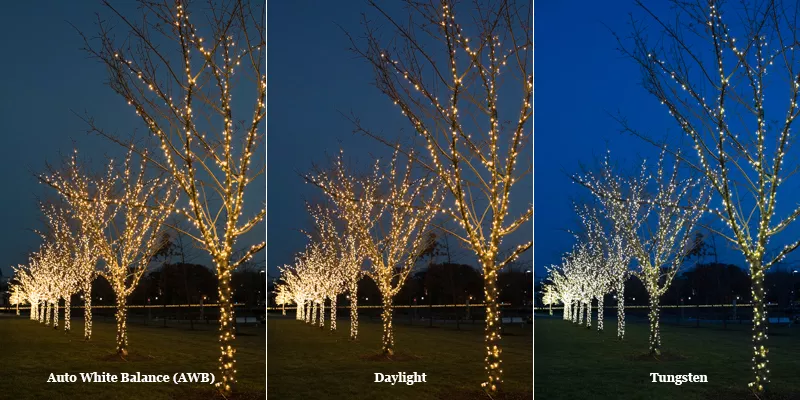
Our eyes and brain adapt quickly to different illumination. A white page can still feel white outdoors, under a warm lamp, or in shade. A camera records the color reaching it more literally and needs a reference for neutral color.
What white balance changes
White balance adjusts the relative red, green, and blue rendering so that neutral objects appear neutral under the chosen light. It primarily changes color, not the amount of light collected.
If a lamp makes a white object orange, the camera applies a cooler correction. If open shade makes it blue, the camera applies a warmer correction. White balance also affects skin, sky, foliage, products, and every other color because the correction applies across the image.
Color temperature in Kelvin
Light along the warm-to-cool axis is commonly described by correlated color temperature in kelvins, written K. Approximate examples include:
- 1,800–2,500K: candlelight and very warm household sources;
- 2,800–3,200K: tungsten or incandescent-style light;
- 4,000–5,000K: many mixed daylight and artificial conditions;
- 5,200–5,600K: midday daylight and electronic flash references; and
- 6,000–8,000K: cloudy light and open shade, which can appear cooler or bluer.
The terminology creates a famous contradiction: lower-temperature light often looks visually warmer or more orange, while higher-temperature shade looks visually cooler or bluer.
Why Kelvin settings seem backward
The number entered in the camera describes the light the camera should correct for, not the color it should add.
- Set a low value such as 3,000K and the camera adds a cool correction for warm light.
- Set a high value such as 7,000K and the camera adds a warm correction for cool light.
Therefore, increasing the camera's Kelvin value usually makes the photograph warmer; decreasing it makes the photograph cooler. This assumes a conventional still-camera Kelvin control—interface details can vary.
Auto White Balance
Auto White Balance, or AWB, analyzes the scene and chooses a neutral reference automatically. It works well for changing daylight, family photographs, travel, events, and many mixed scenes where no preset is obviously correct.
AWB can struggle when:
- the entire subject is one strong color;
- the frame contains no reliable neutral reference;
- warm candlelight should remain warm rather than be corrected;
- several light colors illuminate different parts of the scene; or
- a sequence needs exactly consistent color from frame to frame.
Some cameras offer AWB priorities such as preserving a warm ambience or favoring neutral whites. Check the manual for the exact behavior.
Daylight preset
Daylight applies a fixed correction around ordinary direct sun. It is useful when you want a daylight sequence to remain consistent even if the colors in the composition change.
Because it does not chase every frame, Daylight can preserve warm sunrise or sunset color better than an Auto mode that attempts to neutralize it. It will not adapt when you move into deep shade or artificial light.
Cloudy and Shade presets
Cloudy adds some warmth to compensate for cool overcast light. Shade generally adds stronger warmth for the blue cast of open sky shade.
These presets are also creative tools. Selecting Cloudy can gently warm skin or a landscape even when neutral correction is not required. Shade can make a sunset more amber, but it may push skin or indoor light too orange.
Tungsten or Incandescent preset
Tungsten applies a strong blue correction for warm incandescent-style illumination. Under an actual warm bulb, it can make whites more neutral. In daylight, it turns the scene distinctly blue.
Modern household LEDs vary widely and may not match a tungsten preset. They can also have green or magenta bias that a blue–amber temperature adjustment cannot fully correct.
Fluorescent and other artificial-light presets
Fluorescent sources do not all share one spectrum or color. Cameras may offer several fluorescent presets for warm white, cool white, day white, and daylight types. LEDs, discharge lamps, stage lighting, signs, and inexpensive fixtures can be equally variable.
Choose the preset that looks closest, fine-tune it, or make a custom measurement. If colors remain difficult, the source may have gaps in its spectrum that white balance cannot reconstruct.
Flash preset
The Flash preset is generally close to daylight but may add modest warmth. It assumes the flash is the dominant source. If ambient tungsten or fluorescent light also affects the subject, one fixed setting may not neutralize both.
Color-correction gels on the flash can make its color closer to the ambient source. You can then choose one white balance for the combined light.
Custom or preset manual white balance
A custom white balance measures a neutral white or gray reference under the actual light. The camera calculates a correction from that reading.
- Place a neutral target where the subject is, facing the relevant light.
- Fill the required area of the frame and expose it according to the camera instructions.
- Record or select the custom measurement.
- Use that preset while the lighting remains unchanged.
A custom reading improves repeatability for products, artwork, interviews, studio portraits, and events in stable artificial light. The target must receive the same light as the subject; measuring it from the camera position can be wrong if the light differs there.
Gray card versus white card
A neutral gray card is designed to be spectrally neutral and usually avoids clipping more easily than a bright white object. A proper white-balance card also works when exposed within the camera's accepted range.
Ordinary paper, clothing, walls, and plastic may contain optical brighteners or subtle dyes. They can serve as a rough reference but are not reliable for color-critical work.
White balance fine-tuning and tint
Color temperature describes mainly the blue–amber axis. Real lights can also shift along a green–magenta axis, commonly called tint. A fluorescent or LED source may require a magenta correction even when the Kelvin value looks right.
Many cameras provide a two-axis fine-tuning grid. Use it cautiously and remember to reset it; an unnoticed global fine-tune can contaminate every later preset.
Kelvin alone cannot correct every color cast. Temperature handles blue versus amber; tint handles green versus magenta, and poor-spectrum light may still reproduce some colors inaccurately.
Mixed lighting
Mixed lighting occurs when different-colored sources illuminate the same scene—for example, blue window light on one side of a face and a warm lamp on the other. One global setting can neutralize only one balance at a time.
Options include:
- turn off or block one source;
- gel a light so sources match;
- change subject position;
- let one source dominate;
- make separate local adjustments in editing; or
- keep the color contrast because it supports the scene.
AWB may find a pleasant average, but an average is not the same as correcting both sources.
White balance in RAW and JPEG
A RAW file stores sensor data plus the selected white balance as metadata and preview information. Compatible software can reinterpret temperature and tint later with wide flexibility.
A JPEG has already been demosaiced and color-processed using the camera's white balance. You can still adjust it, but strong corrections may cause color artifacts, banding, clipping, or degraded skin tones.
RAW flexibility is not an excuse to ignore color on location. A close starting point improves the preview, histogram interpretation, batch workflow, and communication with clients or collaborators.
White balance for video
Auto White Balance can change color during a continuous recording as composition or lighting changes. That visible drift is difficult to repair. For a planned video shot, set a fixed preset, Kelvin value, or custom balance and keep it locked until the lighting changes.
Repeat the custom balance when moving location, changing fixtures, adding a gel, or entering a different time of day. For multi-camera work, match cameras using the same target and verify them on a calibrated display.
Accurate versus creative color
Neutral white is not always the goal. Candlelight should often feel warm, shade can feel cool, and a blue hour should remain blue. Accurate color is essential for products, artwork, documentation, and consistent skin; expressive color is valid when mood is the priority.
The important distinction is intent. A deliberate warm image is different from an accidental orange cast that changes unpredictably between frames.
A practical setting workflow
- Start with AWB for changing light or general still photography.
- If color varies between similar frames, choose a fixed preset or Kelvin value.
- For stable and color-critical light, measure a custom white balance with a neutral target.
- Check skin, neutral objects, and known product colors—not only the overall mood.
- Watch for green–magenta bias and mixed-light regions.
- Lock the setting for video and repeatable sequences.
White balance does not change the exposure triangle, though channel corrections can affect clipping and the displayed RGB histogram. See How to Read a Camera Histogram when saturated light is involved.
Common white-balance mistakes
- Assuming the preset adds the named light color. It applies a correction for that light.
- Trying to fix mixed light with one Kelvin number. Change or separate the sources.
- Neutralizing all warm atmosphere. Accuracy and mood are different goals.
- Leaving AWB active during a video take. Color may drift visibly.
- Using random white paper for critical color. Use a neutral reference designed for measurement.
- Forgetting a fine-tune offset. Reset the tint grid after a special situation.
Sources and further reading
The preset behavior and creative uses were checked against Sony's official White Balance guide. Custom, Kelvin, and mixed-light examples were cross-checked with Nikon's Setting White Balance and Creative White Balance guides. The comparison image comes from Canon's official holiday-light tutorial.
Frequently Asked Questions
-
Start with Auto White Balance for general still photography. Use a fixed preset or Kelvin value for consistency, and a measured custom white balance when color accuracy under stable lighting is important.
-
The setting tells the camera what light color to correct. A high value describes cool, bluish light, so the camera adds a warmer correction. A low value describes warm light, so it adds blue.
-
Yes. RAW software can reinterpret temperature and tint with broad flexibility because the capture has not been committed to one finished color rendering. A close in-camera setting still improves previews and workflow.
-
AWB analyzes each frame. A different background, subject color, or light source can change its estimate even when the scene feels similar. Use a fixed preset, Kelvin value, or custom balance for consistency.
-
One global setting cannot fully neutralize two different light colors on the subject. Turn off or block one source, match them with gels, reposition the subject, let one dominate, or use local corrections in editing.