8 Best Camera for Zoom Meetings of 2026: Skip the 4K Hype

Find the best camera for Zoom meetings by focusing on autofocus stability, field of view, and compatibility — not inflated 4K claims.

Webcam listings lean hard on 4K and noise-cancelling mics, but on an actual Zoom call the framing and focus stability are what make you look professional. A 60° lens can feel like a close-up, while a 110° lens turns you into a distant figure in a fisheye room. Most meeting apps cap video at 1080p, so the resolution upgrade often shows up only in the price.

The meaningful choice in this category is between proven 1080p performance and a budget 4K upgrade. A 4K sensor can look crisp in good light, but if autofocus drifts or the camera isn't recognized by your OS, extra pixels won't save the call. The cameras that hold focus, frame your desk properly, and work with the platform you already use are the ones worth buying.

1

Best Overall

Logitech C920x

93 /100
Studio Score High Confidence

Key details

Setup
Plug-and-play
Focus Type
Auto focus
Microphone
Dual stereo mics
Compatibility
Windows, macOS
Check Price on Amazon

The C920x delivers crisp 1080p video at 30fps with a 78° field of view that frames a head-and-shoulders shot at a typical desk distance. For daily calls, this is the image quality that separates a webcam from a laptop's built-in camera: consistent exposure, neutral color, and enough detail in clothing and background text to look professional. The strength is the balance of sharpness and natural color across ordinary lighting conditions, not a single headline spec. It is not the sharpest webcam on the market, but it makes a plain office look presentable without extra lighting.

The dual stereo mics pick up a single speaker clearly from a normal desk distance, reducing the hollow sound that laptop mics can produce. The mounting clamp grips monitor bezels without sliding, and the camera body feels substantial enough to leave in place for months. No software tweaks are needed; the camera works as a standard UVC device on Windows, macOS, and Chromebooks. That cross-platform plug-and-play behavior matters more than a spec-sheet advantage if you switch between work laptops or operating systems. A separate USB microphone becomes optional rather than required for ordinary meetings.

This webcam is for the daily meeting participant who wants consistent video quality without a setup ritual. It suits a fixed desk position and a person who stays in frame for the duration of the call. If you need 4K or Windows Hello, the premium 4K option in this lineup is the better fit; this one keeps the meeting standard at 1080p. The lack of a privacy cover means you either turn the camera off between calls or add a clip-on cap. For a buyer focused on clear meeting video, these boundaries are easy to live with.

At mid-range pricing, this camera sits above entry-level webcams that compromise on color and below premium 4K models that add features you do not need for meetings. The tradeoff is that you are buying a 1080p standard rather than the latest spec, which is a reasonable exchange for predictable meeting behavior. A camera that delivers balanced color on every call is worth more than a higher resolution that meeting platforms compress anyway. For a home office or small workspace, this is the camera you can stop thinking about.

Pros

  • Crisp 1080p image with clear detail for professional-looking meetings.
  • Plug-and-play setup that Windows and Teams recognize in seconds.
  • Dual stereo mics capture a single speaker clearly without a separate mic.
  • Build quality feels substantial and holds up under daily use.

Cons

  • In dim light, autofocus can drift and blur the image until it re-engages.
  • Long-term consistency can vary between individual units.
Our verdict

If your workday lives inside a video-call app, the C920x is the camera that gets out of your way.

Check Latest Price
2

Premium 4K + Windows Hello

Logitech Brio 4K

89 /100
Studio Score Strong Evidence

Key details

Setup
Plug-and-play
Focus Type
Auto focus
Microphone
Dual omni mics
Compatibility
Windows, macOS
Check Price on Amazon

The Brio 4K stands apart from the 1080p meeting standard in this roundup by adding Windows Hello facial recognition, a 4K sensor, and three field-of-view presets (65°, 78°, 90°) that let you switch between a tight headshot and a wider desk view. In daily meetings, the 4K/1080p output looks crisp, and the flexible FOV is the main reason to pay more than a standard business webcam.

Setup is fast on Windows: clip it onto a monitor, plug in the USB cable, and standard conference apps recognize it. The dual omni mics capture clear speech for one or two people at a desk, which is enough for personal meetings but not for room-scale calls.

This is the right webcam for Windows professionals who already depend on Windows Hello and want 4K capture or adjustable framing without moving the camera. Mac users will need Logi Options+ or another utility to get consistent behavior; this is not a macOS model you can simply unbox and use. The privacy cover is attachable rather than built in, so keeping it on the lens when not in use is a small extra step. If broad OS compatibility is the priority, the less expensive 1080p workhorse in this lineup is the safer fit.

💡 For best Teams quality, run Logi Options+ once and confirm the camera is selected in Teams settings before relying on it.

Pros

  • Windows Hello facial login lets you sign in without typing a password.
  • 4K/1080p video looks sharp and clean for meeting video, with a 1080p/60 option for smoother motion.
  • Three FOV presets let you frame a tight headshot or a wider room view without moving the camera.
  • Clip-on setup takes minutes and works with standard conference apps on Windows.

Cons

  • Low-light or mixed-temperature rooms can produce occasional flicker.
  • Detection and driver quirks can appear with certain OS combinations, so it may not be plug-and-play on every setup.
Our verdict

The premium price makes sense only if Windows Hello and 4K framing are part of your daily workflow; otherwise the 1080p workhorse covers the same meeting needs for less.

Check Latest Price
3

Best 4K Value

EMEET C960 4K

90 /100
Studio Score High Confidence

Key details

Setup
Plug-and-play
Focus Type
PDAF auto focus
Microphone
Dual omni mics
Compatibility
Windows, macOS
Check Price on Amazon

The EMEET C960 4K pairs a 4K sensor and PDAF autofocus with a built-in privacy cover at a price that lands close to typical 1080p webcams. In Zoom, Teams, or Meet, the image is clearly sharper than the 1080p default in this set, with enough resolution for readable text and fine detail. At 4K, the extra detail also helps when sharing documents or showing physical notes. The 73-degree field of view frames a single person comfortably without pulling in too much desk or background.

Setup is plug-and-play on standard Windows and macOS builds, and the dual mics handle one-on-one calls without issue. The built-in privacy cover slides closed when the camera is idle, so no separate cap is needed.

This is the right fit for a home-office buyer who wants a genuine 4K upgrade and accepts that autofocus and mic performance vary between units, so QC is a consideration. It is not the pick for motion-heavy presenting or exotic hardware setups; the 1080p category leader offers more predictable behavior in those cases. For a fixed desk position, it delivers a true 4K image without forcing a premium-priced purchase.

💡 Switch the camera to 4K in your meeting app after setup, since the default output is 1080p.

Pros

  • 4K video with crisp detail and strong resolution in normal lighting.
  • PDAF autofocus and 4K at a price near typical 1080p models.
  • Plug-and-play setup on standard Windows and macOS systems.

Cons

  • Some uncommon laptop or desktop configurations may require a driver reinstall before the camera appears.
  • Autofocus may hunt or drift during motion-heavy calls or in dim lighting.
Our verdict

If your meetings happen from a fixed desk, the C960 provides a real 4K image without the usual 4K premium.

Check Latest Price
4

Best Budget Wide-Angle

NexiGo N60

88 /100
Studio Score Strong Evidence

Key details

Setup
Plug-and-play
Focus Type
Fixed focus
Microphone
Noise-cancelling mic
Compatibility
Windows
Check Price on Amazon

The NexiGo N60 brings a 110° field of view and plug-and-play USB-A setup to a budget webcam, which makes it a group-call specialist rather than a solo desk cam. The top pick in this set focuses on one face with dual mics; the N60 captures a full table or a teaching whiteboard without moving the camera. Connect it, open the meeting app, and the 1080p image shows up without driver installation.

Image quality holds up for everyday indoor calls at 1080p/30fps, and normal indoor light is enough to keep faces clear. The sliding privacy cover is a useful inclusion at this price, and the fixed focus avoids the autofocus hunt some autofocus webcams show. For a group around a table, the 110° lens captures everyone without much re-positioning.

This is the budget pick for families, classrooms, and shared tables where the priority is fitting everyone in frame. Shoppers who need polished webcam audio or consistent macOS/Teams detection should choose a different camera or pair the N60 with a dedicated mic, because mic quality and device recognition can be inconsistent in some setups. For casual group calls, the wide view and easy setup outweigh those boundaries.

💡 Position the N60 at eye level and give the group a few feet of space so the 110° lens frames everyone without extra wall.

Pros

  • Plug-and-play setup gets the 1080p image into meeting apps quickly.
  • Budget-friendly value with picture quality that routinely exceeds the price point.
  • 110° field of view fits several people around a table without re-framing.

Cons

  • Fixed focus handles faces at seating distance but blurs anything held close to the lens.
  • The wide 110° frame can make a solo user look small; group settings are where the lens pays off.
Our verdict

The N60 is the wide-frame budget camera for shared spaces; the top pick is the personal-meeting choice.

Check Latest Price
5

Best for Presenters

EMEET C60E Dual

88 /100
Studio Score Strong Evidence

Key details

Setup
Plug-and-play
Focus Type
PDAF auto focus
Microphone
Dual omni mics
Compatibility
PC, Mac
Check Price on Amazon

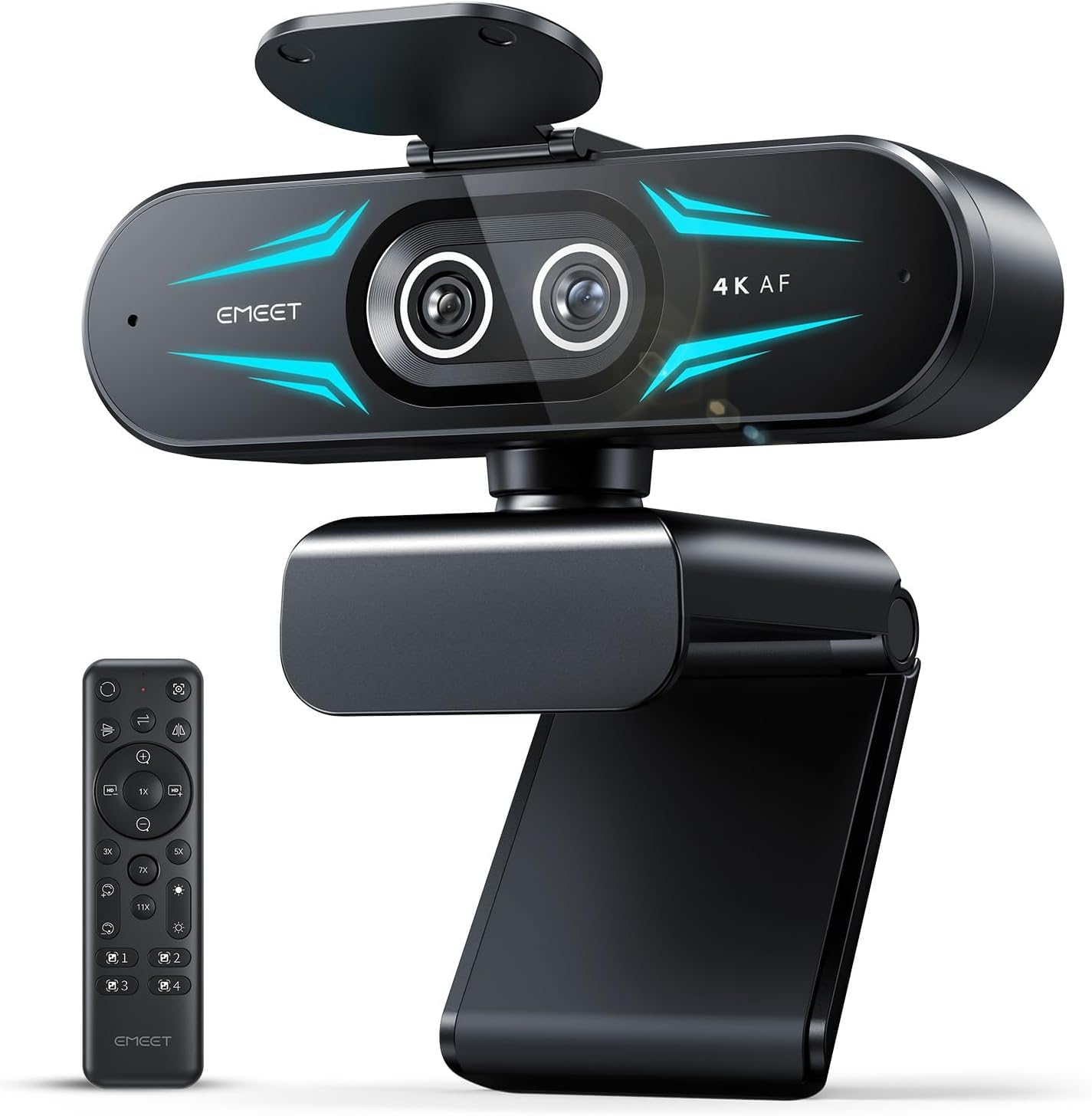
The C60E is the dual-camera contender here: two 4K sensors feed a 73° wide view and a telephoto lens, with an 11x hybrid zoom and a remote control for switching framing without touching the camera. That setup targets teaching, streaming, and product demos more than hands-off meetings.

Image clarity holds up at 4K/1080p, with PDAF autofocus keeping a face sharp when moving between wide and close-up shots. The camera mounts quickly, setup on PC and Mac is fast, and the remote controls zoom and color without reaching for the lens. That combination is the reason to choose this model over a single-lens webcam.

This is the pick for teachers, streamers, and presenters who need close-up and wide framing in one call, especially when the camera is mounted beyond arm's reach. The fixed 3X/5X/7X/11X zoom steps and possible bright-light overexposure are part of the package, so it is not for buyers who want continuous smooth zoom or a fully set-and-forget image. Simple plug-and-play users who never need telephoto will be better served by a single-lens webcam.

Pros

  • Two 4K cameras deliver clean, natural image quality across wide and telephoto framing.
  • Remote control adds practical zoom and color adjustments from across the room.
  • Quick setup on PC and Mac gets you into a meeting without driver hunting.
  • Mid-range price covers dual cameras, remote, and 4K output.

Cons

  • Bright rooms can overexpose highlights, and the image may need manual correction.
  • Live smooth zoom is not available; the camera jumps between fixed 3X/5X/7X/11X steps.
Our verdict

For presenters who need both a wide shot and a close-up in one session, the C60E's dual cameras and remote control make it the strongest match in this category.

Check Latest Price
6

Ultra-Budget First

Shcngqio TWC29

90 /100
Studio Score High Confidence

Key details

Setup
Plug-and-play
Focus Type
Fixed focus
Microphone
Noise-cancelling mic
Compatibility
Check Price on Amazon

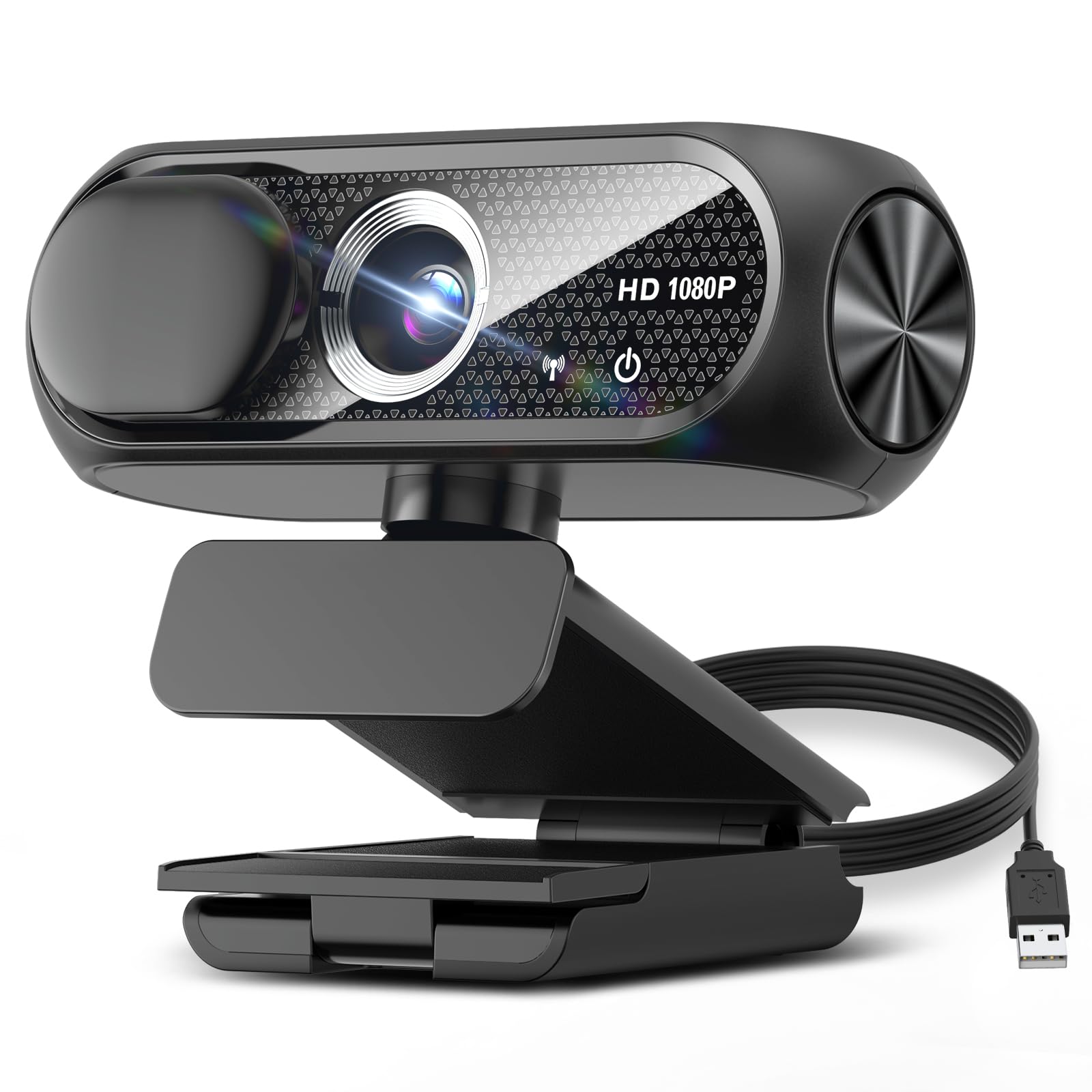
For a first webcam, this delivers the essentials: plug into USB-A, open Zoom or Meet, and the image is sharp enough for classroom and home-office calls. The built-in mic also picks up a normal speaking voice without extra setup. This is a fixed-focus, limited-control design, which is why it trails the adjustable webcams in this roundup. The wide-angle lens frames one person well at a desk, but don't expect to zoom, crop, or tune the exposure. At this budget, that simplicity is the point: it works the moment you plug it in.

Pros

  • Clear 1080p image quality at a price that makes this a low-risk first webcam.
  • Built-in microphone handles voice pickup for calls clearly without extra hardware.
  • Functional privacy cover means the camera can stay connected when not in use.

Cons

  • Close-up documents soften when held near the lens.
  • No software or field-of-view adjustment for framing.
Our verdict

For a student or casual Zoom user whose main needs are clear video, a usable mic, and minimal setup hassle, this is the low-cost fit.

Check Latest Price
7

USB-C 4K

AOC AC310

86 /100
Studio Score Strong Evidence

Key details

Setup
Plug-and-play
Focus Type
Auto focus
Microphone
Noise-cancelling mic
Compatibility
Check Price on Amazon

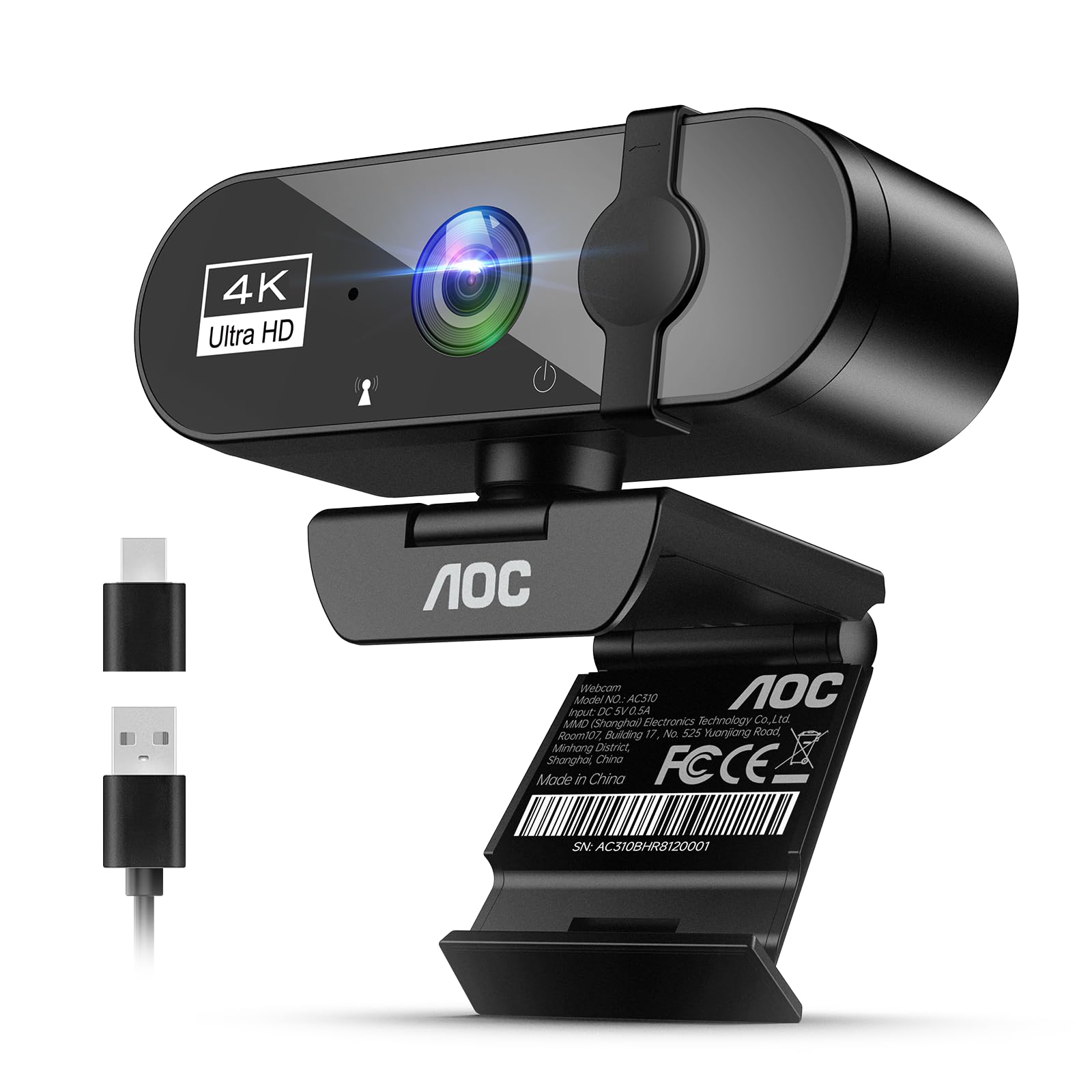
Claimed 4K capture, USB-C connectivity, and a 360° swivel put the AOC AC310 at the low end of 4K webcam pricing. It works instantly in common meeting apps, and the included USB-A adapter keeps older computers happy. In good lighting, the image is sharp enough for everyday calls. That makes it a tempting first 4K webcam for users who accept optical compromise. The wide field of view bends edges into a fisheye look that is hard to ignore on solo calls. There are questions about whether the 4K output is genuine, so treat the resolution as a bonus rather than the reason to buy. This is a budget experiment, not a guaranteed upgrade.

Pros

  • Sharp, clear image in good lighting for a budget camera.
  • Plug-and-play setup with no driver hunt.
  • Strong value for a first 4K webcam with USB-C and a swivel.

Cons

  • Dim or mixed lighting can introduce a color tint and soften fine detail.
  • Autofocus may not engage in every unit, leaving the image soft.
Our verdict

For a well-lit home office that values USB-C convenience and a flexible mount, this is a reasonable entry to 4K webcams.

Check Latest Price
8

Also Great

Insta360 Link 2 Pro

87 /100
Studio Score Strong Evidence
Check Price on Amazon

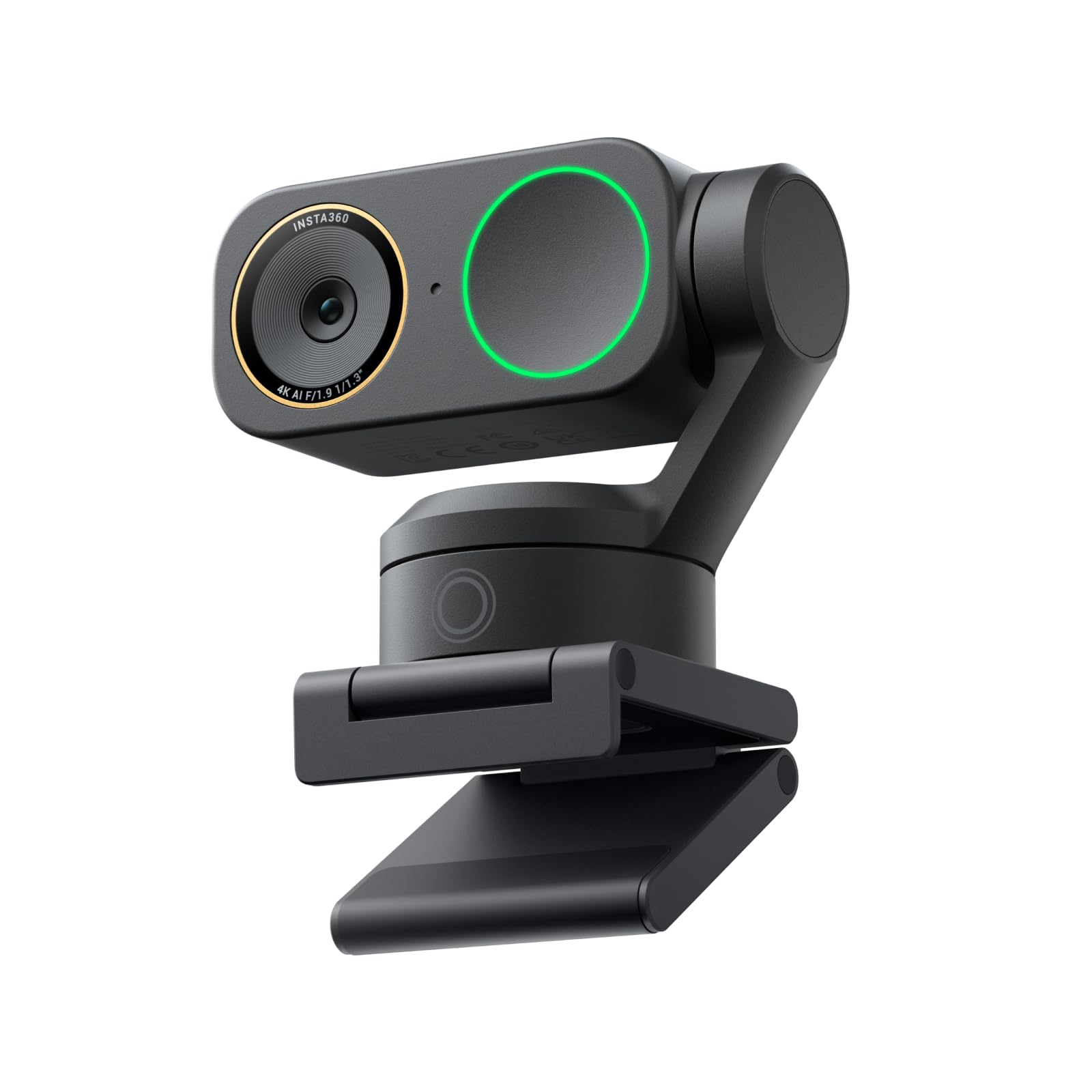
The Link 2 Pro pairs 4K video with AI-driven pan-tilt-zoom, so a presenter can move around the frame and stay centered without touching the camera. The large sensor produces a shallow-depth look close to a dedicated camera, which is the main reason to pay up for this over a fixed webcam. It is a luxury-priced niche option: OBS/TikTok Studio compatibility can be limited, and audio can lag when switching DeskView or camera modes. For standard Zoom meetings where you sit still, those boundaries make it a harder sell.

Pros

  • AI tracking follows your movement and keeps you centered hands-free.
  • 4K image is sharp and clear, with a large-sensor depth that reads almost like a dedicated camera.
  • Build and image quality land above typical desktop webcams.

Cons

  • Audio can fall out of sync when switching DeskView or camera modes.
  • OBS/TikTok Studio compatibility can be limited, so streaming workflows need a fallback.
Our verdict

Pick this specifically if you move around during Zoom calls and want the camera to follow you in 4K; seated callers can get the same meeting results for less.

Check Latest Price

How to Choose

Autofocus Stability

Autofocus decides whether you look sharp or soft. Most webcams use contrast-detection autofocus, which hunts when the scene lacks contrast or when you move; PDAF (phase-detection) locks on faster and handles motion better.

Fixed-focus lenses skip the mechanism entirely and stay sharp at one set distance. That makes them predictable for a static desk setup, but any time you lean in or shift, a fixed-focus camera can't compensate.

Field of View

Field of view controls how much of the room appears behind you. A 60° lens crops tight around your face, making a typical desk setup feel zoomed-in, while a 110° lens shows your full office and can add edge distortion.

For solo meetings, 70° to 80° frames your face and shoulders naturally. Wide lenses are better for group calls or teaching, but they make a single person look small and distant.

Microphone Quality

Webcam mics sit behind a small grille near the lens, so they capture keyboard clatter and room echo more than a dedicated desktop mic. 'Noise-cancelling' usually filters background hiss, not your voice quality.

If callers often ask you to repeat yourself, an external USB mic is a bigger upgrade than a new camera. Dual-mic webcams generally sound fuller than single-mic designs, but even those sound thin in large or echo-prone rooms.

Ease of Setup

Most webcams are UVC devices, meaning the operating system recognizes them without drivers. The catch is connectivity: USB-A-only cameras need an adapter on many modern laptops, and high-power models can drop out on unpowered hubs.

A camera that requires proprietary software for basic settings adds friction to the one thing you want from a meeting tool: joining a call quickly.

Platform Compatibility

A webcam can have excellent optics and still not show up in your meeting app. macOS permissions, Windows driver blocks, and Teams device recognition all behave differently, so a camera without explicit OS support becomes a troubleshooting project.

Check that the model supports the OS you actually use, and remember that features like Windows Hello need specific hardware and software paths that a generic webcam won't provide.

Frequently Asked Questions