8 Best Camera for Streaming in 2026: Stable 1080P60 Beats 4K Hype

Find the best camera for streaming by matching autofocus, field of view, and broadcast frame rate to the way you actually stream.

Most streamers shop by resolution and end up with a 4K label that never appears in the broadcast. Twitch, YouTube Live, and Zoom all top out at 1080p, and many webcams ship in 1080p by default anyway.

The more useful split is between a stable 1080p60 mode, autofocus that holds while you lean into a close-up, and a field of view that matches your desk. A camera that keeps focus during a product demo does more for a stream than a 4K sensor that drifts.

The right streaming camera matches its autofocus and field of view to the way you actually sit, stand, and present. That is why some streamers need AI tracking, others need a wide-angle lens, and some only need a dependable fixed-focus webcam.

1

Best Overall

EMEET S600 4K

88 /100
Studio Score Strong Evidence

Key details

Autofocus
PDAF
Resolution
4K30 / 1080P60
Microphones
Dual noise-canceling mics
Mount & Controls
Adjustable FOV, EMEETLINK
Check Price on Amazon

EMEET S600 delivers a strong streaming image at 1080p60, with 4K30 available for calls and uploads that need extra detail. The Sony 1/2.55-inch sensor and phase-detection autofocus keep motion clean during fast gameplay, and the adjustable 40°–73° field of view lets you switch between a tight face cam and a wider desk setup without moving the camera. At 1080p60, motion stays smooth during fast action; at 4K30, the extra resolution shows in product close-ups and talking-head videos.

Plugging it into a laptop or desktop gives a standard webcam connection, so OBS and common meeting apps recognize it without a driver install. The autofocus is quick to respond when you lean toward the camera or hold something up, and it does not cycle through a long focus search during a stream. In ordinary room light, the image stays bright and color remains natural, which is enough for starter streams without extra lighting.

Built-in dual noise-canceling mics pick up a clear voice at normal desk distance, so a starter stream can begin without an external microphone. The 40°–73° range at 1080p suits solo framing, while the 73° 4K mode pulls in more of the room when a second person joins. Those who already own a desktop mic will ignore the built-in pair, but newer streamers can start without buying extra audio gear.

Starter Twitch and YouTube streamers get the 1080p60 mode they actually broadcast at, and remote workers can use the same webcam for 4K video calls. The buyer in mind is comfortable selecting the 4K mode in EMEETLINK or OBS; someone who refuses to touch software settings or demands true 4K from the first second will find the S600 a poor match. For streamers who fit that profile, this is dual-purpose gear: a live-stream face cam and a work call camera in one.

The combination of 1080p60 and 4K30 at a budget price is rare in this group, and the S600 covers both a high frame rate for gameplay and a higher-resolution mode for calls or uploads. That makes it the strongest feature-per-dollar option for a streamer who wants one camera instead of two.

💡 Use EMEETLINK or OBS to pick the 4K mode for calls; the S600 otherwise runs as a standard plug-and-play webcam at lower resolution.

Pros

  • Strong streaming image with smooth color and clean detail at both 1080p60 and 4K30.
  • Works right out of the box with no driver install for OBS and meeting apps.
  • Autofocus is quick and holds onto movement, so leaning into frame stays sharp.
  • Overall performance is strong for both live streaming and daily calls.

Cons

  • 4K is not always the default output; 1440p or 1080p can appear until you switch modes in EMEETLINK or OBS.
Our verdict

If your stream setup already includes OBS and a quick video-mode check, the S600 is the camera to buy for one-camera live gaming and 4K calls.

Check Latest Price
2

Best AI Tracking PTZ

Insta360 Link 2 4K

91 /100
Studio Score High Confidence

Key details

Autofocus
PDAF
Resolution
4K30 HDR
Microphones
AI noise-canceling
Mount & Controls
PTZ gimbal, gesture control
Check Price on Amazon

The motorized gimbal sets the Link 2 apart from the static auto-framing webcams in this lineup. It follows a moving presenter smoothly, while 4K HDR and PDAF keep the frame sharp. Gesture control and DeskView round out a feature set aimed at solo production, not just conference calls. The AI tracking handles side-to-side movement without the soft edges that come from digital cropping.

Image quality is a clear step up from typical USB webcams, with the 1/2-inch sensor and PDAF autofocus holding detail in normal room light. The companion software makes switching between AI tracking, Whiteboard, and DeskView modes simple, so the camera adapts to a lecture or a product demo without reconfiguration. The AI noise-canceling mics also keep voice clear in a home office with a fan or keyboard noise.

This is for solo streamers and educators who move during a presentation and will use the tracking and gesture tools regularly. The premium price pays off in that workflow; fixed-desk-first callers and Windows Hello/ARM Windows users should adjust expectations and likely spend elsewhere. If you plan to sit still and rely on standard framing, the motorized hardware is extra cost and extra moving parts you may not need.

Pros

  • 4K HDR image quality with PDAF keeps faces sharp and natural in a range of room lighting.
  • The motorized gimbal follows movement smoothly, so a solo streamer can pace without losing framing.
  • Gesture control, DeskView, and Whiteboard modes give presenters hands-free command and flexible scene options.
  • Setup is simple, and the companion app makes mode switching intuitive.

Cons

  • The AI/PTZ system can lose its reference point and require manual re-centering after long sessions.
  • Occasional loss of video output or unresponsive behavior can occur.
Our verdict

For a solo streamer or educator who moves while presenting, the motorized tracking and gesture control make the premium worthwhile. Fixed-desk callers can save money with a static webcam.

Check Latest Price
3

Best Premium 4K for Creators

Logitech MX Brio

87 /100
Studio Score Strong Evidence

Key details

Autofocus
Auto focus
Resolution
4K30 / 1080P60
Microphones
Dual beamforming noise-reducing
Mount & Controls
USB-C, Show Mode, Logi Options+
Check Price on Amazon

Large-pixel 4K with 1080p60, USB-C, Show Mode, and Logi Options+ tuning puts the MX Brio in a different tier from the budget streaming pick. The sensor holds detail in dim rooms, and the manual exposure, white balance, and framing controls give streamers room to shape the image rather than accept a fixed look. Fixed-focus meeting cams in this set cannot follow that level of adjustment.

This works best for streamers and hybrid workers who will use Show Mode for desk sharing or who want to tune the image for a specific camera position. That means spending time in Logi Options+ to set exposure and color before a stream, not plug-and-play convenience. Windows Hello is not supported, and the mount is bulkier than the slim meeting webcam in this set, so desktop minimalists should weigh the footprint. The mount and adhesive can loosen over time, and the premium price only makes sense when you rely on the manual controls.

On a fixed desk with the clamp tension set correctly, the camera keeps its angle through long calls. Dual beamforming mics keep voice clean for meetings, while a dedicated microphone is still the better route for serious streams. Streamers who want smooth motion should run 1080p60; 4K30 is best for recorded content or controlled lighting.

💡 Set the clamp tension and adhesive on a clean surface at install, then check the angle after a few weeks.

Pros

  • Large-pixel 4K sensor delivers sharp, clean video with strong low-light handling for evening streams.
  • Logi Options+ puts exposure, white balance, and framing under your control rather than leaving the camera to guess.
  • USB-C and dual beamforming mics keep desk setup simple for hybrid workers.
  • Premium build holds up through daily calls and longer sessions without added fuss.

Cons

  • Monitor clamp and adhesive may loosen over time, so the camera can slump unless the mount is set firmly.
  • Premium price is steep for buyers who only need a basic face cam for occasional calls.
Our verdict

Use this when you will actually touch the software or Show Mode; casual callers can spend less and get a simpler camera.

Check Latest Price
4

Best Dual-Lens for Demos

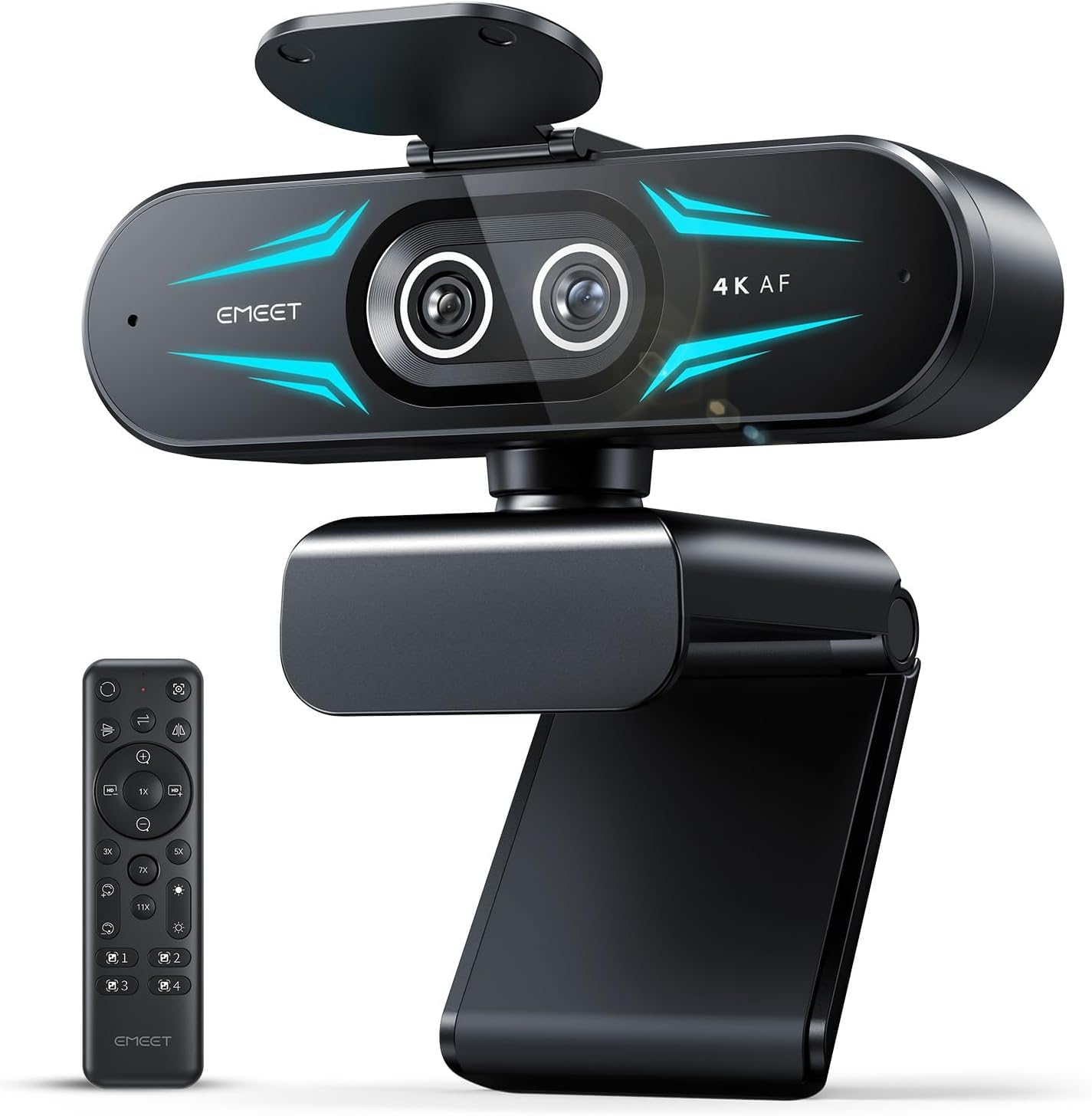
EMEET C60E Dual

88 /100
Studio Score Strong Evidence

Key details

Autofocus
Resolution
4K30 / 1080P60
Microphones
Dual omni mics
Mount & Controls
Remote + EMEET STUDIO
Check Price on Amazon

The C60E pairs a wide-angle lens with a telephoto lens sharing one sensor, so a single camera covers both a full desk and a close-up product shot. The bundled remote switches between the two views and walks through zoom presets, which is a practical fit for teaching and demo framing.

Product-demo streamers, online educators, and presenters who show physical objects on a call get the most from this layout. The wide view catches body language, while the telephoto view fills the frame with a board, document, or tool. The top pick in this set is the better conventional streaming webcam, but the C60E adds a second lens without asking for a second camera purchase. The zoom is limited to preset steps and low-light shots need extra lighting, so it suits scenes you can stage before going live.

The 4K output at 30fps keeps fine detail sharp and colors natural, which matters for printed text and product edges. 1080p60 is available for motion-heavy streams, and the two omni mics carry a single presenter clearly. Setup is plug-and-play; the camera appears as a standard USB device in OBS, Zoom, and similar apps.

Pros

  • Dual lenses deliver both a wide desk view and a close-up product frame without swapping cameras.
  • The remote lets you change zoom or lens view from across the desk.
  • Setup requires no driver hunting; plug it in and select it in your streaming app.
  • The overall build and output hold up for daily streaming and online lessons.

Cons

  • In dim rooms, the image can look grainy or lose highlight detail until you add lighting.
  • Zoom moves in fixed steps rather than continuous increments, so slow push-in shots are not possible.
Our verdict

For presenters who want wide and close-up shots from one camera, the C60E turns a single webcam into a two-shot demo setup without a second camera.

Check Latest Price
5

Best Budget 1080P for Meetings

Logitech Brio 101

89 /100
Studio Score Strong Evidence

Key details

Autofocus
Fixed focus
Resolution
1080P
Microphones
Mono mic
Mount & Controls
Tilt only, no swivel
Check Price on Amazon

The fixed 60° lens and plug-and-play setup make the Brio 101 a low-friction 1080p webcam for calls and starter streams. It frames one person cleanly at a normal desk distance, with no autofocus hunting or software setup to manage. These are the essentials without the tunable controls of the higher-priced Logitech 4K model.

On Teams and Zoom, the image holds up as a clean 1080p source, and the fixed focus avoids the autofocus drift that can distract on other budget cameras. The built-in mono mic carries a conference call, but a separate microphone is the better path for stream audio. There are no modes to switch or tuning apps to download, which is exactly the point for a meeting camera.

The Brio 101 fits home-office users, interview participants, and budget buyers who want a familiar brand without paying for features they won't use. The narrow FOV and limited tilt/swivel require careful placement, so set the camera at the right distance and angle before the call. If your setup needs a wide desk view or room for multiple people, a camera with an adjustable lens is the better fit.

💡 Position the camera about an arm's length away and set the tilt before the call; the fixed lens handles the rest.

Pros

  • Clear 1080p image that handles meetings and interviews well.
  • Plug-and-play setup on Windows and macOS.
  • Dependable everyday functionality for Teams, Zoom, and basic streaming.

Cons

  • Tilt adjusts up and down only, so side-to-side framing means moving the whole camera.
  • Fixed 60° lens frames one person but leaves no wide desk view or room for a group.
Our verdict

The Brio 101 is the budget-friendly Logitech option for solo calls and starter streams where the camera stays in one place.

Check Latest Price
6

Hybrid Workers

Insta360 Link 2C

89 /100
Studio Score Strong Evidence

Key details

Autofocus
PDAF
Resolution
4K HDR
Microphones
AI noise-canceling
Mount & Controls
Magnetic mount, auto framing
Check Price on Amazon

The Insta360 Link 2C puts 4K HDR, auto framing, and gesture control into a compact magnetic-mount body for hybrid workers and seated solo streamers. PDAF keeps focus steady, AI noise-canceling mics clean up calls, and setup is plug-and-play. The magnetic mount holds on standard monitor bezels, though some surfaces may not seat it securely. Software can be quirky when you dig into custom controls, so occasional menus may need a restart. What separates this from the Link 2 is the missing motorized PTZ: there is no gimbal movement, only digital auto framing. For seated creators who want 4K and AI convenience without paying for tracking hardware, this is the cost-effective pick; anyone who needs to physically track movement should move up to the Link 2.

Pros

  • 4K HDR video with PDAF autofocus keeps faces sharp in calls and streams.
  • Auto framing and gesture control work without a gimbal, so the body stays compact.
  • Plug-and-play setup with simple mounting gets it running quickly.

Cons

  • When digging into custom controls, the companion app may hang and need a restart.
  • On certain monitor bezels, the magnetic mount may not hold the camera securely.
Our verdict

For seated workers and streamers who want 4K auto framing without the cost of a motorized gimbal, the Link 2C is a sensible mid-range pick; if you need physical tracking during presentations, the Link 2 is the upgrade.

Check Latest Price
7

AI PTZ Streamers

OBSBOT Tiny 2 Lite

88 /100
Studio Score Strong Evidence

Key details

Autofocus
Autofocus
Resolution
4K30 / 1080P60
Microphones
Dual noise-canceling mics
Mount & Controls
PTZ tracking, gesture control
Check Price on Amazon

OBSBOT Tiny 2 Lite delivers 4K30 and 1080p60 with PTZ AI tracking, gesture control, and saved presets in a mid-range body, giving streamers a motorized camera move without a flagship price. The image is sharp and well-colored for a webcam, and the tracking keeps a moving presenter framed. For a solo streamer or content creator who wants camera motion, this is a practical entry into gimbal PTZ, though Windows Hello logins are not supported. It is not the safest choice for reliability-critical broadcasts: occasional software hiccups and gimbal behavior like drift or an uncontrolled spin can interrupt a paid stream. That places it below the more consistent premium PTZ model in this set for critical streams, while the value remains intact for casual and semi-pro use.

Pros

  • 4K image quality holds up for streaming, with sharp detail and natural color.
  • AI tracking and gesture control make hands-free camera moves possible for presenters who move.
  • Gimbal PTZ and saved presets deliver production value rarely seen at this price.

Cons

  • Software can become unstable during a session, which may require restarting the app or camera to restore tracking.
  • Gimbal stability can vary between units, with drift or an occasional spin noticeable in a live stream.
Our verdict

Solo streamers and educators who move during a presentation get the most value here, adding motorized framing without premium pricing.

Check Latest Price
8

Beginner Streamers

Angetube 862Pro

88 /100
Studio Score Strong Evidence

Key details

Autofocus
Auto
Resolution
1080P60
Microphones
Dual omni noise-canceling
Mount & Controls
Ring light, remote
Check Price on Amazon

At an entry-level price, the Angetube 862Pro pairs a crisp 1080p60 image with an integrated ring light and a physical remote, which makes it an appealing all-in-one starter kit for new streamers. The ring light adjusts to dim rooms, and setup is plug-and-play, so a beginner can get a clean look without extra lighting gear. The tradeoff is that the remote and zoom controls are convenience features, not core guarantees: the remote can be unresponsive, and the 5x zoom only engages below 1080p or in fixed steps. That keeps it below the more polished streaming cameras in this lineup, but it still makes sense for someone who wants one box with light, mic, and camera for their first live setup.

Pros

  • Crisp 1080p60 image with natural color for a budget-friendly streaming webcam.
  • Integrated ring light brightens dim rooms without extra lighting gear.
  • Plug-and-play setup with a physical remote at an entry-level price.

Cons

  • The 5x digital zoom only works below 1080p or in fixed steps, so zooming during a stream is limited.
  • The included remote can be unresponsive, so treat it as a convenience extra rather than a core control.
Our verdict

A sensible first webcam for beginner streamers who want an all-in-one light and remote package, as long as those extras are treated as bonuses rather than the main reason to buy.

Check Latest Price

How to Choose

Resolution and Frame Rate

Most platforms cap streams at 1080p, so a 4K webcam's extra pixels are downsampled or ignored. 1080p60 is the more useful target because it preserves motion smoothness for gaming, product moves, and hand gestures.

4K30 looks sharper only on local recording or platforms that carry 4K, but many webcams default to 1080p anyway. Set the expected mode before judging a camera.

Autofocus Type

Fixed-focus lenses are locked at a set distance, which makes them predictable for a person seated at a desk. PDAF autofocus uses phase-detection pixels to track movement, but on budget webcams that means more moving parts and a higher chance of focus drift over months of use.

If you stay in one seat, fixed focus is lower risk. If you lean in, stand up, or show objects, PDAF earns its cost.

Field of View and Zoom

A 60° lens puts your face at a comfortable distance but captures little desk. A 90° lens fits more into frame but can make your head smaller and pull in background.

Zoom flexibility acts as a workaround: optical or hybrid zoom is sharper than digital crop. For product demos, a dual-lens camera or PTZ camera saves you from leaning in and re-framing.

Microphone Quality

Built-in mics use small capsules and short spacing, so they capture your voice clearly only within a few feet. Noise-canceling algorithms help with hum, but they do not fix room echo or keyboard clatter at the same level as a dedicated mic.

Treat the webcam mic as a fallback for calls, not the audio backbone of a stream.

Mounting and Controls

A camera that tilts but does not swivel limits where you can put it; a magnetic mount trades security for convenience. Check whether the mount holds on your monitor and whether the software remembers your framing and zoom presets.

Privacy covers add a mechanical shield, which matters if the camera stays mounted. Software controls should let you set exposure, FOV, and zoom without opening a separate app every session.

Frequently Asked Questions