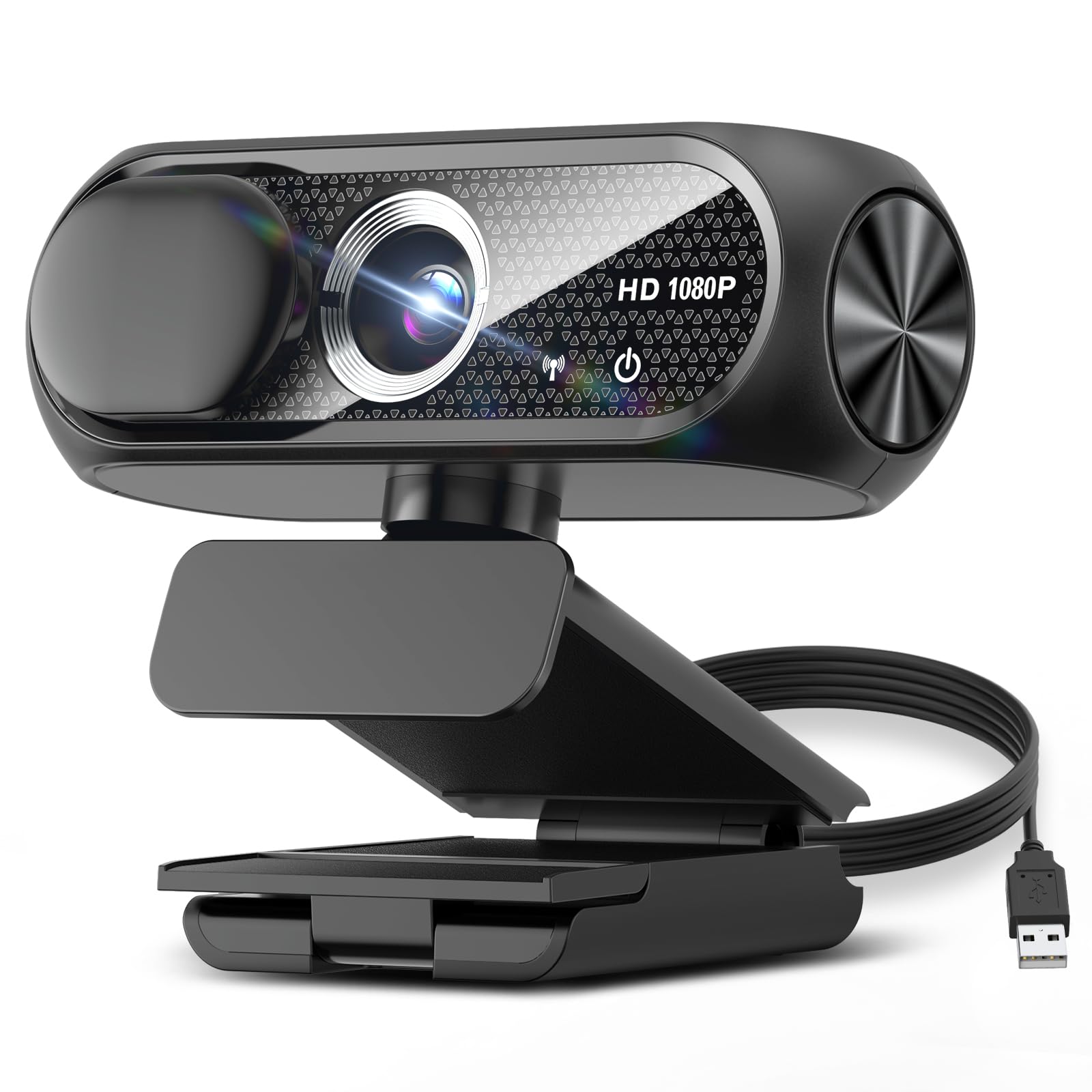
9 Best Conference Webcam in 2026: Picks That Match Your Room Size

The right conference webcam depends on your room, your platform, and your mic range. Find the match that actually works for your setup.

Most conference webcam listings lean heavily on 4K and AI buzzwords, but meeting quality comes down to a few physical realities: sensor quality, field of view, microphone pickup distance, and whether your meeting platform treats the camera well. A 4K sensor can still look soft in Teams if the app compresses the stream or the camera's autofocus hunts.

The real split is between desktop webcams and room systems. A solo user on a 60-degree fixed-lens webcam will feel cramped, while a small huddle room needs a wider lens or 360-degree coverage, plus a mic array that actually reaches the far side of the table. Buyers often pay for room-system features they don't need or pick a desktop camera for a space that needs proper audio pickup.

This guide sorts the category by what you are actually trying to cover: one person at a desk, a few people around a table, or a certified meeting room. Field of view, mic range, and platform compatibility matter more than the resolution number on the box.

1

Best Overall

Logitech C920x HD Pro

93 /100
Studio Score High Confidence

Key details

Certification
—
Field Of View
78°
All-in-One Audio
No
Video Resolution
1080p/30fps
Check Price on Amazon

The C920x delivers the core of a meeting camera: sharp 1080p/30fps video, automatic light correction, a 78-degree field of view that frames one person at a desk, and stereo mics that capture a solo voice cleanly. It plugs into a USB-A port and works immediately in Zoom, Teams, and Meet with no driver installation or app configuration. The glass lens keeps text and faces crisp, and the fixed angle avoids the fish-eye look of ultra-wide lenses. In a bright office or a dim room, the automatic correction adjusts enough that a separate light is not required for normal calls. Other desktop webcams are measured against this baseline, and it holds that position without leaning on AI tricks.

Across long calls, the camera holds a steady image and the mics pick up one voice clearly at a normal desk distance. The exposure adjusts as lighting changes, so a window behind you does not force you into a silhouette. Meeting software treats it as a standard device, which means switching between apps does not require a different driver or a settings reset. That ease of use is what keeps the C920x in place on desks that host back-to-back meetings.

This is the right webcam for home-office workers who spend hours in Zoom, Teams, or Meet and want a plug-and-play camera for a dedicated desk. It is also a fit for streamers who need steady 1080p at 30fps without the cost of a 4K camera. The fixed 78-degree FOV and the lack of Windows Hello facial login are the main boundaries; if you need to cover a large conference room or demand 4K, look at the wider-angle and premium options in this set. For a single person in a quiet room, the built-in mics are enough to be heard clearly, so the camera doubles as your complete audio setup.

The practical edge of the C920x is that it is boring in the best sense: predictable video, predictable audio, and no app to wrestle with. That predictability is why it remains the point of comparison for desktop webcams in this mid-range price tier. There is nothing to configure once the camera is on the monitor.

The camera's mid-range price also makes it a practical choice for equipping more than one desk without stretching the budget. It is not the cheapest option, but it carries fewer compromises than entry-level models, which is the balance a home-office buyer looking for a single webcam is after.

Pros

  • Clear 1080p/30fps video with a sharp glass lens and autofocus for crisp meeting images.
  • Plug-and-play over USB-A works with Windows, macOS, Zoom, Teams, and Meet.
  • Dual stereo mics capture a solo desk voice clearly without an extra microphone.
  • Automatic light correction adjusts for uneven room lighting, so faces stay visible.
  • A large installed base supports steady behavior in daily meeting use without setup surprises.

Cons

  • Autofocus can hunt or lock onto the wrong area when a hand or object passes close to the lens.
  • Long-term durability can vary between units; heavy daily use may require replacement after months.
Our verdict

For solo desk meetings, the C920x is the mainstream benchmark: fair-priced, easy to set up, and easy to live with.

Check Latest Price
2

Premium 4K Desktop

Logitech MX Brio

87 /100
Studio Score Strong Evidence

Key details

Certification
—
Field Of View
90°
All-in-One Audio
No
Video Resolution
4K30 / 1080p60
Check Price on Amazon

The MX Brio delivers the sharpest image Logitech offers in a personal desktop camera, with 4K at 30fps or 1080p at a steady 60fps over USB-C. The sensor stays clear in low light where compact webcams can turn grainy, and Logi Options+ adds manual exposure, white balance, and framing control.

Dual beamforming mics keep voice capture clear at a normal desk distance while cutting background noise, and the physical privacy shutter closes when the call ends. Show Mode rotates the frame when the camera tilts down at a desk, which is useful for presenters who share documents, sketches, or physical prototypes in meetings.

The premium price is overkill for casual calls — this camera rewards people who actively use the manual controls and Show Mode. Casual callers who just want a clear 1080p face for daily meetings can spend less on the mainstream Logitech desktop webcam without losing the meeting experience.

The bundled mount can loosen over time and may need extra stabilization on a monitor that gets repositioned — a fixed desk avoids the issue. This is also a desktop webcam, not a room camera; a group seated around a table needs a wider conference device.

Pros

  • Solid build quality that holds up through long workdays and streaming sessions.
  • 4K30 or steady 1080p60, with strong low-light handling that keeps faces clear in dim rooms.
  • Logi Options+ provides manual exposure, white balance, and framing controls for fine-tuning.
  • Dual beamforming mics capture clear speech at desk distance while reducing background noise.

Cons

  • Windows Hello sign-in is not supported, so a Windows PC needs a separate camera for face login.
  • Mount can loosen over time and the included adhesive may weaken, so a repositioned monitor may need extra stabilization.
Our verdict

The MX Brio is an upgrade path for presenters, not a first webcam — the extra spend makes sense when manual control and Show Mode are part of the daily routine.

Check Latest Price
3

Best Budget 1080P

EMEET C960

88 /100
Studio Score Strong Evidence

Key details

Certification
—
Field Of View
90°
All-in-One Audio
No
Video Resolution
1080p
Check Price on Amazon

The C960 is a budget desktop webcam that pairs clear 1080p video with a 90-degree field of view, so a single desk setup shows more than just your face. Dual omnidirectional mics handle close-range speech, and the low price keeps it comfortably in entry-level territory. The physical privacy cover and bundled USB-A-to-C adapter add practical extras without pushing the cost up.

In typical indoor lighting, the image stays bright and neutral, and the fixed-focus lens keeps a single presenter sharp within its published range. The body feels solid for a budget camera, and setup is plug-and-play through the attached USB-A cable or the included adapter. Meeting software picks it up as a standard USB camera, so there is no utility to install before a call. On a tripod, the standard mount holds position without slipping.

This suits budget home-office users, students, and teachers on Windows or macOS who want a wider desktop frame without paying for a streamer camera. The 90-degree lens is a clear step up from the 78-degree view of the mainstream benchmark, and the dual mics are adequate for close-range calls. Microphone consistency can vary between units, and a default-device reselection may be needed in the meeting app after the first plug-in.

Pros

  • Image comes across bright and clear in typical indoor lighting.
  • Build quality feels solid for the price, with a secure mount on monitors or tripods.
  • Setup is plug-and-play over USB-A or USB-C with no driver installation.
  • Dual mics capture close-range speech clearly enough for one-on-one calls.

Cons

  • No Chrome OS support, so Chromebook users need an alternate camera.
  • No integrated speaker, so all-in-one setups require separate audio output.
Our verdict

The C960 is the wider-framed budget alternative for solo callers on Windows or macOS who already have a speaker or headset; it keeps meeting video clear without pushing past entry-level pricing.

Check Latest Price
4

Best AI Auto-Framing for Small Rooms

WYRESTORM Focus 210

81 /100
Studio Score Strong Evidence

Key details

Certification
—
Field Of View
120°
All-in-One Audio
No
Video Resolution
4K
Check Price on Amazon

With a 120-degree lens, 4K output, dual noise-cancelling mics, and AI auto-framing that follows presenters, this camera moves small conference rooms into AI-framed territory at a mid-range price. Plug-and-play USB works with Zoom, Teams, and Webex without special drivers. In mixed or dim lighting, the sensor keeps faces visible and skin tones natural - the behavior that matters more than the 4K label.

The auto-framing is the practical highlight. In a small conference setup, the camera widens when someone joins and tracks the active speaker, so nobody has to lean into frame or manually swing the lens. Low-light performance holds up in window-lit rooms, and the dual mics cover voices around a small table without the hollow echo of a laptop's built-in mic.

This is aimed at hybrid teams and small conference rooms that want 4K and AI framing without enterprise-system pricing. Supporting software and documentation are minimal, so it suits teams that would rather not depend on deep configuration tools.

The durability record for sustained multi-year use is less established than the top pick's desktop webcams; mission-critical installations may prefer that more established line. For the price, though, this gets closer to purpose-built meeting-room hardware than a typical desktop webcam, and it is the stronger fit when the room - not just one person - needs to be seen.

Pros

  • Produces sharp, well-lit 4K video in dim conference rooms without extra lighting.
  • Auto-framing and presenter tracking keep group shots composed in small rooms.
  • Strong 4K AI feature set at a mid-range price.

Cons

  • Companion app omits resolution and frame-rate controls, so users accept the camera's default output.
Our verdict

For small hybrid rooms with a mid-range budget, this is the affordable route to AI framing and 4K without enterprise-room pricing.

Check Latest Price
5

Best Budget 360-Degree

j5create JVCU360

85 /100
Studio Score Strong Evidence

Key details

Certification
—
Field Of View
360°
All-in-One Audio
No
Video Resolution
1080p/30fps
Check Price on Amazon

The j5create JVCU360 delivers 360-degree coverage at a budget-friendly price, with six display modes and USB plug-and-play setup. It can fill the frame with everyone around the table, split the view by participant, or zoom to the active speaker without a separate control unit. The UVC connection means it behaves like a normal webcam in Zoom, Teams, Meet, and other meeting apps, so setup is a matter of plugging in and selecting it in the call settings.

This is the practical fit for small hybrid meetings and travel-ready huddle rooms where a handful of people sit close and the goal is making sure all of them appear on screen. Teams watching their budget get 360-degree capability without paying for a premium conference system, but buyers who need pixel-level image quality or a mic that covers a large room should look elsewhere. The tradeoffs stay contained when the group is close to the unit, which is the intended use.

The six display modes add flexibility a fixed wide-angle webcam cannot match, and the compact body packs easily into a laptop bag for off-site meetings. It is a practical second camera for a huddle room or a primary camera for a small meeting space where the alternative is a single desk webcam pointed at one end of the table. For a small table, this solves the visibility problem that a single desk camera leaves unresolved.

💡 Center the camera on the table and keep the group close enough for the omnidirectional mic to pick everyone up.

Pros

  • Strong performance relative to its price keeps calls usable without spending a lot.
  • One of the least expensive ways to add 360-degree conference coverage to a room.
  • Everyone seated around the table appears in frame without repositioning the camera.
  • Plug-and-play setup gets the camera recognized by meeting software without drivers.

Cons

  • The 360 image can look soft or blurry compared with a dedicated 1080p webcam.
  • Microphone pickup can be limited beyond a few feet and may sound boomy in larger rooms.
Our verdict

The JVCU360 turns a small table into a shared video frame without a big budget or a setup lift.

Check Latest Price
6

Best Portable All-In-One

NUROUM C10

81 /100
Studio Score Strong Evidence

Key details

Certification
—
Field Of View
90°
All-in-One Audio
Mic + speaker
Video Resolution
1080p/30fps
Check Price on Amazon

NUROUM C10 puts a 90-degree 1080p camera, four-microphone array, and speaker into a compact bar that fits in a work bag. The AI-framed option in this roundup adds tracking features, but the C10's strength is its single USB connection, touch controls, and status ring that shows mute state at a glance.

Video is sharp at 1080p/30fps, with a 90-degree lens that covers two or three people around a small table. The 4-mic array holds clear speech within about ten feet, and the built-in speaker carries a small room; plugging in a headset routes audio around the room when privacy matters.

This fits Mac and PC users who want one USB device for a focus room, home office, or small huddle space. The fixed 90-degree field cannot be zoomed or narrowed, so a solo worker with a busy background will see more than a narrow desktop webcam would show. Groups get the benefit of that wider frame.

USB-C and USB-A adapters let the same bar move from a laptop bag to a shared meeting PC without a dock. The touch buttons on top handle mute and volume, and the compact size keeps the setup low-profile on a table.

Pros

  • Single USB cable carries camera, microphones, and speaker on Mac and PC; no separate audio interface is needed.
  • Four mics and a built-in speaker handle small-room audio without extra gear.
  • 1080p video at 30fps is sharp enough for client calls and small group meetings.
  • The all-in-one design costs less than buying a camera, microphone, and speaker separately.

Cons

  • Video resolution stops at 1080p; buyers set on 4K should look at a different model.
  • In a larger meeting space, the 10-foot mic pickup and built-in speaker run out of reach; a small huddle room is their natural range.
Our verdict

For a small room that needs camera, mic, and speaker without a permanent install, the C10 is the practical match.

Check Latest Price
7

Ultra-Budget Solo

Shcngqio TWC29

90 /100
Studio Score High Confidence

Key details

Certification
—
Field Of View
—
All-in-One Audio
No
Video Resolution
1080p
Check Price on Amazon

With a noise-reducing mic and slide-out privacy cover, the Shcngqio TWC29 delivers clear 1080p video for a single participant at a very low price. It connects over plug-and-play USB, and automatic light correction keeps your face visible without manual tweaks. That plug-and-play behavior carries across the major meeting apps, so setup is limited to picking the camera in settings. The gap to higher-tier meeting cameras is an audio one: there is no all-in-one speaker and mic array for a room, so this webcam is best seen as a solo-call tool rather than a group-conference hub.

Pros

  • Clear 1080p image quality for solo calls
  • Noise-reducing mic handles close-range conversations well
  • Slide-style privacy cover protects the lens when a call ends

Cons

  • No software controls for image adjustments; automatic settings govern the picture.
  • Framing and mic pickup suit one desk position, not a table of participants.
Our verdict

If your video meetings are always one person at a desk, the TWC29 is a budget-friendly way to get the call done.

Check Latest Price
8

Certified Room System

Yealink UVC34

80 /100
Studio Score Strong Evidence

Key details

Certification
Teams, Zoom
Field Of View
120°
All-in-One Audio
No
Video Resolution
4K 8MP
Check Price on Amazon

The Yealink UVC34 brings Microsoft Teams and Zoom room certification, an 8-mic array with 5-meter voice pickup, 4K video, auto framing, and an electric privacy shutter. For a huddle room where the IT team wants predictable meeting-platform behavior, that package matters. Small rooms get by with simpler equipment, so the enterprise certification only earns its keep when the organization standardizes on Teams or Zoom rooms. Setup friction can come from a confusing quick-start guide, and vendor support documentation may not fill the gap. Solo desktop users will find the 120-degree lens oversized for a single person.

Pros

  • Teams and Zoom room certification removes guesswork for organizations on standard meeting platforms.
  • Eight-mic array captures speech around a huddle table up to five meters away.
  • Electric privacy shutter gives a visible off-state in meeting rooms.

Cons

  • The 4K image can look soft on large displays, so the 4K label overstates pixel-level sharpness.
  • The premium price assumes an enterprise budget that small huddle rooms may not have.
Our verdict

Choose this only for certified Teams or Zoom huddle rooms where the 5-meter pickup and electric shutter are in play.

Check Latest Price
9

Round-Table Huddle Room

TOUCAN SC360

81 /100
Studio Score Strong Evidence

Key details

Certification
—
Field Of View
360°
All-in-One Audio
Mic + speaker
Video Resolution
1080p
Check Price on Amazon

The TOUCAN SC360 packs a 360-degree camera, four noise-reduction mics, a built-in speaker, and AI speaker tracking into one USB plug-and-play device. It fits round-table huddle rooms where everyone has to be visible on Teams or Zoom; 1080p keeps meeting video clean, and the mic pickup covers voices around the table. The built-in speaker has modest max volume, so noisy or large rooms will need an external speaker. It also costs more than the budget 360 alternative, making it a niche investment for buyers who prioritize full-room video and AI tracking. If you expect 4K sharpness, this is not that camera, but for standard hybrid meetings the 360 coverage and table-side audio are the features that matter.

Pros

  • One USB device covers the whole round-table room with 360-degree video, speaker, and AI tracking.
  • 1080p output keeps faces sharp during hybrid meetings without needing a dedicated camera operator.
  • The four-mic array picks up voices around the table, so remote participants can follow side conversations.

Cons

  • For pixel-peepers, 1080p resolution won't match the detail of a 4K camera.
  • In a large or noisy room, the built-in speaker's max volume can be too modest to carry the meeting.
Our verdict

For a round-table huddle room that needs full 360 visibility and AI tracking, this premium hub is the right match — provided noisier spaces have an external speaker nearby.

Check Latest Price

How to Choose

Video Resolution

A 4K label does not guarantee a sharp Teams image. Many meeting apps cap streaming resolution at 720p or 1080p depending on network conditions and the app's bandwidth policy, so the sensor's real-world light handling and autofocus matter more than whether the camera can output 4K.

If you plan to zoom in post-processing or record for content creation, 4K gives you useful cropping headroom. If your goal is everyday meetings on Zoom, Teams, or Meet, a proven 1080p sensor with strong low-light correction usually looks cleaner than a less mature 4K sensor that gets compressed downstream.

Field of View

Field of view determines how much of the room the sensor actually captures. A 60-degree lens frames a single person well but feels 'too zoomed in' on many desks, while a 90-degree lens covers one person with some desk context or two people sitting close together.

For group spaces, look for 100 to 120 degrees if you need to capture a whole table from a fixed tripod position. The trade-off is that a wider lens makes each face smaller and can introduce barrel distortion at the edges, so the right choice depends on whether you are framing one person or four.

Microphone Pickup

Microphone pickup distance is the most common hidden trade-off in this category. A desktop webcam with dual mics is fine when you sit two to three feet away, but pickup weakens sharply beyond about six to eight feet, especially in rooms with hard surfaces that create echo.

For huddle rooms and conference tables, look for a dedicated mic array with a stated pickup range of ten feet or more, or an all-in-one speakerphone design. The physical reason is that multiple mics with beamforming can steer pickup toward the active speaker, whereas a single small mic captures everything in the room with less separation.

All-in-One Audio

An all-in-one conference camera combines the webcam, microphone array, and speaker into a single USB device. That is a major convenience for small rooms because it removes the need to sync a separate Bluetooth speakerphone and manage another charger.

The trade-off is physics: a small enclosure cannot move as much air as a dedicated conference speaker, so maximum volume is often modest. If your room is larger than a typical huddle space or has high background noise, a separate speakerphone or external mic will outperform the built-in speaker.

Certification

Platform certification means the camera has been validated by Microsoft Teams or Zoom to work predictably with their room software, including firmware updates and echo cancellation behavior. For a solo desktop webcam, certification is not necessary because plug-and-play UVC support handles the basics.

For a permanent conference room installation, certification reduces the risk of weird audio routing, camera disconnects, or firmware conflicts during software updates. Skip certification if you value flexibility and portability, but treat it as an insurance policy for mission-critical meeting spaces.

Frequently Asked Questions