5 Best Sublimation Printers of 2026: Match Your Craft or Production Volume

Find the right dye-sublimation printer for mugs, tumblers, and T-shirts without overpaying for production features you may never use.

A sublimation printer only does one job, but it does it through a process that surprises most first-time buyers: the colors print muted and hazy on paper, and only emerge vibrant after heat press. That makes the printer choice less about resolution numbers and more about whether the ink system, printhead, and software can deliver consistent transfers over time.

The market splits between factory-built dye-sublimation machines with genuine OEM inks and converted general-purpose printers that ship with sublimation ink bundled in. Converted designs can produce good first prints, but the long-term questions are reliability and color predictability. Dedicated machines cost more upfront and usually lock you into the manufacturer's ink, which is why matching the printer to your actual output volume matters as much as matching colors.

This guide separates desktop craft machines from wide-format production units, and explains which specs actually drive transfer quality, which connectivity claims need closer inspection, and where your money is best spent.

1

Best Overall

Epson SureColor F170

88 /100
Studio Score Strong Evidence

Key details

Software
Epson driver
Max Media
8.5" wide sheets
Ink System
OEM Epson sublimation
Connectivity
Wi-Fi, USB, Ethernet
Check Price on Amazon

Epson's F170 is a factory-built dye-sublimation printer, not a converted general-purpose inkjet. Its dedicated dye-sub engine uses genuine Epson sublimation ink, so the output path is built for heat-transfer work from the first print. That difference shows up in clean, consistent transfers on mugs and T-shirts: solid fills land evenly, and small text stays legible without the banding or washed-out color that can come from repurposed hardware.

The 150-sheet input tray takes standard 8.5-inch transfer paper, and the included OEM ink cartridges install in about twenty minutes. The 5760 x 1440 optimized dpi engine gives fine text and small logos room to breathe, while the 150-sheet capacity lets you run several mug or tumbler projects before reloading. Setup avoids the ink-priming loops that all-in-one conversions can require, so you can reach the first test print without extra software or firmware tweaks.

Windows and Mac users who need a compact, dedicated heat-transfer printer have a clear match here. No AirPrint or direct iPad/iPhone printing is part of the deal, so an iPad-only workspace should look elsewhere. Wi-Fi setup can be fiddly for some users, so Ethernet is the more stable option if wireless drops are a problem. The 8.5-inch sheet size fits mug, tumbler, and apparel blanks without the extra cost of wide-format machinery, and the printer's footprint stays small enough for a dedicated craft corner.

A full set of OEM Epson sublimation ink comes in the box, which removes the first supply purchase and keeps operating costs below premium desktop rivals. The F170 stops at 8.5-inch sheets, so roll-fed production belongs on a larger unit. That boundary keeps the purchase price and floor space in line with a desktop craft operation, making the mid-range price easier to justify than a wide-format machine you'd rarely fill.

Pros

  • Factory-built dye-sub engine from Epson sidesteps the conversion compromises found in repurposed all-in-ones.
  • Included OEM ink cartridges cover the first projects and simplify the setup process.
  • Transfers on mugs and shirts come out sharp and vibrant with the right sublimation paper.
  • Dedicated dye-sub output handles tumblers, T-shirts, and heat-transfer blanks with minimal fuss.
  • 150-sheet paper tray supports longer sessions without reloading mid-project.

Cons

  • Exact brand colors aren't guaranteed at first print; a custom ICC profile is needed for color-critical work.
Our verdict

For Windows/Mac craft studios working on 8.5-inch blanks, the F170 is the desktop dye-sub tool to beat: OEM ink included, clean output, and a compact footprint.

Check Latest Price
2

Best App-Driven Craft Pick

Brother SP-1

86 /100
Studio Score Strong Evidence

Key details

Software
Artspira app
Max Media
8.5" x 11"
Ink System
Brother Genuine dye-sub
Connectivity
Wi-Fi, USB, Ethernet
Check Price on Amazon

Brother's SP-1 pairs a true dye-sublimation engine with the Artspira app, which carries built-in designs and project templates aimed at first-time transfer makers. The box also includes starter quantities of genuine Brother sublimation ink and paper, so a new owner can go from unboxing to a first mug or T-shirt transfer without a separate consumables order. Wi-Fi, USB, and Ethernet connectivity round out a package that feels more like a creative kit than a bare printer, and the bundled approach lowers the first-project learning curve.

The SP-1 turns out high-definition transfers with clean color saturation on coated blanks, and day-to-day operation stays quiet even during longer sessions. Mug and shirt transfers come out with crisp edges, and the 1440 x 1440 dpi printhead handles fine text well when the design is prepared in the correct color space. The 100-sheet tray keeps small batch projects moving without constant refills.

Buyers who like a guided app and want to avoid setting up a full graphics program will find the SP-1 a cost-effective mid-range option. The Artspira templates cover common blank sizes, so the guesswork of positioning a transfer onto a mug or T-shirt is largely handled by the app. If a project relies on a particular teal or blue, plan to create an ICC profile instead of trusting the default output to preserve exact brand colors.

Pros

  • Dependable day-to-day output with quiet operation suits a home crafting space.
  • High-definition transfer prints deliver clean results on mugs and T-shirts without banding.
  • Setup is quick enough for a first-time sublimation user to be printing shortly after unboxing.
  • Bundled starter ink, paper, and Artspira templates reduce the number of purchases before the first transfer.

Cons

  • The Artspira app syncs to the cloud between prints, adding a short pause to multi-transfer sessions.
  • Black-line output can be inconsistent in some units, which matters most for line-art transfers.
Our verdict

For a hobbyist who values guided design over batch speed, the SP-1 delivers a dedicated sublimation workflow with the consumables to get started immediately.

Check Latest Price
3

Best for Wide-Format Production

Epson SureColor F570 24"

83 /100
Studio Score Strong Evidence

Key details

Software
Edge Print Pro
Max Media
24" rolls and sheets
Ink System
Epson T49M OEM ink
Connectivity
Wireless, USB, Ethernet
Check Price on Amazon

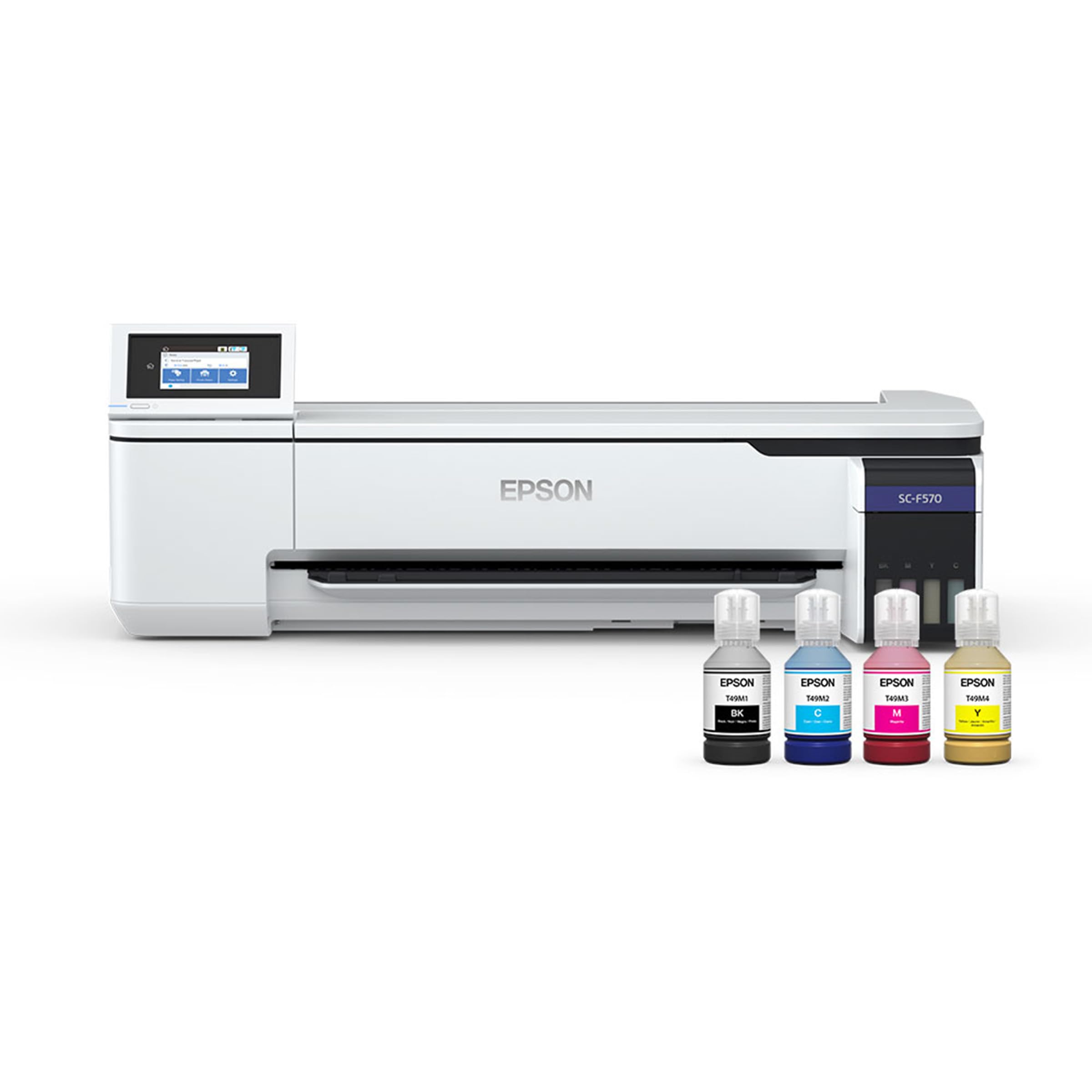
The SureColor F570 is a 24-inch roll-fed dye-sublimation printer with a built-in cutter and Epson Edge Print Pro at the center of the workflow. Wide-format work like jersey backings, banners, or multi-up T-shirt layouts runs in one pass rather than as tiled sheets.

The 50-sheet auto feeder accepts cut sheets alongside roll media, and wireless, USB, and Ethernet connections fit a production shop's network. T49M OEM ink is paired to the printhead, so color starts from a dye-sub baseline instead of a converted printer's guess.

This is for apparel decorators and growing small businesses that already have volume to fill 24-inch transfer runs. It is not the entry point for first-time sublimation users or crafters without floor space; freight delivery, a permanent bench, and a higher operating budget assume a dedicated production area.

💡 Create a saved Edge Print Pro preset for each transfer paper type, since color output follows the matching ICC profile.

Pros

  • 24-inch roll-fed output with built-in cutter makes wide-format transfers and multi-up layouts a single-pass job.
  • Epson Edge Print Pro accepts PostScript 3 and PDF files, so large transfer art doesn't require a separate RIP.
  • T49M OEM dye-sub ink is paired to the printhead, giving a consistent color path from cartridge to transfer.
  • 50-sheet auto feeder and roll media coexist, so banners, jersey backings, and test prints share one setup.

Cons

  • Single mug or tumbler transfers don't use the full 24-inch roll width; batch layouts make the format pay.
  • Epson Edge Print Pro's color management assumes ICC profile experience, so first-time sublimation users face a learning curve before predictable hues.
Our verdict

An apparel shop printing transfers in batches will get the wide-format benefit this machine is built around; the compact desktop route is the lower-commitment alternative.

Check Latest Price
4

Promo Product Sellers

Sawgrass SG500

78 /100
Studio Score Established

Key details

Software
MySawgrass platform
Max Media
8.5" x 14"
Ink System
SubliJet UHD ink
Connectivity
Wi-Fi, USB
Check Price on Amazon

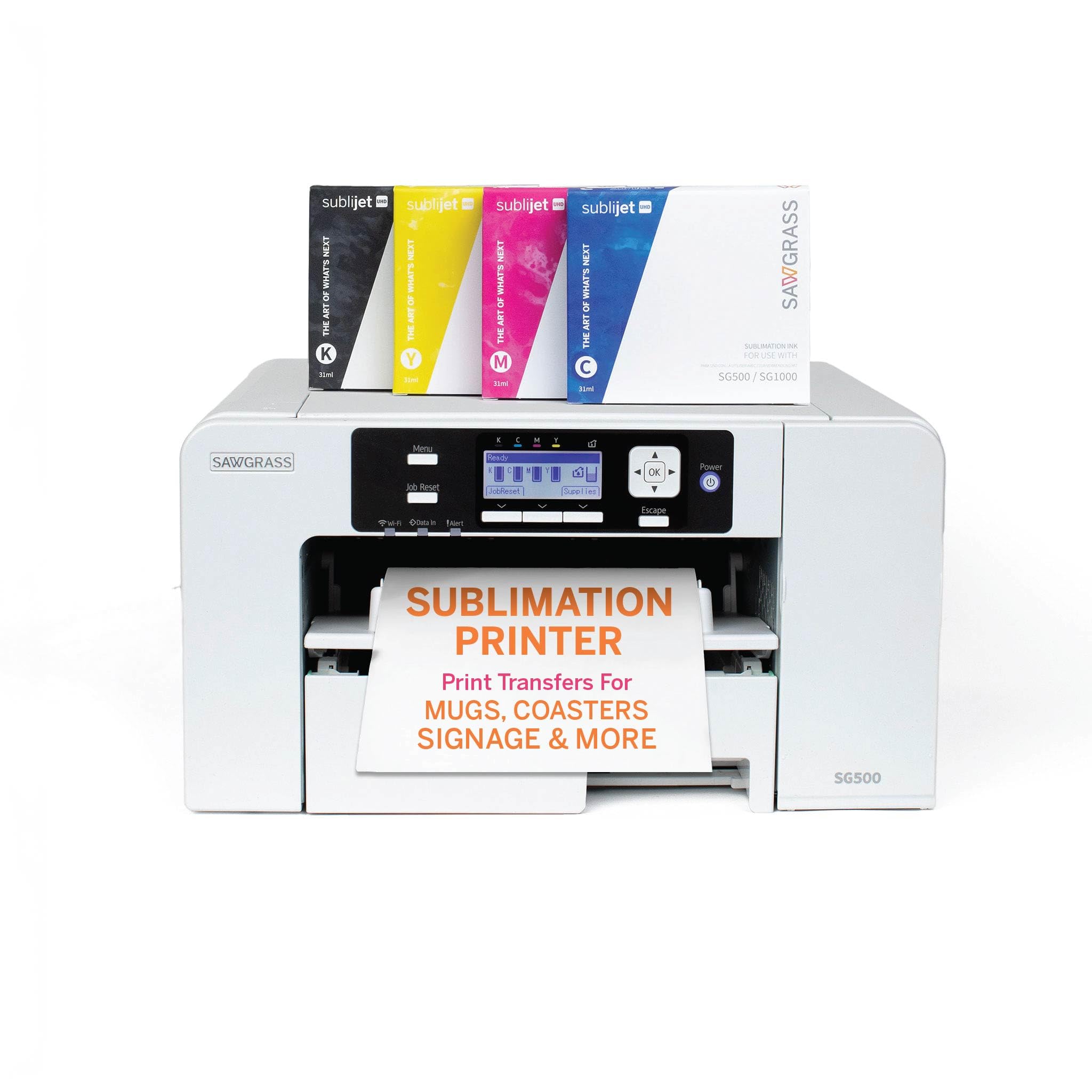
The Sawgrass SG500 pairs the MySawgrass template library, SubliJet UHD inks, and a starter ink/paper bundle into one desktop dye-sublimation workflow. That makes it a natural fit for small-business owners and promotional product sellers printing mugs, drinkware, signs, and T-shirt transfers at desktop scale.

The added cost over the Epson and Brother leaders pays for the software environment and Sawgrass brand, not necessarily a more capable print engine. That makes the MySawgrass workflow the purchase driver, so buyers who design outside that ecosystem should weigh the value before committing. SubliJet UHD ink costs also shape the long-term budget; check them before you buy. Budget hobbyists who do not need the template suite will get more for less elsewhere.

Pros

  • MySawgrass template library and design tools shorten the setup path for branded mugs, drinkware, and transfer sheets.
  • Wi-Fi and USB let you place the printer where the shop layout allows, not just next to the computer.

Cons

  • The 8.5-inch desktop width rules out roll-fed production jobs, so wide-format work belongs on a larger machine.
  • The starter bundle's 31 mL ink supply covers early practice but gets used up quickly in paid production.
Our verdict

For a promotional product seller working within an 8.5-inch desktop format and planning to build the shop around the MySawgrass template library, the SG500 fits.

Check Latest Price
5

Budget Hobbyists

Pinckney Super-Tank Sub Bundle

80 /100
Studio Score Strong Evidence

Key details

Software
Epson driver
Max Media
8.5" x 11"
Ink System
Sublimation ink bundle
Connectivity
Wi-Fi, USB 2.0
Check Price on Amazon

The lowest-cost entry into sublimation printing, the Pinckney bundle pairs an all-in-one print/scan/copy base with a full set of sublimation ink, so first-time mug and T-shirt makers can start without a separate printer or starter kit. The hardware is a converted general-purpose tank printer, not a factory-built dye-sub machine. That distinction matters: converted designs can show printhead clogging, banding, or inconsistent black-ink delivery, and line quality can vary between units. Buyers comfortable with troubleshooting—cleaning cycles, nozzle checks, profile tweaks—will find a low-commitment way to test sublimation before investing in a purpose-built model. Anyone needing consistent output for customer orders should look instead at the factory-built dedicated option in this set.

Pros

  • Single-box bundle includes the printer base and sublimation ink, so the first transfer project needs no extra components.
  • Print, scan, and copy functions keep the unit useful outside transfer work, reducing the cost of entry.

Cons

  • Visible banding can appear on large solid-color transfers, which limits full-bleed mug wraps.
  • Printhead and ink-flow behavior can vary between units; clogging or inconsistent black-ink delivery may need deeper troubleshooting.
Our verdict

The right call for a hobbyist who wants to test mug or T-shirt sublimation on a small budget and is ready to troubleshoot; anyone producing transfer items for sale should skip the converted design and step up to the factory-built dedicated printer.

Check Latest Price

How to Choose

Factory Dye-Sub vs Converted Design

Dye-sublimation printers are not modified versions of everyday inkjets; they are built with dedicated ink delivery, printhead tuning, and often a sealed one-way ink path that keeps the special low-viscosity sublimation ink flowing cleanly. Converted tank printers work by putting dye-sub ink into a general-purpose cartridge or tank system, which can cause settling, air locks, or printhead clogging over time because the hardware was engineered for a different ink chemistry.

A factory-built unit is the safer long-term investment if you plan to sell items or run batches. If you are still testing whether sublimation fits your hobby, a converted bundle is cheaper to enter, but budget for troubleshooting time and a possible upgrade path.

Max Media Size

Most desktop sublimation printers cap out at 8.5 inches wide, which covers standard mugs, tumblers, and T-shirt transfers. Going wider requires moving to a 24-inch roll-fed machine, and that changes your entire workflow: you gain the ability to print full banners, jerseys, or 12-up layouts, but you also need floor or strong bench space and a much larger upfront investment.

Ask yourself whether your transfer blanks are all under 8.5 inches width. Unless you are producing apparel or signage in volume, a desktop format is easier to justify, and the per-print ink cost differences are less significant than the initial hardware gap.

Printhead Reliability

The printhead is the part that actually meters the cyan, magenta, yellow, and black dye onto the transfer paper. The pain emerges when nozzles partially clog and leave visible banding or missing lines that no cleaning cycle clears. Dye-sub ink is more prone to drying and crystallization in the nozzle than standard ink, and printers with a robust automated head maintenance system keep the ink flowing in between projects.

For crafters who print only a few transfers per month, head cleaning and occasional nozzle checks become part of the workflow. For daily production, a machine with a self-contained ink pack and built-in maintenance cycle, like those in the professional tier, reduces downtime and wasted paper.

Ink Cost and OEM Availability

Dye-sublimation printers usually have low base prices and high ink running costs. Aftermarket or third-party ink is cheaper, but unsupported non-OEM inks can settle differently, shift colors, or leave a sticky residue that accelerates printhead failure. OEM dye-sub ink is designed for the specific printhead thermistor and color profile, so the predictable color and lower maintenance cost justify the price for business use.

A hobbyist printing occasional mugs may find OEM ink expense manageable. A small business printing hundreds of transfers should calculate per-ml cost before buying, because the difference between Sawgrass and Epson ink prices is more significant than the difference in a one-time printer coupon.

Software and Workflow

Sublimation requires more than a standard print dialog: ICC profiles, mirrored prints, and density adjustments matter, and every manufacturer handles them differently. A guided app like Brother's Artspira is a real advantage for first-time users, but only if you are comfortable using a cloud-enabled app and having your design sync between devices. Epson's professional desktop driver is more direct, while Sawgrass sells its MySawgrass ecosystem as a complete template library.

The downside is that many entry-level users never open the advanced color settings, and then wonder why colors shift. If you enjoy tweaking curve values in an ICC profile, a Windows/Mac driver gives you more control. If you want a pack of ready-made templates and a designed project flow, the app-driven route gets you to a finished transfer faster.

Frequently Asked Questions