8 Best Mouse for Photo and Video Editing of 2026: Feel and Fit

The best mouse for photo and video editing depends on wheel feel, button layout, and grip angle — not just DPI numbers. Match the tool to how you work.

Mouse listings lead with DPI numbers, but the specs that actually shape an editing session are the scroll wheel, button layout, and grip angle. A high sensor count only matters if the wheel responds when you scrub a timeline and the buttons sit where your thumb can find them.

The main choice comes down to horizontal versus vertical ergonomics. Standard-shaped mice offer more buttons and smoother horizontal scrolling; angled vertical grips provide wrist relief but usually ask you to give up macro controls. That trade-off matters more than brand or price.

For photo and video work, decide which strain you are solving first. If your forearm complains after long culls, an ergonomic shape wins. If you are fine comfort-wise but tired of reaching for keyboard shortcuts, programmability and scroll feel will do more for your workflow.

1

Best Overall for Photo & Video Editing

Logitech MX Master 3S

88 /100
Studio Score Strong Evidence

Key details

Scroll Feel
Quiet MagSpeed wheel
Connectivity
Bluetooth only
Ergonomic Form
Horizontal, right-handed
Sensor Precision
8000 DPI
Check Price on Amazon

The MX Master 3S opens with a quiet MagSpeed wheel that shifts from free-spinning to detented clicks, which is the difference between scanning a long timeline and stepping frame by frame. The 8K DPI optical sensor tracks evenly across surfaces, and the horizontal shell keeps your hand in a neutral palm position without demanding a vertical grip. That combination makes this a natural fit for editors who spend long stretches in Lightroom or Premiere, and it stays out of the gaming-peripheral territory that prioritizes flash over cursor precision. It is not a trackball or a dedicated editing controller; it stays in the cursor lane, which is exactly what a photo editor needs.

The seven buttons sit close enough to the thumb and index resting points that you don't have to stretch for them. Logi Options+ assigns custom actions per application, so a brush-size shortcut in Lightroom can become a ripple-delete shortcut in Premiere without changing profiles manually. The thumb wheel adds horizontal scrolling, which is useful for wide timelines. For editors who work in one app for hours, this kind of customization removes menu-hunting between adjustments. A dedicated editing controller can speed up repetitive shortcuts, but it will not replace cursor control; the 3S covers both roles in one device.

This is built for photo and video editors who work in a horizontal grip, use multiple computers, and can rely on Bluetooth alone. The Bluetooth-only package omits the USB receiver, so a desk that requires a dongle will not work with the 3S. If you specifically need a vertical handshake grip, this is not that mouse; the Lift-style models in this roundup cover that need with a different hand position.

Battery life is rated up to 70 days on a full charge, and the USB-C port tops it off quickly when a full charge runs low. The mid-range price makes sense once you map your editing shortcuts; left at default settings, you are paying for control depth you have not tapped yet. Multi-device pairing handles a Mac and a PC without a receiver swap, which is useful if you edit on two machines. A full charge lasts beyond a typical work week, so the cable can stay in a drawer between charges.

Pros

  • Quiet MagSpeed wheel handles both fast timeline scrubs and precise frame-by-frame control.
  • Seven programmable buttons plus per-app profiles put editing shortcuts in thumb range.
  • Long battery life with quick USB-C recharge keeps charging stops infrequent.
  • Ergonomic horizontal shape supports extended sessions for editors who don't need a vertical handshake.

Cons

  • The box includes no charging cable, so an existing USB-C cable or charger is required.
  • Bluetooth can lapse momentarily in certain desk setups, which interrupts long editing sessions.
Our verdict

For editors with Bluetooth-friendly desks, the 3S is the horizontal pointer with the quietest scroll and deepest per-app shortcuts in this comparison.

Check Latest Price
2

Best Vertical Ergonomic for Wrist Relief

Logitech Lift Vertical

89 /100
Studio Score Strong Evidence

Key details

Scroll Feel
SmartWheel, quiet clicks
Connectivity
Bluetooth LE + Bolt receiver
Ergonomic Form
57° vertical, small-medium hands
Sensor Precision
4000 DPI
Check Price on Amazon

The Lift's 57° handshake grip is the main reason to choose it over the horizontal flagship in this set: your forearm stays in a neutral position during long timeline work. Six buttons cover basic editing shortcuts, and the quiet SmartWheel makes long selects less noisy. The 4000 DPI sensor is adequate for fine retouching, so the emphasis is on wrist comfort rather than chasing sensitivity specs. Photo and video editing rarely demands a higher tracking ceiling, but it does demand a shape that doesn't add fatigue.

This is the pick for editors who notice wrist or forearm strain after hours of photo retouching or video assembly but still want a normal cursor tool. It runs on one AA battery instead of a built-in rechargeable cell, and the shell can feel large for smaller hands, so check those preferences before buying. If you already know a vertical grip works for you, this is a straight swap into your existing editing setup.

The handshake angle takes a day or two to feel natural, but once it clicks, the buttons and scroll action fade into the background during long editing blocks. Bluetooth LE and the bundled Logi Bolt receiver give you both direct and dongle connection options, which makes desk setup flexible. The soft click sound is a small relief in shared studio spaces during deadline pushes.

💡 Give the vertical angle a couple of full workdays before judging the grip.

Pros

  • The 57° vertical grip reduces wrist and forearm strain during extended editing sessions.
  • Quiet clicks and smooth SmartWheel scrolling suit long selects without adding noise to a shared space.
  • Build quality holds up under daily creative work.

Cons

  • No horizontal scrolling option and a six-button layout that limits macro-heavy editing workflows.
  • Bluetooth connections can drop occasionally, particularly on MacBook Pro setups.
Our verdict

Choose the Lift when wrist relief matters more than button count; it delivers the ergonomics without asking you to abandon a cursor-driven editing workflow.

Check Latest Price
3

Best Budget Side-Scroll Mouse

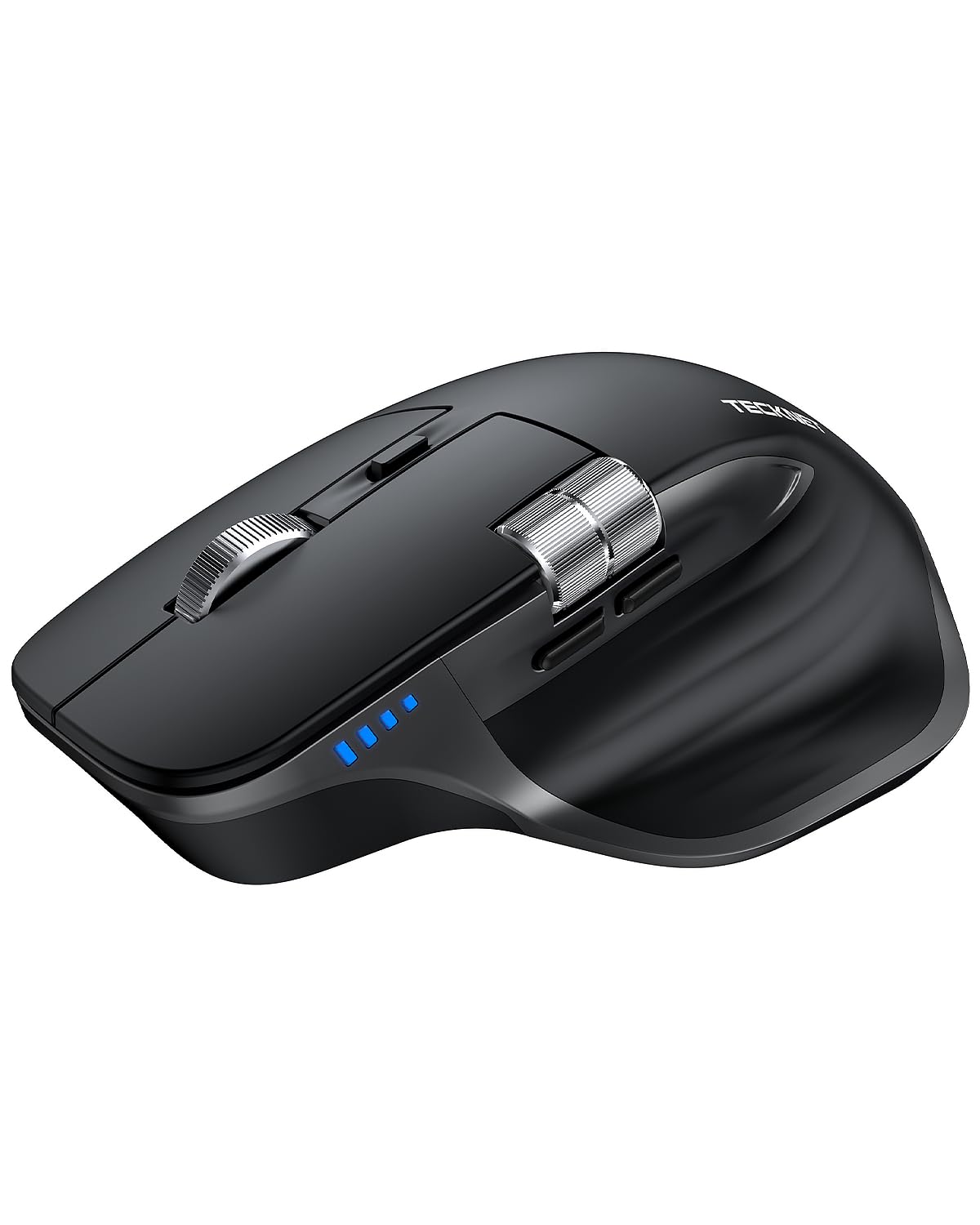
TECKNET Side Scroll Mouse

91 /100
Studio Score High Confidence

Key details

Scroll Feel
Metal wheel + side scroll
Connectivity
Bluetooth 5.3 + 2.4GHz USB
Ergonomic Form
Horizontal, right-handed
Sensor Precision
4800 DPI
Check Price on Amazon

The TECKNET is a conventional horizontal mouse with a thumb-operated side scroll wheel, so timeline and spreadsheet work can sweep sideways without holding Shift or clicking the scrollbar. Bluetooth 5.3/5.0 and a 2.4GHz USB-A receiver handle up to three paired devices, which suits a mixed desktop, laptop, and tablet setup.

The rechargeable battery holds for roughly three months between charges, so recharging doesn't become a daily interruption. The 4800 DPI sensor tracks cleanly on high-resolution displays, and the side wheel sits close enough to the thumb that horizontal scrolling in a video timeline feels like part of the natural grip. The comfortable shape and solid build make long editing sessions easier on the hand.

This is for Windows and ChromeOS editors who want an affordable side-scroll mouse for horizontal navigation plus multi-device flexibility. Mac users should note that the side buttons are unsupported, so side-button navigation won't work; editors who need per-app shortcut mapping will also hit the non-programmable button limit. In that sense, the TECKNET is a targeted tool for editors who spend more time scrubbing than mapping keys.

💡 Keep the 2.4GHz receiver in your primary machine and use Bluetooth for secondary devices to get the most out of three-device switching.

Pros

  • Side scroll wheel moves timelines and spreadsheets horizontally without modifier keys.
  • Rechargeable battery lasts about three months between charges, cutting battery waste.
  • Comfortable shape and build quality hold up over long editing sessions.
  • Three-device Bluetooth and 2.4GHz switching simplifies working across PC, laptop, and tablet.

Cons

  • After idle periods, the first cursor movement can feel delayed until the mouse wakes.
  • Build consistency can vary between units, with occasional cursor quirks possible.
Our verdict

For Windows and ChromeOS editors whose main need is horizontal navigation across timelines and spreadsheets, this rechargeable side-scroll mouse is the budget-friendly desk companion.

Check Latest Price
4

Best Multi-Device with USB-A/C Receiver

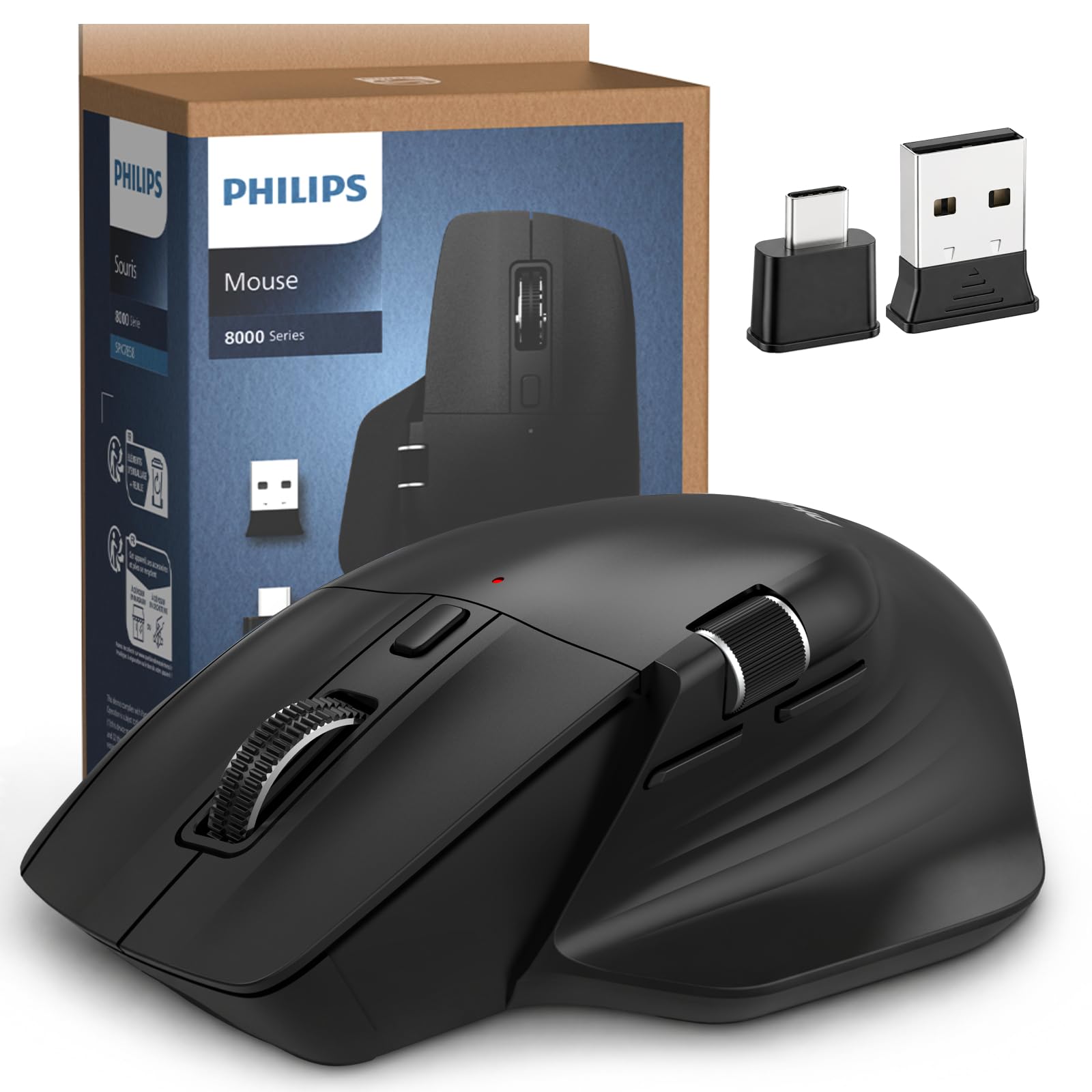
Philips Ergonomic Mouse

89 /100
Studio Score Strong Evidence

Key details

Scroll Feel
Main + thumb horizontal scroll
Connectivity
Bluetooth + USB-A/C receiver
Ergonomic Form
Horizontal, right-handed
Sensor Precision
4000 DPI
Check Price on Amazon

Philips puts the practical part of an editing mouse first: a USB-A/C receiver that fits almost any port, Bluetooth for quick device switching, and a thumb wheel for horizontal timelines. The 4000 DPI sensor covers extended photo and video work without the bulk of a gaming mouse, and the rechargeable battery is rated around 25 days between charges.

This is for the right-handed editor who splits time between Mac and PC and wants side-scroll plus a receiver that fits either port. The right-handed shell limits some editing shortcuts for left-hand users, but quiet clicks and a comfortable shape make long sessions easier.

The main wheel and thumb wheel handle scrubbing and timeline navigation with less strain than a standard two-button mouse, and software-based macro mapping covers common editing commands without requiring a separate controller. Photo editors can bind Lightroom or Capture One adjustments to the side buttons and keep the thumb wheel for horizontal timeline scrub.

Multi-device switching is straightforward: keep Bluetooth paired to a laptop, plug the USB-A/C receiver into a desktop, and switch with the connection button. That setup works for editors who use one mouse across a workstation and a travel laptop.

💡 Assign the thumb wheel to horizontal timelines and keep the side buttons for your top two editing shortcuts.

Pros

  • Comfortable, well-made shell at a mid-range price
  • USB-A/C receiver plus Bluetooth simplifies Mac/PC and multi-device switching
  • Quiet clicks and a thumb wheel reduce strain during long editing sessions

Cons

  • Five-button layout leaves less room for macro-heavy editing than premium multi-button mice
  • Fine cursor micro-adjustments can feel less smooth for precise retouching in some cases
Our verdict

Editors who split time between Mac and PC and want side-scroll plus receiver flexibility without moving up to a flagship priced higher should put this Philips on the shortlist.

Check Latest Price
5

Best Budget Programmable Bluetooth Mouse

Lenovo Yoga Pro Mouse

87 /100
Studio Score Strong Evidence

Key details

Scroll Feel
2-way metal wheel
Connectivity
Bluetooth 5.1 dual-host
Ergonomic Form
Symmetrical with thumb rest
Sensor Precision
4000 DPI
Check Price on Amazon

Six programmable buttons, 4000 DPI tracking, and dual-host Bluetooth 5.1 come together in a quiet, full-sized shell at a budget price. That combination sets it apart from budget horizontal mice that skip programmability, while the quiet switches keep click noise low enough for shared editing spaces. For editors who move between a work laptop and a personal desktop, the dual-host pairing is the headline convenience.

The full-sized symmetrical shape with thumb rest is a welcome middle ground between compact travel mice and vertical ergonomic models. Tracking resolution gives editors enough cursor speed for large monitors while retaining fine control at lower settings. The USB-C battery lasts an estimated two to three months between charges, and the six-button layout lets you map side controls to standard editing shortcuts, so the mouse carries more of the workload during long culling and color sessions.

This is the right budget pick for Lenovo or Windows users doing photo and video editing on a Bluetooth-only desk. It's not for buyers who need a 2.4GHz dongle, horizontal scrolling, or a USB-C charging cable in the box; the smooth metal scroll wheel also feels too free for frame-by-frame trimming. Within those boundaries, it remains a sensible choice when the budget won't stretch to a flagship.

Pros

  • Six programmable buttons and 4000 DPI tracking cover standard editing shortcuts at a budget price.
  • Full-sized symmetrical shape with thumb rest supports long sessions without a vertical grip.
  • Dual-host Bluetooth pairs with two devices and switches without re-pairing.
  • Quiet clicks keep shared workspaces and late-night edits distraction-free.

Cons

  • With wireless audio streaming nearby, Bluetooth tracking can stutter until the audio stream is paused.
  • During timeline scrubbing, the middle button may stick within the first month.
Our verdict

A cost-effective answer to the question of whether budget editors have to give up programmable buttons and quiet clicks.

Check Latest Price
6

Budget Wrist Relief

TECKNET Vertical Ergonomic

89 /100
Studio Score Strong Evidence

Key details

Scroll Feel
Main scroll wheel
Connectivity
Bluetooth 5.0 + 2.4GHz
Ergonomic Form
Vertical, right-handed
Sensor Precision
4800 DPI
Check Price on Amazon

This budget vertical mouse pairs a near-upright handshake grip with 4800 DPI tracking, silent clicks, and 3-device Bluetooth/2.4GHz switching — enough cursor control for photo and video timelines that don't rely on horizontal scroll. Battery life from two AAA cells can stretch for months, but the non-rechargeable design means swapping batteries rather than plugging in. Reliability, rather than comfort, is the main tradeoff: some units may lose tracking response after several months of daily use, so this is best approached as a low-cost wrist-relief tool for moderate workloads rather than a full-shift daily editor.

Pros

  • Near-upright handshake grip keeps the wrist supported during long timeline sessions.
  • 4800 DPI sensor moves the cursor smoothly across ordinary desk surfaces.
  • Silent clicks and three-device Bluetooth/2.4GHz switching cover multi-computer editing at a budget price.

Cons

  • No per-button macro assignment, so editing-specific shortcuts can't be stored on the mouse.
  • In some setups, cursor tracking may drop for a moment before reconnecting.
Our verdict

For right-handed editors with wrist strain on a budget, this is a capable moderate-session pick. Full-shift daily work calls for the more refined vertical option.

Check Latest Price
7

Ultra-Budget Wrist Relief

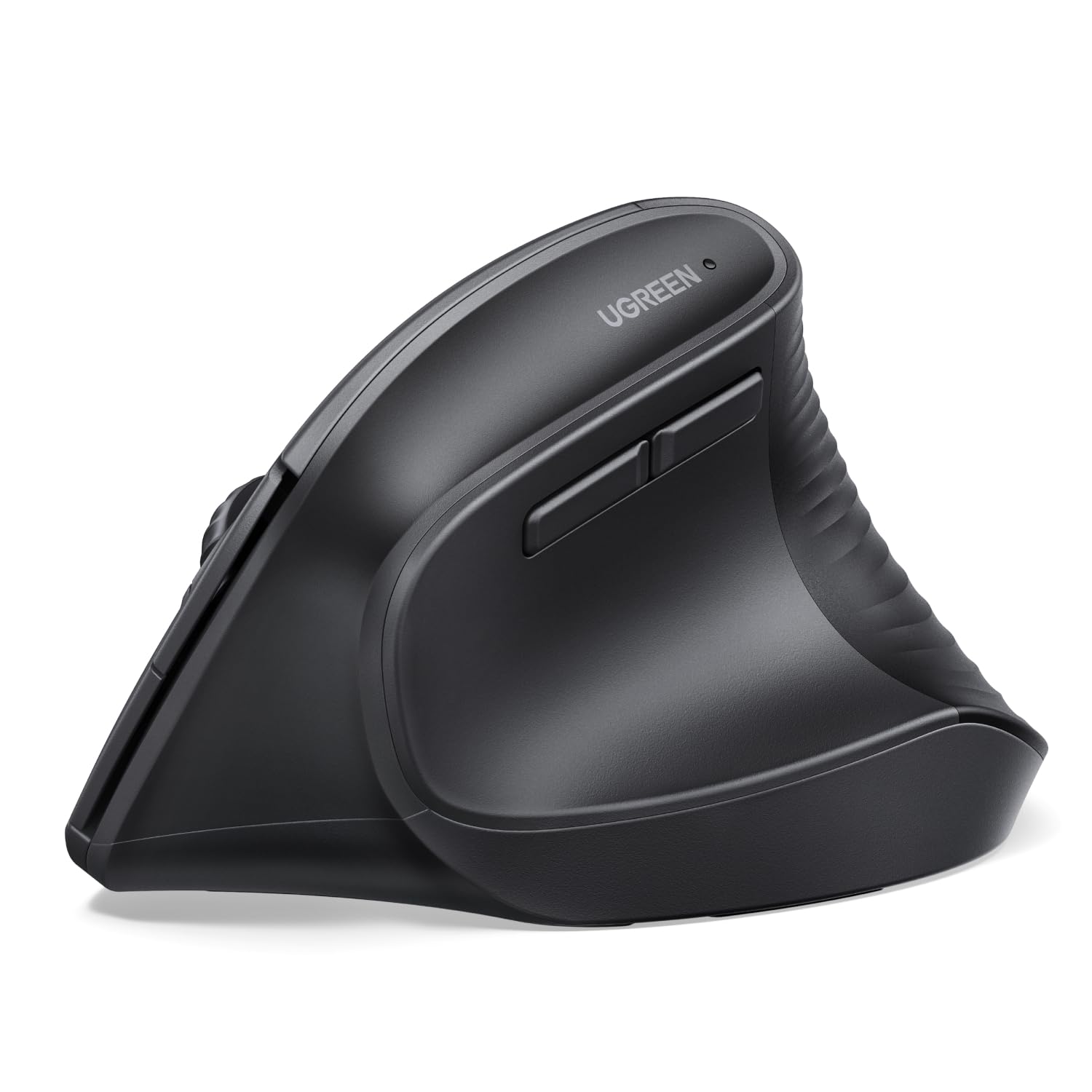
UGREEN Ergonomic Mouse

88 /100
Studio Score Strong Evidence

Key details

Scroll Feel
Standard scroll wheel
Connectivity
Bluetooth + 2.4GHz USB
Ergonomic Form
Vertical handshake, right-handed
Sensor Precision
4000 DPI
Check Price on Amazon

The UGREEN vertical handshake delivers a low-cost entry into vertical ergonomics, pairing Bluetooth and 2.4GHz wireless with an AA battery rated up to 12 months. Wrist discomfort relief is the core appeal, backed by a build that feels appropriate for the price. What it does not offer is programmability: photo/video editors who rely on shortcut buttons will need to keep those tasks on the keyboard. Less refined tracking and scroll feel also make this a secondary option rather than a daily editing mouse. Windows/Chrome users on a tight budget who simply want a vertical shape for wrist relief can treat those limitations as acceptable boundaries.

Pros

  • Entry-level price gets you a vertical ergonomic mouse without stretching the budget.
  • Vertical handshake grip helps with wrist discomfort during long sessions.
  • Build quality holds up for a budget peripheral.

Cons

  • AA battery means a rechargeable routine is not available.
  • Small hands can find the vertical grip too large for the ergonomic benefit to fully land.
Our verdict

A reasonable stopgap for a tight-budget Windows/Chrome user with wrist discomfort who wants a vertical shape before investing in a premium mouse.

Check Latest Price
8

Dedicated Shortcut Console

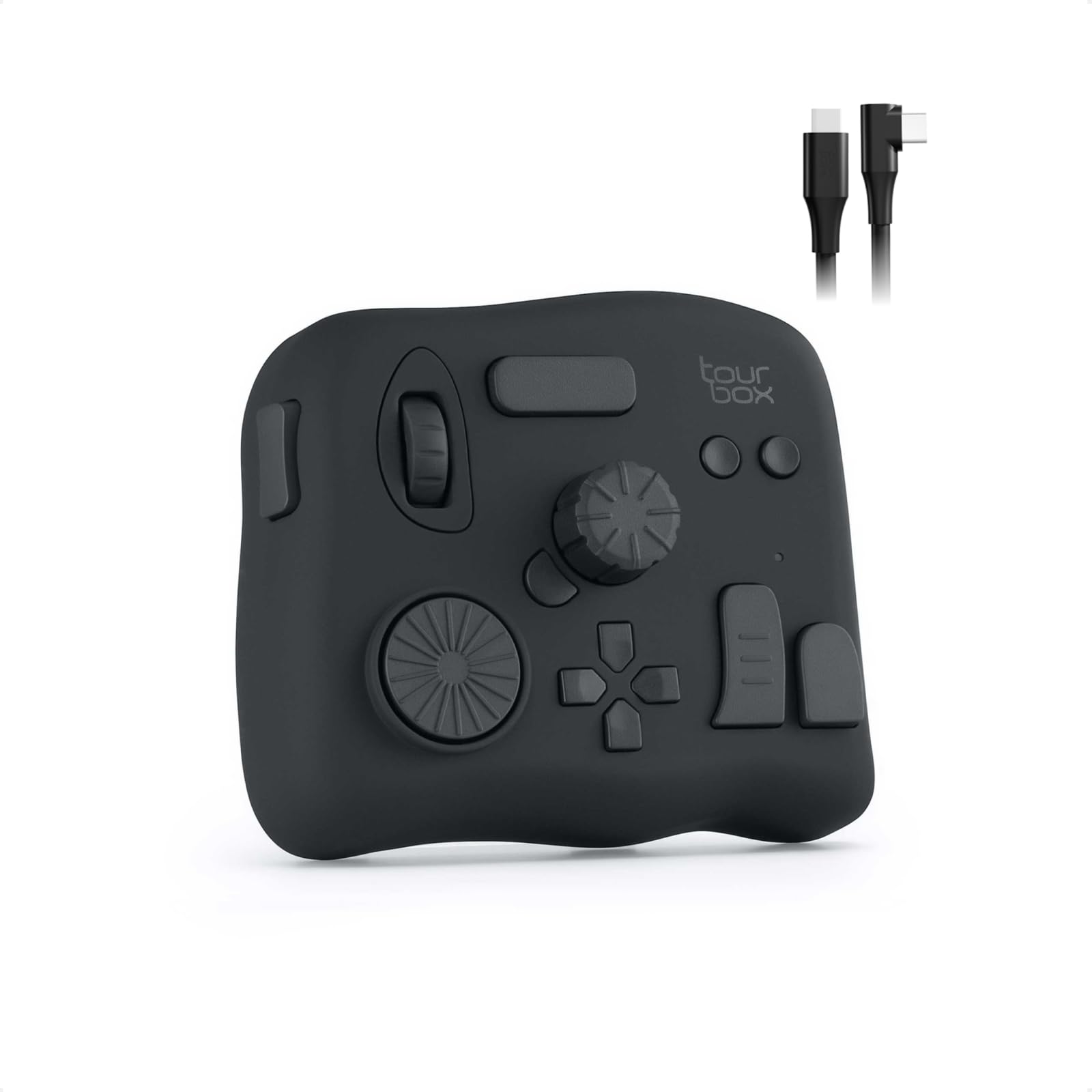
TourBox NEO Controller

89 /100
Studio Score Strong Evidence

Key details

Scroll Feel
Dials, knobs, wheel
Connectivity
USB-C wired
Ergonomic Form
Desktop controller
Sensor Precision
Check Price on Amazon

The TourBox NEO puts physical dials, keys, and a scroll wheel under your left hand, making repetitive Lightroom culling and video-editing shortcuts faster than menu hunting. Customizable templates and solid tactile buttons give it a premium feel. The layout takes deliberate practice before it becomes intuitive, and compatibility is limited to macOS/Windows — no iPad or Linux support. This places it outside the mouse-category verdicts in the roundup.

Pros

  • Physical dials and keys make repetitive Lightroom culling and video-editing shortcuts faster than menu hunting.
  • Customizable templates let you map controls to a specific editing workflow.
  • Solid tactile buttons and dials hold up during long sessions.

Cons

  • Occasional console software glitches can interrupt a shortcut session.
  • Requires a separate mouse for cursor control; it is a shortcut console, not a pointing device.
Our verdict

This fits desktop editors who want a dedicated shortcut surface and are ready to program it around their own workflow.

Check Latest Price

How to Choose

Sensor Precision and DPI

A 4000 DPI sensor handles almost any editing screen; 8000 DPI offers more cursor-speed range on high-resolution monitors. High DPI alone does not create pixel-level control — tracking consistency and scroll-wheel stepping determine how precisely the cursor lands.

Most editors work best around 1600–3200 DPI for precision and raise speed only when moving across dual monitors.

Programmable Buttons and Macros

Programmable buttons are where editing time is saved. Per-app profiles can map delete, reject, zoom, and undo to the thumb, keeping your left hand on the keyboard for shortcuts.

The hidden cost is software dependence: profiles stored only in vendor software disappear on another computer unless that software is installed. Some budget models include extra buttons but no remapping utility, so those buttons have no editing function.

Scroll Wheel Feel

The wheel is the most-used control in photo and video work because it scrubs timelines, zooms, and moves between frames. A wheel with clear detents gives predictable frame-by-frame control; a free-spinning wheel covers long timelines but can overshoot when you need one step.

A horizontal side-scroll wheel helps navigate wide canvases and timeline tracks, but it often crowds the thumb buttons. Decide before buying whether side-scrolling or macro buttons matters more.

Ergonomic Form Factor

A horizontal mouse keeps your forearm pronated, which feels natural for precise work but fatigues the wrist over long sessions. A vertical grip rotates your hand into a handshake position that reduces strain but often reduces button count and side-scroll access.

The angle also changes fine-motor control; switching takes a few days because the pivot shifts from wrist to shoulder. Vertical ergonomics pays off when wrist discomfort is the primary problem.

Connectivity and Multi-Device Support

Bluetooth keeps a desk clean and works across Mac and PC, but can suffer wake delays or dropouts when the receiver is far away. A 2.4GHz receiver is more stable for prolonged editing but occupies a USB port.

Some mice ship Bluetooth-only without a receiver or charging cable, so check the box before buying.

Frequently Asked Questions