3 Best Monitor for Video Editing 2026: Color Accuracy That Lasts

Which monitors for video editing stay accurate after months of use — and why USB-C behavior matters more than headline color specs.

Monitor listings lead with color-gamut percentages, but the specifications that matter during a long edit session are quieter: backlight consistency, USB-C handshake reliability, and whether the factory calibration survives shipping. The practical choice is between a proven QHD panel that nails sRGB/Rec.709 and a 4K wide-gamut display that can handle DCI-P3 workflows.

A QHD panel with a long track record gets the fundamentals right for sRGB/Rec.709 work and leaves room in the budget for a calibrator. A 4K wide-gamut panel costs more, supports DCI-P3 grading, and usually adds USB-C power delivery, but it can also bring wake quirks and backlight variation. No monitor solves every workflow; the right one matches your connection setup, color deliverables, and tolerance for QC variance.

The right purchase decision for video editing comes down to where your files are delivered: Rec.709 broadcast masters or DCI-P3 HDR deliverables. Match the display to the final format, and the rest of the spec sheet falls into place.

1

Best Overall

ASUS ProArt PA279CRV

83 /100
Studio Score Strong Evidence

Key details

Resolution
4K UHD
Calibration
Delta E < 2 verified
Color Gamut
99% DCI-P3, 99% Adobe RGB
Connectivity
USB-C 96W, DP, HDMI
Check Price on Amazon

The ASUS ProArt PA279CRV is the only display in this lineup that pairs a true 4K panel with 99% DCI-P3 and 99% Adobe RGB coverage, factory Delta E < 2 calibration, and 96W USB-C power delivery. For a Mac-based finishing suite, that combination removes the usual add-ons: no external colorimeter required before a deadline, no separate laptop adapter on the desk, and no need to view 4K footage in a scaled-down window. The Calman Verified report gives the panel a starting point that generic 4K monitors do not have.

The display's output backs up the spec sheet. The 27-inch panel holds its contrast and color separation through long grading sessions, and the native 3840×2160 resolution gives UHD timelines a pixel-for-pixel view instead of a scaled approximation. DCI-P3 coverage handles HDR masters, while Adobe RGB reaches the wider print gamut that sRGB-only monitors in this comparison cannot match. The factory calibration also means whites and neutral tones come up correct from the first power-on, with no profiling session before the actual work begins.

On the desk, the ProArt behaves like studio equipment. The stand spans tilt, swivel, pivot, and height and holds its position through daily adjustments, and the USB-C port can drive a second monitor through daisy-chain, keeping the whole setup on one laptop cable. The 5-year warranty is a real long-term backstop for a tool kept in daily service, and for a 4K wide-gamut panel with a factory calibration report, the price lands well below the dedicated color-grading displays that historically commanded much more for similar credentials.

For VFX and creative professionals, the value calculation is direct: the 4K resolution, wide gamut, and 96W USB-C charging form the finishing package they would otherwise assemble from separate purchases. The price sits in the premium tier, yet it saves an editor from buying a separate calibration device and a powered USB-C hub in addition to a monitor. That is the difference between a tool that supports the work and a screen that merely turns on.

This monitor is built for video editors working mostly on a Mac, finishing UHD timelines in DCI-P3 or proofing print in Adobe RGB, with a desk setup where a single USB-C cable handles both display signal and laptop charging. The boundary condition is unit variance: USB-C wake behavior and backlight uniformity can differ between panels, so test your exact Mac and cable combination during the return window and scan for corner bleed in a dark room. Editors whose deliverables stay in sRGB/Rec.709 can save money with the QHD ProArt model in this lineup; the PA279CRV's higher price makes sense when the wide color volumes are part of the job.

💡 Connect the Mac directly to the USB-C port rather than routing through a hub or dock for the most consistent wake behavior.

Pros

  • 4K resolution provides a true 3840×2160 editing canvas for UHD timelines.
  • Wide factory-calibrated gamut with Delta E < 2, covering DCI-P3 and Adobe RGB out of the box.
  • Fairly priced for a professional 4K monitor
  • Clean contrast and color separation that suit magazine and video work through long sessions.
  • Adjustable stand that moves through tilt, swivel, pivot, and height and holds its settings.

Cons

  • A dark grading room can reveal corner bleed or slightly dim output
  • With a fixed Mac setup, the USB-C wake handshake can require a monitor power-cycle before video returns.
Our verdict

Mac-based video editors get the 4K wide-gamut, factory-calibrated, single-cable monitor they came for; the two QC caveats are easy to check in the first week.

Check Latest Price
2

Best QHD Workhorse

ASUS ProArt PA278QV

92 /100
Studio Score High Confidence

Key details

Resolution
QHD
Calibration
Delta E < 2 verified
Color Gamut
100% sRGB/Rec.709
Connectivity
DP, HDMI, DVI-D, USB hub
Check Price on Amazon

The PA278QV is the established QHD workhorse in the ProArt lineup. It pairs a 27-inch IPS panel with factory calibration to Delta E < 2 and full 100% sRGB/Rec.709 coverage, so web, broadcast, and corporate video deliverables look right without a separate profiling session. The 75Hz refresh keeps timeline scrubbing and cursor movement smooth, and the stand adjusts through height, tilt, pivot, and swivel. A five-year warranty makes this a low-risk long-term desk partner.

The panel reads as bright and crisp in normal use, and the brightness range is wide enough for both sunlit offices and dark edit rooms. The stand's smooth adjustments also make it easy to switch to portrait for long documents or code reviews. Four USB 3.2 ports keep peripherals connected at the monitor, which simplifies cable management and keeps the desk tidy.

This is for photographers and editors who finish in sRGB/Rec.709 at QHD or HD sizes and want a calibrated canvas with a comfortable stand. Long-term durability is the boundary: black screens or a dead DisplayPort input can appear after a few years, so keep the warranty documentation handy.

Pros

  • Factory-calibrated 100% sRGB/Rec.709 with Delta E < 2 means color work starts close to the intended result.
  • The 27-inch QHD IPS panel delivers sharp, detailed images for photo and video editing.
  • The stand adjusts through height, tilt, pivot, and swivel, so long editing sessions don't fight the monitor.
  • Wide brightness range handles both dark edit suites and bright shared offices.

Cons

  • Color coverage is capped at sRGB/Rec.709, so HDR and DCI-P3 grading need a different display.
  • QHD resolution can't provide 1:1 pixel previews for 4K/UHD timelines.
Our verdict

If your deliverables are sRGB/Rec.709 at QHD or HD, this monitor covers the job without the extra cost of 4K or wide-gamut hardware.

Check Latest Price
3

Risk-Tolerant 4K Buyers

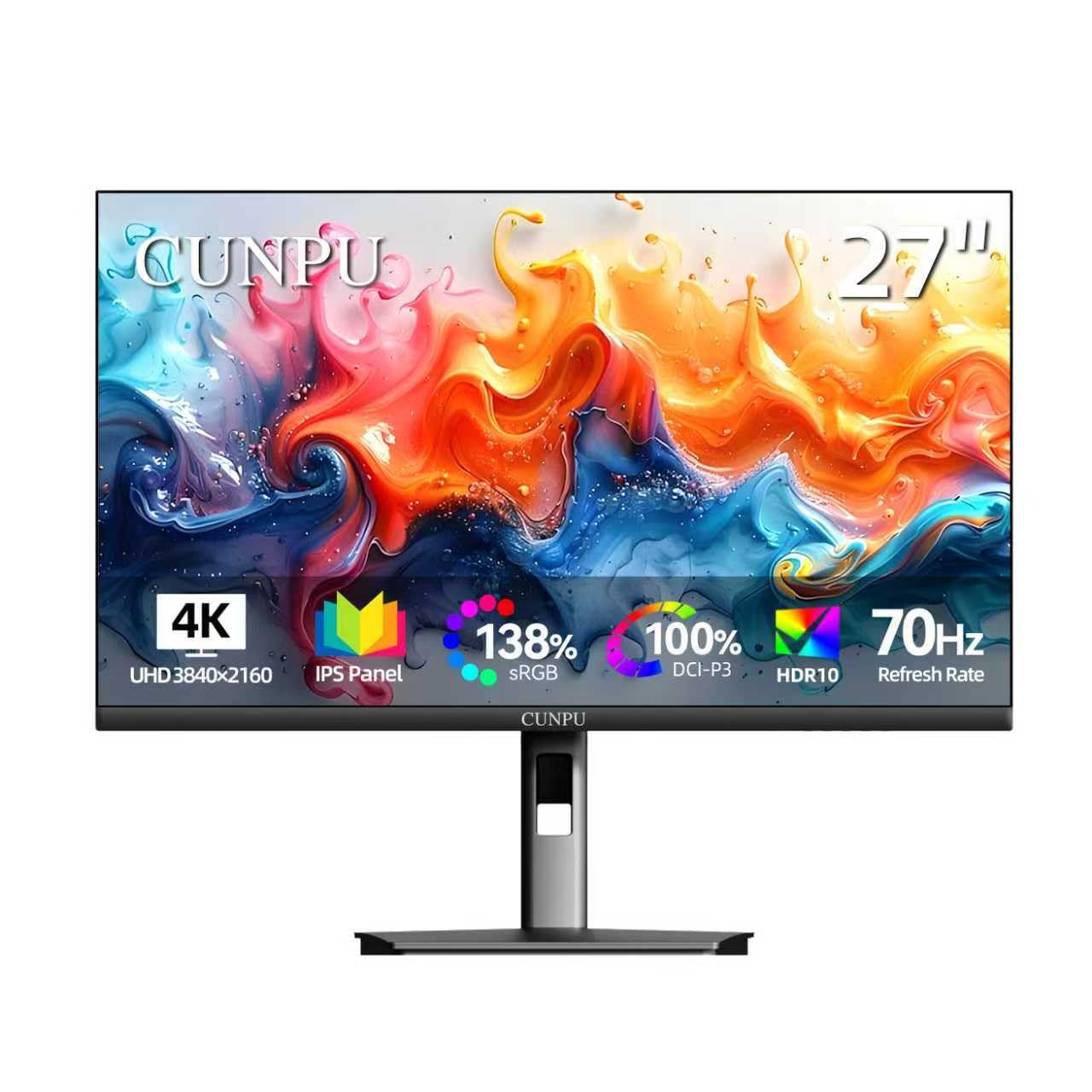
CUNPU 27 Inch 4K

78 /100
Studio Score Established

Key details

Resolution
4K UHD
Calibration
Delta E < 2 claimed
Color Gamut
100% DCI-P3 claimed
Connectivity
DP 1.4, HDMI 2.0
Check Price on Amazon

The CUNPU 27-inch 4K IPS is the cheapest true 4K panel in this roundup, with initial image quality that outruns its entry-level price. Sharpness and out-of-box color are enough for general photo/video editing, as long as you treat it as a secondary display rather than a finishing monitor.

The larger context: there is no factory calibration report, no USB-C, and long-term durability under heavy use is a vulnerability. That makes it unsuitable for client-critical work. It fits a buyer who wants an inexpensive 4K image for everyday edits and can absorb possible panel-to-panel variation.

Pros

  • Delivers a sharp 4K IPS image that looks impressive on a budget.
  • Sits at the low end of true 4K pricing, making the resolution upgrade easy.
  • Out-of-box color suits basic photo/video editing without calibration.

Cons

  • Brightness control can be awkward or unavailable over Mac, and OSD settings may reset.
  • A unit can arrive without power or go dark within months of regular use.
Our verdict

For a risk-tolerant buyer who needs a low-cost 4K display for general editing and won't use it for client finishing, this is the budget route into 4K.

Check Latest Price

How to Choose

Panel Resolution and Workspace

Resolution controls how much of your timeline fits on screen and whether 4K footage can preview at full pixel density. A 4K UHD panel shows 3840x2160 frames at 1:1; QHD forces scaling or proxy files; 16:10 WUXGA adds vertical room but no UHD sharpness.

The hidden trade-off is GPU load and interface scaling. Native 4K needs real graphics horsepower and makes UI text smaller, so older laptops often pair better with QHD. Match resolution to both source footage and your computer.

Color Gamut Coverage

Color gamut defines the range of colors a panel can reproduce. sRGB/Rec.709 covers web and broadcast; DCI-P3 and Adobe RGB cover HDR and print. A monitor limited to 100% sRGB/Rec.709 will approximate colors outside that range during a DCI-P3 grade.

The hidden trade-off is oversaturation. Wide-gamut panels can make sRGB content look punchy without a proper sRGB emulation mode, so extra gamut only helps when your deliverables use it.

Factory Calibration and Delta E

Delta E measures average color difference from a reference; below 2 is the professional editing threshold. Factory calibration means the panel was adjusted before shipping, but color drifts as the backlight ages.

A calibration report is a starting point, not a lifetime guarantee. Client-critical work needs a hardware calibrator and periodic re-profiling. Calman Verified or a printed report is a stronger baseline than a bare Delta E claim.

Connectivity

Connectivity controls which computers can drive the panel and how cleanly it wakes. USB-C with power delivery is the cleanest Mac setup, but handshake issues can drop video. DisplayPort and HDMI are more predictable for pure video.

The trade-off is one-cable convenience versus stability. A 96W USB-C port charges and drives in one cable, but a dropped handshake means reaching for HDMI. Confirm USB-C behavior with your specific machine before depending on it.

Stand and Warranty

An adjustable stand matters because editing sessions run long and reference windows sit in different positions. Height, tilt, pivot, and swivel reduce neck and eye strain without a separate arm.

Warranty length is also a reliability signal. Five-year coverage suggests the manufacturer expects the panel to hold up; a short warranty leaves you paying for repairs when backlight issues appear.

Frequently Asked Questions