4 Best Monitor Calibrator of 2026: Color Accuracy That Lasts

Which monitor calibrator keeps its profile and your colors accurate across OLED, mini-LED, and multi-display setups — without the software headaches.

Monitor calibration looks like a hardware problem, but the hardware is rarely the part that goes wrong. Most modern colorimeters measure light accurately; the software turns those measurements into profiles your operating system actually applies. That is where the process can fall apart.

The real choice comes down to display type, operating system, and workflow. An OLED / mini-LED panel needs a different sensor ceiling than a standard office LCD; a multi-monitor editing bay needs per-display profile saving. A calibrator that fits your specific setup is more valuable than one with a longer spec sheet.

The guides below treat software stability and OS compatibility as first-class requirements, not footnotes. If a profile saves reliably and matches your display's luminance range, the color you see is the color you edit.

1

Best Overall

Datacolor SpyderX Pro

89 /100
Studio Score Strong Evidence

Key details

Compatibility
Windows, macOS
Multi-Display
Multiple laptops and desktops
Calibration Workflow
Single-click, 12 targets
Check Price on Amazon

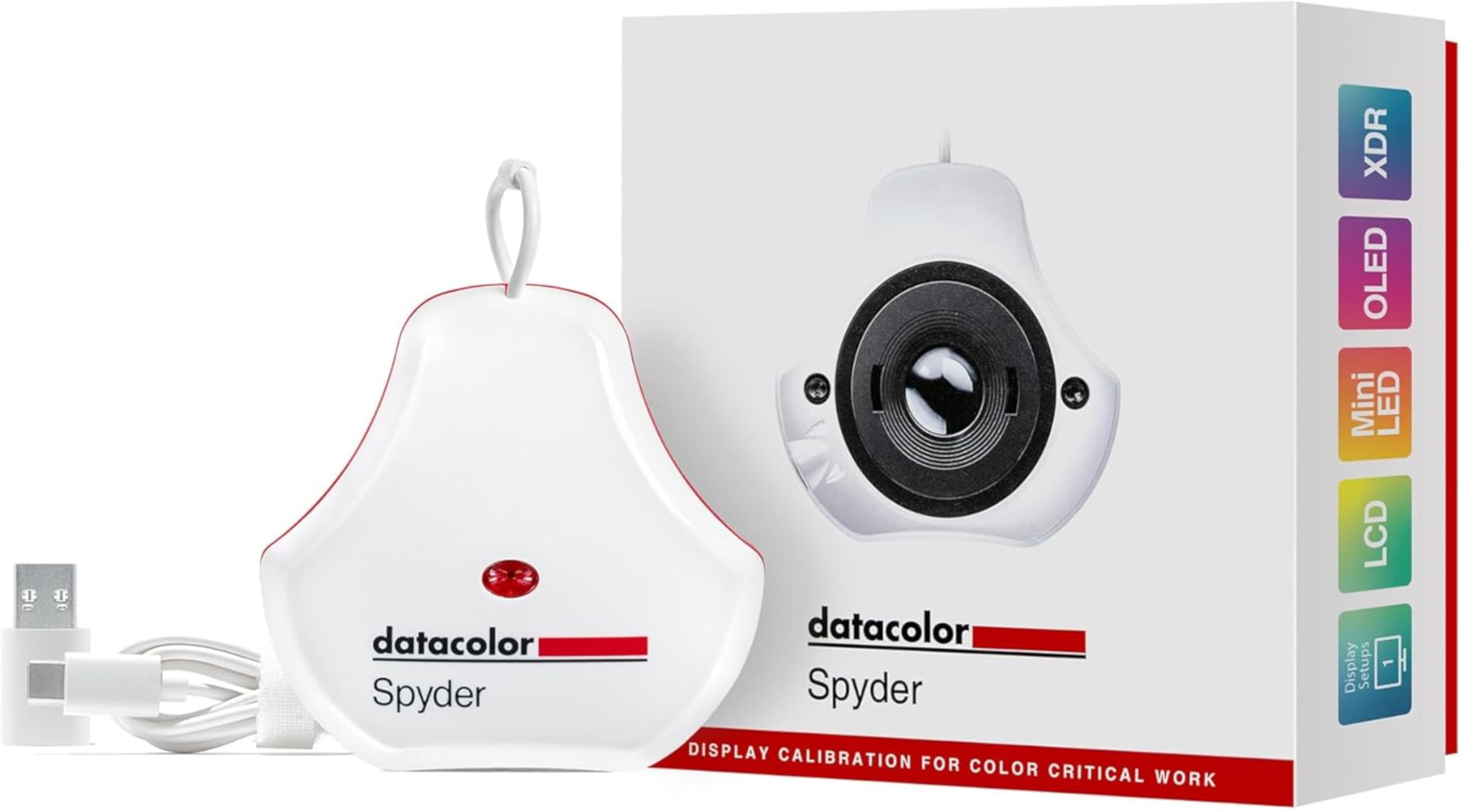
The SpyderX Pro makes calibration a single-click process: choose one of 12 predefined targets, let the lens-based sensor measure the display, and the profile is ready in minutes. Installation is also quick, with first calibration reached in under 10 minutes. Room-light monitoring adjusts the active profile as ambient conditions change, so the same monitor can shift from a bright office to a dim edit suite without a full recalibration. The lens-based sensor does not need the long warm-up that used to make calibration a scheduled task, so re-running the routine on a regular basis is realistic.

For a multi-display desktop, this is the easiest calibrator in the set to run across two monitors. The software supports multiple laptops and desktop monitors, keeps each display's profile separate, and a second calibration takes only a few minutes. That speed matters when you re-profile after a lighting change or after a GPU driver update, because it turns a task you might postpone into a quick break between edits. Switching between a laptop panel and an external monitor keeps each profile intact, so adding a second display does not disturb the first.

This is aimed at mainstream photographers and editors with a desktop workspace, not at specialists. It suits users who want a widely available calibrator with a long market history and are comfortable verifying the result on their own display. Mac users who need guaranteed profile saving should check compatibility before buying, and it is not the right tool for HDR colorists working on ultra-bright displays, where a higher-luminance sensor is required.

The bundled before/after proofing view is a useful check after each run. Color shifts on some displays are part of the calibration landscape, so looking at white and gray patches before accepting the profile is a sensible step.

The single-click label is accurate as far as it goes: clicking start launches the measurement routine. The premium price buys a faster workflow and a long market presence, not a guarantee against the kind of panel or OS quirks that can surface with any colorimeter. That is normal for calibrators in this class, so the deciding question is whether your displays and operating system fit the Spyder's particular mix of speed and simplicity.

💡 After calibration, confirm the new profile is active in the operating system's display settings, especially on macOS.

Pros

  • First calibration finishes in minutes, so regular re-profiling fits between edits.
  • Setup is smooth on typical desktop systems, with first calibration reached in under 10 minutes.
  • Multi-display workflow is practical because each monitor gets its own profile.
  • Room-light monitoring shifts profiles when ambient brightness changes.
  • Before/after proofing shows what changed, making it easier to accept or re-run a calibration.

Cons

  • The software can freeze or drop a saved profile during a session, which interrupts the flow until a restart.
  • On some Macs, the generated profile may not save or may require reconnecting the device before the software sees it.
  • Certain displays can take on a green or pink cast after calibration, so a proofing check matters before accepting the result.
Our verdict

For mainstream photographers with a multi-monitor desktop, the SpyderX Pro is the calibrator to start with when speed and one-click workflow matter more than absolute panel neutrality.
Check Latest Price
2

Best Pro Choice for OLED/HDR Work

Calibrite Display Pro HL

86 /100
Studio Score Strong Evidence

Key details

Compatibility
Windows, macOS, DisplayCAL
Multi-Display
Multiple monitors, shared presets
Calibration Workflow
PROFILER, custom patch sets
Check Price on Amazon

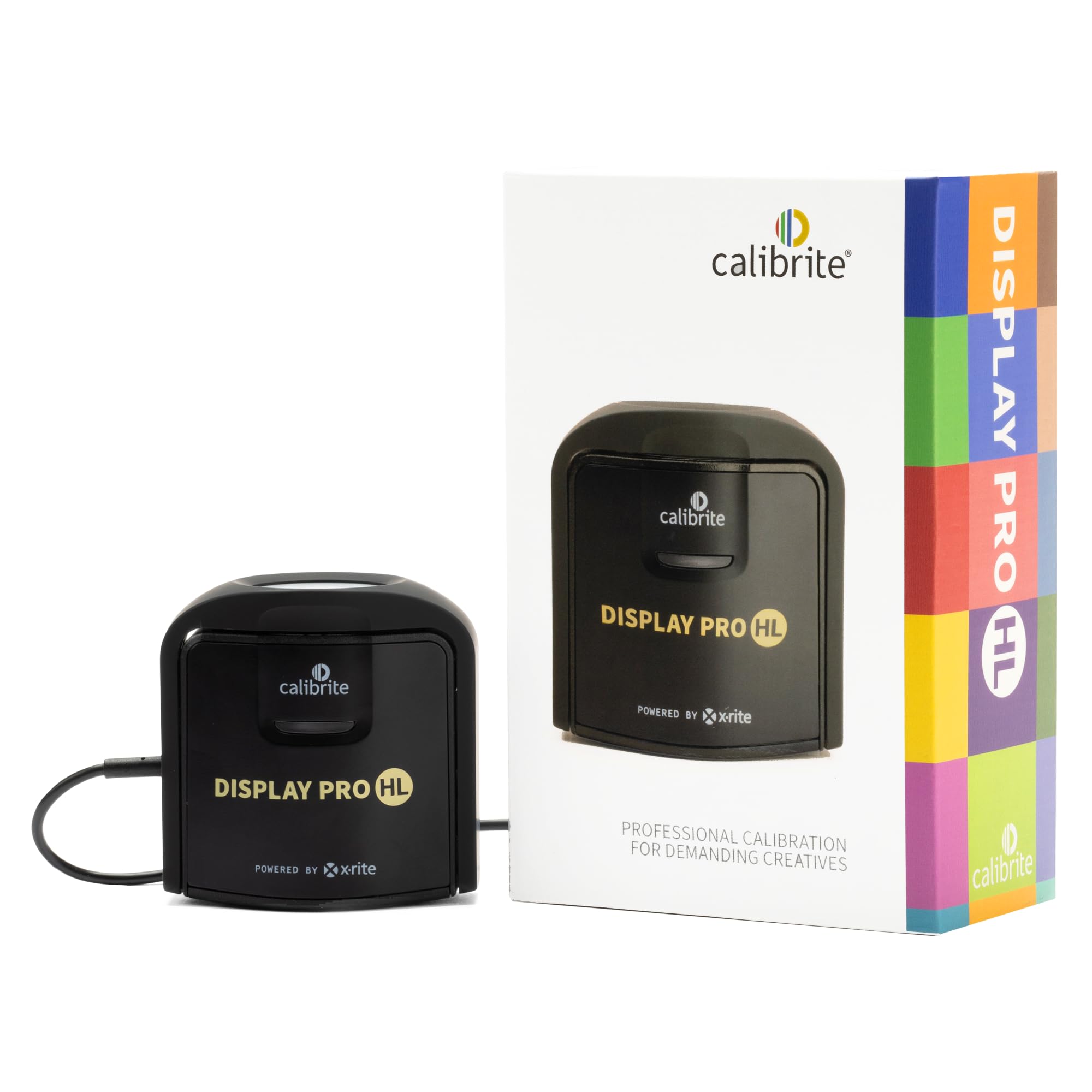
The Calibrite Display Pro HL is a professional-grade monitor calibration colorimeter built around a high-luminance sensor rated to 3,000 nits. It adds Quick Check validation, profile validation, uniformity checks, and flare correction, which makes it a stronger match for print-driven photo work than the mass-market calibrator in this set. It stops short of the 10,000-nit HDR specialist, but it covers OLED, mini-LED, and Apple XDR displays without requiring a separate meter for bright panels.

This is the calibrator for professional photographers, photo editors, and multi-display creative studios that need repeatable profiles and print-match accuracy. The sensor also works with DisplayCAL for workflows that want more granular control. It is more than a casual user needs; a one-time basic monitor calibration is better served by a simpler unit, and HDR work beyond 3,000 nits falls outside its range.

Validation and uniformity tools give the HL an edge when you need to confirm a profile before a print run rather than assume it after a quick pass. Multi-display presets keep each monitor on the same white point, which reduces the back-and-forth common in mixed-panel studios. The sensor's headroom also keeps it relevant as bright mini-LED and OLED displays become more common.

💡 Run Quick Check after the display warms up and keep the sensor in the same spot for repeatable before-and-after comparisons.

Pros

  • Calibration is consistent and accurate for color-critical work.
  • Setup is quick and uncomplicated enough for a working studio.
  • Matches professional photography and print-match demands without extra configuration.
  • Validation, uniformity checks, and flare correction give before-print confidence.

Cons

  • Premium price puts it above entry-level calibrators, so casual users pay for capability they won't use.
  • Bundled software is serviceable but not class-leading; some users prefer DisplayCAL for advanced patch sets.
Our verdict

Color-critical photo workflows get a calibrator that validates profiles, checks uniformity across displays, and covers bright modern panels from a single sensor.

Check Latest Price
3

Best Value for Modern Displays

Datacolor Spyder SP2024

80 /100
Studio Score Strong Evidence

Key details

Compatibility
Windows, macOS, HDR gaps
Multi-Display
Multiple displays via software
Calibration Workflow
Preset/custom, 90 seconds
Check Price on Amazon

The SP2024 is the budget-friendly path to calibrating OLED, mini-LED, and Apple Liquid Retina XDR displays, a set of panel types that used to require a more expensive instrument. The ambient light sensor is the notable feature here: it tracks room light and adjusts brightness and contrast so the calibrated result holds up when a window gains or loses sun. A full pass takes about 90 seconds, which keeps the process quick enough for a first-time buyer.

First-time calibrator buyers with one modern laptop or external monitor are the right audience. If your daily setup is a MacBook Pro, an OLED portable display, or a mini-LED panel, the SP2024 gives you current-screen support without jumping to professional pricing. Multi-monitor and Windows HDR compatibility can be inconsistent with this model, so calibrating a home-office multi-screen rig or an HDR game feed is better handled by the established SpyderX Pro or a separate HDR tool.

The hardware itself is easy to live with: the sensor housing rotates for laptop screens, the build feels solid enough for desk-to-bag travel, and the app's before/after preview makes the result visible without hunting through menus. Those details matter for someone buying their first calibrator, because the learning curve is mainly about which display to pick from the preset menu.

Pros

  • Supports OLED, mini-LED, and Apple Liquid Retina XDR without stepping up to a pro-priced instrument.
  • Room-light sensor adjusts brightness and contrast after the initial profile, so the calibration adapts to changing light.
  • Hardware build is solid and the 90-second cycle keeps first-time use approachable.

Cons

  • Some ASUS monitors and MacBook Pro setups may not calibrate cleanly.
  • Calibration may stop with a sensor warning before the profile is saved.
Our verdict

For users calibrating one current-generation display, the SP2024 is the cost-effective entry point to OLED and mini-LED coverage.

Check Latest Price
4

Best Budget Beginner Pick

Calibrite Display 123

78 /100
Studio Score Established

Key details

Compatibility
macOS, Windows
Multi-Display
Up to 2 displays
Calibration Workflow
1-2-3 guided, before/after
Check Price on Amazon

The Calibrite Display 123 is the simplest colorimeter in the lineup, built around a 1-2-3 routine that brings a mismatched pair of office monitors to a common reference. The before/after check makes the correction visible instead of leaving you to trust a dropdown menu, and the compact body with an adjustable counterweight sits on thin laptop lids without a fuss. This is the budget-friendly entry point in Calibrite's range.

The guided routine produces matching whites and neutral grays across two displays, which covers the main pain point for dual-monitor home offices. The sensor is small enough to move from screen to screen without rebalancing, and the USB-C connection is plug-and-play on current laptops.

This is a first calibrator for budget-conscious photographers, dual-monitor workers, and beginners who want a low-friction introduction to display matching. The software writes color profiles into system folders automatically, which can be opaque to casual users, and HDR colorists or owners of panels above 3000 nits should move up to the HL sensor.

Pros

  • Guided 1-2-3 workflow keeps the first calibration session approachable.
  • Dual-display matching brings two monitors to a shared white point and gray balance.
  • Compact body with adjustable counterweight fits thin laptop lids cleanly.
  • Budget-friendly price lowers the barrier to owning a dedicated calibrator.

Cons

  • Calibrated profiles can land with a visible color cast on some displays, so a second pass may be needed.
  • No validation or uniformity tool for confirming whether a profile is accurate after calibration.
Our verdict

A budget-friendly on-ramp to calibration for standard SDR dual-monitor setups; the extra cost of the HL sensor is reserved for color-critical or HDR work.

Check Latest Price

How to Choose

Match Display Coverage

A colorimeter works by capturing a known test patch and comparing it with the display's output. Standard sensors are calibrated for the luminance range of ordinary LED and IPS panels. OLED, mini-LED, and Apple XDR panels can push beyond that range, so low-luminance sensors produce skewed profiles on bright panels.

Check the luminance ceiling before buying. HDR panels near 3,000 nits need a high-luminance sensor; office displays do not. For a typical office display, a basic model is sufficient and saves money.

Choose a Stable Workflow

Calibration workflow is the chain between sensor measurement and the profile your OS loads. A stable workflow measures a patch set, writes an ICC profile, and applies it without manual intervention. If that chain breaks, the display can be left with no valid profile.

Fast guided sessions suit weekly maintenance; advanced patch sets give more accuracy but require patience. Pick the workflow that matches your tolerance for tinkering.

Consider Ambient Light Tracking

An ambient light sensor measures room brightness and adjusts the display profile accordingly. This matters in a room where sunlight moves across your workspace.

The trade-off: ambient adjustment only works while the background service is running. If it is disabled, the display stays on the last profile.

Check Multi-Display Support

Multi-monitor setups need a separate profile per screen. The software must track which profile belongs to which display and apply it at login.

If it holds only one active profile, matching a laptop to a reference monitor turns into a manual fight. Verify per-display profile saving before buying. This also matters for laptop-plus-monitor docks.

Confirm OS and HDR Compatibility

macOS and Windows handle color profiles differently. macOS applies them from ColorSync; Windows can bypass ICC profiles in HDR mode. A calibrator can measure and target the display, but the OS may ignore the result in some apps.

Third-party tools like DisplayCAL offer an escape hatch when bundled software is limited. Confirm hardware works with your OS version before purchase.

Frequently Asked Questions