7 Best Ultrawide Monitor for Photo Editing 2026: Pick Color First

Find the best ultrawide monitor for photo editing by matching panel type, USB-C power, and resolution to your actual workflow.

Ultrawide marketing makes every 34-inch panel look photo-ready. HDR10 labels and fast refresh rates are common on gaming-oriented VA screens, yet neither improves color-managed editing. The specs that matter are panel type, gamut coverage, USB-C power delivery, and uniformity.

Resolution also needs a reality check. A 2560x1080 ultrawide feels wide but short, so tool panels crowd a retouched image. The practical editing minimum is 3440x1440; above it, a 5K2K display adds pixel density but the premium only makes sense for full-time pros with the desk space.

The right choice comes down to where your editing happens and how much single-cable convenience matters. A color-accurate IPS panel with 60W+ USB-C is worth more than a 120Hz refresh rate, and skipping USB-C charging can turn a 'desk upgrade' into a cable tangle.

1

Best Overall

Dell U3425WE

80 /100
Studio Score Strong Evidence

Key details

Color
100% sRGB
Panel
IPS
Resolution
3440x1440
Connectivity
Thunderbolt 4
Check Price on Amazon

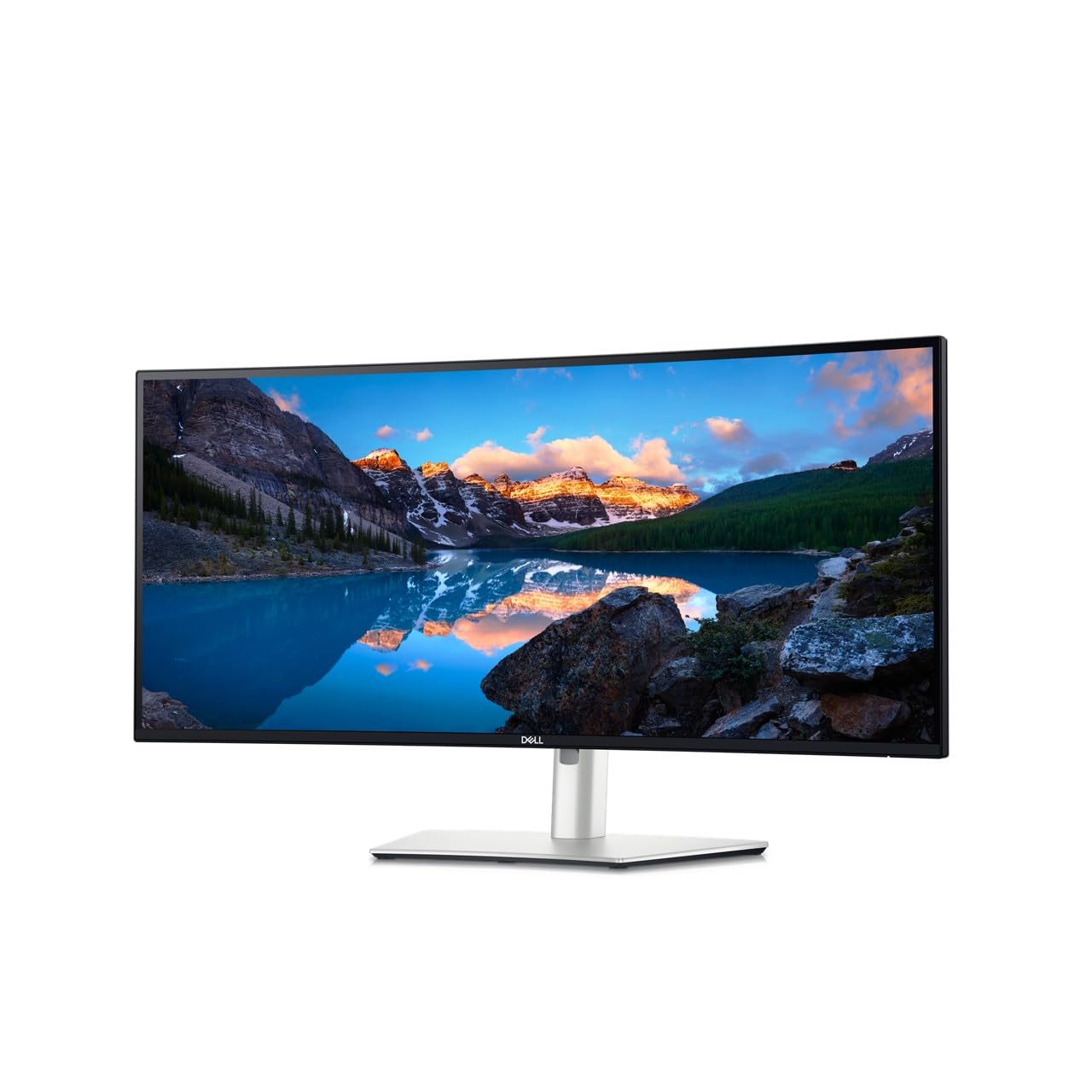
The U3425WE brings accurate IPS color to a 34-inch 21:9 QHD canvas, with 100% sRGB coverage and 2000:1 contrast that gives dark image areas more depth than the typical IPS monitor. Text is crisp at the native QHD resolution, and the wide format keeps a photo, a toolbar, and a reference document side by side without the bezel seam of dual monitors. The 21:9 vertical space is similar to a 27-inch QHD monitor, so tool palettes do not get cramped. Skin tones hold without gradient banding, and the sRGB gamut covers the working space used by web and print workflows. For photo editors, the color reproduction is the reason to choose this over a cheaper VA ultrawide.

Thunderbolt 4 turns the U3425WE into a one-cable hub for a MacBook or USB-C laptop, while the built-in Ethernet and 10 USB ports handle peripherals. The Ethernet port is a practical addition for offices that rely on wired networking. The UltraSharp stand offers height, tilt, swivel, and lock adjustments for a neutral viewing position. The panel's color behavior holds across side-by-side work, so moving between a raw editor and a browser does not demand constant re-calibration. The matte finish keeps reflections from interfering with a multi-window workflow.

This is a color-conscious productivity display for photo editors and document-heavy users who want sRGB accuracy and a tidy single-cable setup. The actual panel is 3440x1440 QHD, not 5K; buyers who need 5K2K pixel density should step up to the 40-inch flagship. For sRGB workflows and side-by-side window management, the resolution is not a practical limit. The 21:9 aspect ratio offers more horizontal space per window than a 16:9 panel without the vertical stretch of a 32:9 display.

The U3425WE separates itself from gaming-first ultrawides by prioritizing color consistency and hub connectivity over refresh rate. It also avoids the gradient-band artifacts that appear on cheaper VA panels, which matters when editing gradients. The 34-inch form factor keeps the desk footprint under control while still giving enough horizontal space for a two-page layout. Compared with the 40-inch 5K2K flagship in this lineup, the U3425WE trades density for a smaller footprint and a friendlier price; for sRGB-focused workflows, that trade is sensible.

๐Ÿ’ก If the stand feels loose at standing-desk heights, a monitor arm removes the play and frees desk space.

Pros

  • Large 21:9 canvas for running documents and apps side by side
  • Thunderbolt 4 hub with Ethernet and 10 USB ports simplifies a laptop desk
  • Accurate out-of-box sRGB color with deeper black levels for photo work
  • Crisp text and clean image presentation for long editing sessions
  • Height, tilt, swivel, and lock stand supports comfortable viewing angles

Cons

  • Premium pricing places it above entry-level ultrawides, a hurdle for budget buyers.
  • Listing copy can overstate resolution; the spec sheet tells the real story.
Our verdict

The U3425WE is the sensible middle path for sRGB photo editing and split-window productivity, with Thunderbolt 4 to keep the desk tidy.

Check Latest Price
2

Pro 5K2K Choice

Dell U4025QW

89 /100
Studio Score Strong Evidence

Key details

Color
99% color gamut
Panel
โ€”
Resolution
5120x2160
Connectivity
Thunderbolt 4
Check Price on Amazon

The U4025QW is a 40-inch curved 21:9 panel with true 5120x2160 resolution, 120Hz refresh, Thunderbolt 4, Ethernet, and a built-in KVM. That pixel count delivers a sharper image and more vertical workspace than a 3440x1440 ultrawide; the vertical resolution matches standard 4K while the horizontal width stretches well beyond it. It is the clearest definition of why a photo editor would step up from the smaller UltraSharp, and the 21:9 curve wraps the view without the aggressive bend of a gaming panel.

Build quality and color reproduction hold up at this level: a sturdy chassis, broad color gamut, and 2000:1 contrast keep dark tones from washing out. Text and fine image detail stay sharp at native resolution, so a full-screen editing layout does not feel cramped. The panel has enough brightness for a typical office, and color remains consistent across the wide canvas during extended retouching sessions.

This is for full-time photo editors and dual-computer desks where the luxury price and 40-inch footprint are absorbed by daily professional work. Budget buyers and casual editors will find the 34-inch UltraSharp offers comparable color and hub features for less money and less desk space. Mac users should expect to check HDR behavior and, in some cases, swap to a high-bandwidth Thunderbolt cable before HDR engages.

Pros

  • True 5K2K resolution on a 40-inch canvas gives large retouching sessions room to breathe.
  • Strong build quality with a sturdy chassis that matches the premium positioning.
  • Wide color output and deep contrast keep photo edits accurate across the panel.
  • Thunderbolt 4 hub, Ethernet, and KVM simplify a two-computer desk with one cable.

Cons

  • The integrated network switch can re-negotiate the link during input changes.
  • Auto-switching between Thunderbolt and DisplayPort can be finicky on some units.
Our verdict

The U4025QW is the sharper, larger UltraSharp for editors who want a true 5K2K canvas and a Thunderbolt 4 hub in one monitor.

Check Latest Price
3

Best Budget Value with USB-C

LG 34WR55QK-B

89 /100
Studio Score Strong Evidence

Key details

Color
99% sRGB
Panel
VA curved
Resolution
3440x1440
Connectivity
USB-C PD 65W
Check Price on Amazon

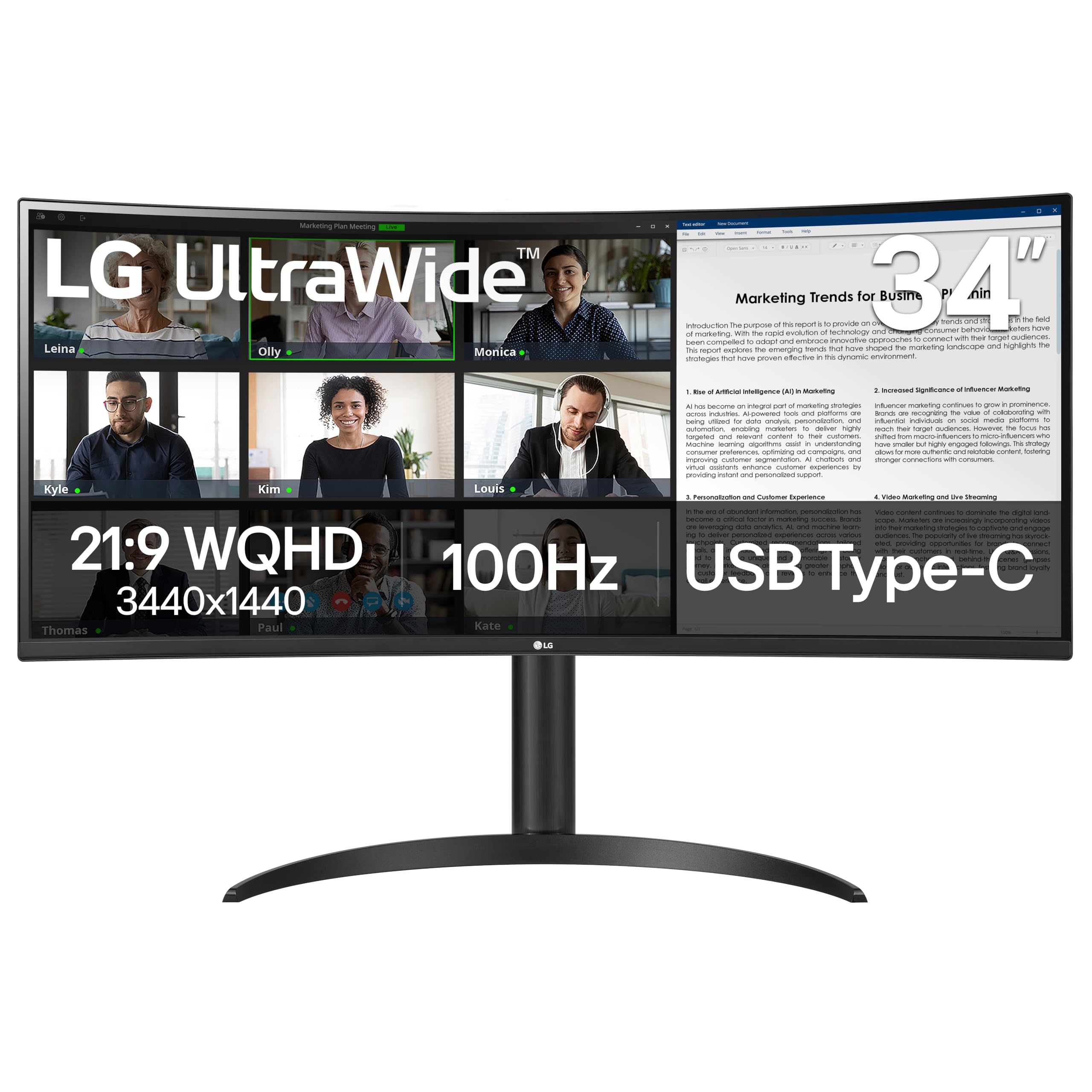
The LG 34WR55QK-B brings 3440x1440, 65W USB-C, and picture-by-picture to the budget end of the ultrawide market, giving photo editors a single cost-effective canvas for two computers. The curved VA panel delivers crisp text and high contrast for the price, and the 21:9 layout fits a photo editor plus a filmstrip without crowding. Connectivity spans two HDMI, DisplayPort, and three USB ports, so desktop peripherals have room to attach.

Screen quality holds up in normal indoor lighting: text stays crisp across the curve, and color looks vibrant and accurate for an entry-level panel. The focus stays on workspace and image quality rather than gaming extras, and the height/tilt adjustable stand sets eye level easily. Single-cable power and video keep the desk tidy for compatible laptops.

The main tradeoff sits with the VA panel's 300-nit brightness: in a bright, sunlit room the image washes out, so this is a controlled-lighting monitor rather than a do-it-all display. In a dimmer studio or home office, the panel holds its color and contrast well.

This LG suits budget-conscious photo editors who need ultrawide QHD and single-cable USB-C, and WFH buyers who want PbP between two computers. For dual-computer desks, the built-in PbP makes a second monitor unnecessary.

Pros

  • 3440x1440 on a 34-inch curved VA gives photo editors room for toolbars plus a large preview.
  • USB-C with 65W power delivery runs video and charges a laptop through one cable.
  • Picture-by-picture displays two computers side by side, cutting the need for a second screen.

Cons

  • The VA panel shifts contrast when viewed from the side; head-on seating keeps it consistent.
  • Print proofing and color grading need a wider gamut than 99% sRGB; web and social delivery is the realistic target.
Our verdict

The right call when 3440x1440, single-cable USB-C, and dual-computer PbP are the priorities for a budget ultrawide.

Check Latest Price
4

Best Basic Ultrawide for Productivity

Samsung S50GC

87 /100
Studio Score Strong Evidence

Key details

Color
HDR10
Panel
VA flat
Resolution
3440x1440
Connectivity
No USB-C
Check Price on Amazon

The S50GC pairs a flat 34-inch VA panel with 3440x1440 resolution, 3000:1 contrast, and PIP/PBP, so multitasking feels wide without curve distortion. Samsung's display quality keeps text sharp and basic photo edits easy to evaluate in normal room lighting.

Image quality is crisp enough for document-heavy work: the 21:9 canvas fits two applications side by side, and the flat VA surface avoids the color shift that aggressive curves can introduce. This is a no-frills productivity display, not a reference monitor for color-managed grading.

The S50GC serves budget productivity users and photo hobbyists editing in good lighting. It is not a USB-C hub, HDR is entry-level, and dark content can show grey blacks; those who need one-cable MacBook setup or wide-gamut HDR for serious edits should look at the Thunderbolt 4 option in this roundup instead.

The 34-inch width is a genuine productivity upgrade: two full documents fit without overlapping, and PIP/PBP lets a desktop and a laptop share the panel at the same time. For photo hobbyists, the resolution is high enough to inspect raw files side by side, though color grading should stay on an IPS reference display.

Pros

  • Samsung's VA panel delivers a clear, consistent ultrawide image for daily productivity work.
  • Crisp 3440x1440 resolution makes text and photo details easy to read across the wide canvas.
  • 21:9 width with PIP/PBP supports side-by-side apps or two computers without extra software.
  • Budget-friendly pricing brings a 34-inch QHD ultrawide below typical premium productivity monitors.

Cons

  • The included stand offers basic tilt only; height and swivel adjustments call for a monitor arm.
  • HDR10 support is entry-level, so dark scenes can look grey rather than truly black.
  • No USB-C port means laptops that charge over USB-C need an adapter or separate power cable.
Our verdict

A budget-friendly ultrawide that turns a 34-inch QHD canvas and side-by-side multitasking into the center of a no-fuss productivity desk.

Check Latest Price
5

Best Single-Cable IPS for MacBooks

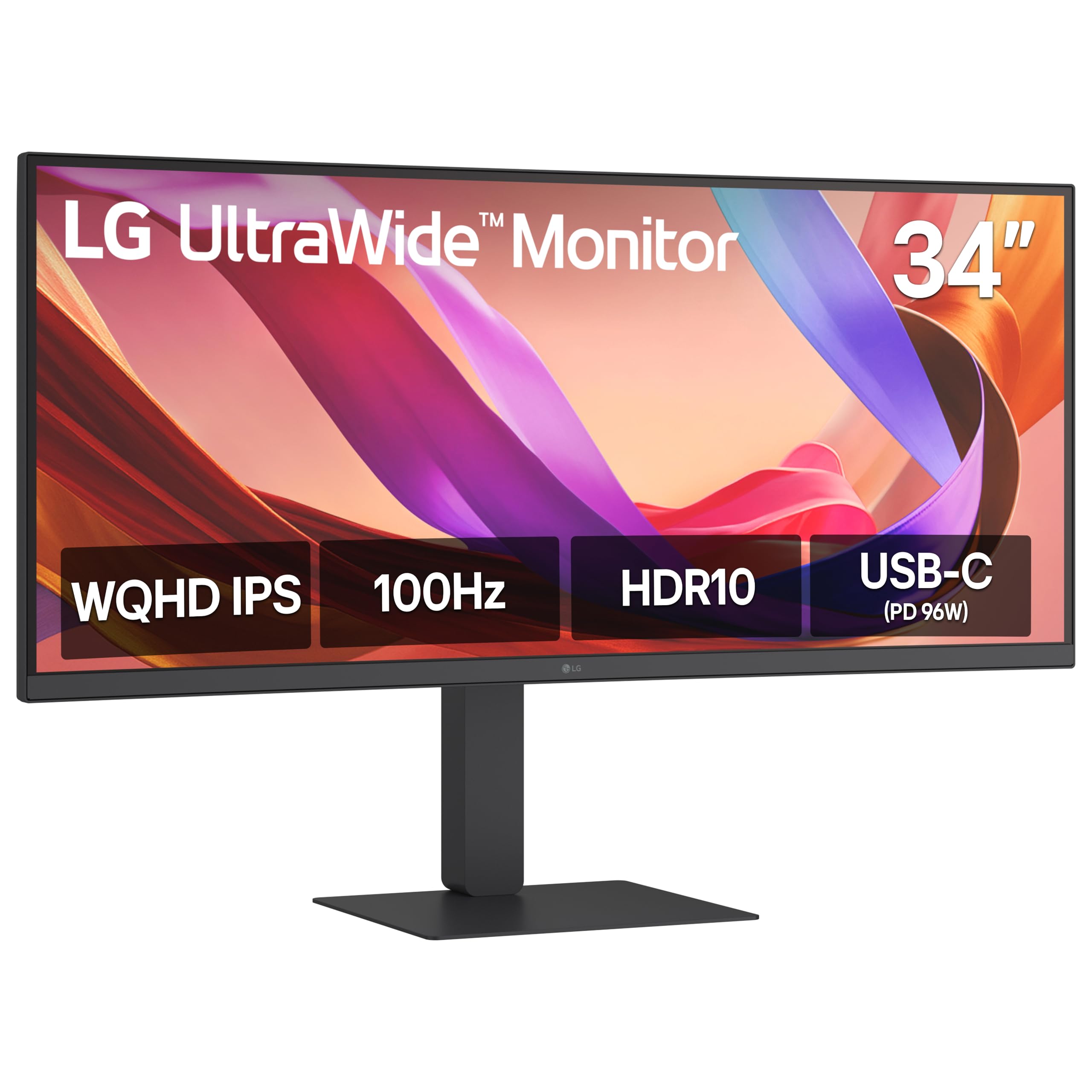
LG 34U650A-B

81 /100
Studio Score Strong Evidence

Key details

Color
99% sRGB
Panel
IPS curved
Resolution
3440x1440
Connectivity
USB-C PD 96W
Check Price on Amazon

The LG 34U650A-B takes a MacBook-first approach: a curved IPS panel, 96W USB-C power delivery, and a stand that adjusts height, tilt, and swivel. That combination separates it from the VA-panel value monitor in this lineup, where USB-C power tops out at 65W and IPS color isn't on the table. The extra charging headroom makes single-cable setups practical for larger laptops.

Text renders crisply across the 3440x1440 canvas, and IPS color stays consistent from edge to edge, which is what photo editors notice first. The 21:9 curve is subtle enough not to bend straight lines, while the QHD vertical resolution keeps tool panels and filmstrips from swallowing the preview. The 99% sRGB coverage suits print and web work that doesn't require Adobe RGB or DCI-P3; in that range, colors hold up without aggressive calibration.

This is the pick for MacBook users who want a tidy one-cable desktop and for photo editors working in sRGB who need a height-adjustable stand. The 300-nit panel and basic HDR10 support mark the limit: this is a standard-dynamic-range display, not a high-dynamic-range editing monitor. In a bright room you will want some shading, which is the tradeoff for a mid-range IPS ultrawide.

Pros

  • Crisp text on a 34-inch curved IPS panel with 99% sRGB coverage keeps photo-editing layouts readable.
  • 96W USB-C delivers video and laptop charging over one cable, simplifying a MacBook desk.
  • Height, tilt, and swivel stand adjustments make it easy to line up a neutral viewing position.

Cons

  • Motion clarity stays below 120Hz, so high-refresh scrolling and fast video previews are less fluid than on a faster panel.
  • There is no Thunderbolt dock functionality, so daisy-chaining extra displays or high-speed peripherals isn't available.
Our verdict

For a single-MacBook photo-editing desk, the LG covers the essentials without the premium of the top pick.

Check Latest Price
6

Budget Gaming/editing

Sceptre C345B-QUT168

87 /100
Studio Score Strong Evidence

Key details

Color
99% sRGB
Panel
VA curved
Resolution
3440x1440
Connectivity
No USB-C
Check Price on Amazon

At a budget-friendly price, this 34-inch curved VA delivers 165Hz and 3440x1440 on an immersive 21:9 canvas, making it a strong value for mixed gaming and casual photo editing. The high refresh keeps motion smooth, and VA contrast adds depth to dark scenes. Color accuracy is sRGB-level rather than color-managed, and panel QC can vary between units, so serious photo work should stay with an IPS alternative. That places it below color-focused ultrawides for photo-editing use, though it remains a capable entry-level monitor for buyers who want a huge curved desktop without overspending.

Pros

  • Large 34-inch 3440x1440 curved canvas at an entry-level price.
  • 165Hz refresh keeps motion smooth without sacrificing resolution.
  • Backlit LED accents and slim bezels give it a more expensive look.

Cons

  • At 280 nits, the panel may look dim in a bright room, which limits photo work under natural light.
  • No USB-C means laptop-based photo setups need a separate cable for power and data.
Our verdict

For a low-cost 21:9 canvas with high-refresh speed, this is the fit โ€” but photo editing at a professional level belongs on a color-accurate IPS.

Check Latest Price
7

Budget USB-C Use

Philips 346E2CUAE

85 /100
Studio Score Strong Evidence

Key details

Color
121.3% sRGB
Panel
VA curved
Resolution
3440x1440
Connectivity
USB-C PD
Check Price on Amazon

The Philips 346E2CUAE brings an unusually complete feature set to the budget ultrawide tier. A 34-inch 3440x1440 curved VA panel, 100Hz refresh, 121.3% sRGB coverage, and USB-C power delivery make single-cable MacBook setups practical. Four USB ports downstream provide peripheral expansion rarely seen at this price.

This is a productivity-first VA monitor, not a color-managed editing display. Dark gradients can band on the panel, a real constraint for retouchers who work with shadow detail. For document-heavy office work and light image checks, the Philips remains a cost-effective 21:9 canvas with USB-C convenience.

Pros

  • Feature set covers USB-C, 3440x1440, 100Hz, and a 34-inch curve at a budget price.
  • MacBook owners get single-cable video, power, and peripheral connectivity.
  • Overall panel quality suits everyday productivity workloads.

Cons

  • LCD cracking and burn-in have been noted in some cases, so long-term durability deserves scrutiny.
  • Off-angle colors can look washed out, which matters in color-checking sessions.
Our verdict

If your daily work is spreadsheets, documents, and occasional image checks โ€” with USB-C single-cable setup as a priority โ€” the Philips delivers a large 21:9 canvas without the premium price. For retouching and color-critical work, look to the IPS choices in this lineup.

Check Latest Price

How to Choose

Panel Type: IPS vs VA

VA panels deliver deep blacks, strong contrast, and lower prices, but their color and brightness shift when viewed off-center. IPS panels keep image quality stable across a wider viewing angle, which is why they are the default for color-managed editing.

The trade-off is contrast: VA still wins for dark-room contrast, while IPS offers predictable color from edge to edge. If you sit directly in front of a VA monitor and work in sRGB, it can be usable; for serious Lightroom and Photoshop adjustments, IPS is the safer panel.

Resolution and Pixel Density

Vertical resolution is the binding constraint. A 2560x1080 ultrawide is wide but only 1080 pixels tall, so the Develop module, filmstrip, and histogram leave little room for the actual image. 3440x1440 is the practical minimum for photo work.

Above that, 5K2K adds fine detail for pixel-peeping, but it also costs more and asks more from your graphics card. The extra sharpness matters when you inspect 100% crops all day; it is less meaningful for general editing and print prep.

Color Gamut and Calibration

Listed gamut percentages describe what the panel can display, not how it shipped. A 99% sRGB monitor can still have grayscale drift or poor gamma, so calibration is what turns capacity into usable color.

Wide-gamut labels like DCI-P3 are aimed at video work, while many photo workflows still output in sRGB or Adobe RGB. Read the spec as coverage, not calibration, and budget for a colorimeter if you print or deliver client files.

USB-C Power Delivery and Hub Function

A USB-C port on a monitor can be display-only. If the port lacks power delivery, your laptop still needs its own charger, and the single-cable desk setup disappears. Watts matter: 65W handles many 13-inch laptops, while larger machines need 90W or more.

Hub features also decide whether the monitor replaces a dock. Check for Ethernet, USB-A ports, and KVM or picture-by-picture if you switch between two computers. These specs are more important to a tidy photo workflow than refresh rate.

Stand Ergonomics

Height adjustment is not a luxury on an ultrawide. The top edge of a 34-inch panel sits high, and a fixed-height stand forces you to hunch or tilt the screen into glare. A 100mm VESA mount gives you the option to add an arm if the stand feels unstable.

Frequently Asked Questions