3 Best Laptop for Photography in 2026: Pick One That Keeps Working

Find a laptop for photography that pairs enough RAM, storage, and display quality with a track record of staying dependable through real editing sessions.

A photo-editing laptop needs more than a familiar brand and a big SSD. The real test is whether it stays fast and pleasant to use when Lightroom is importing a card full of raw files and Photoshop has a dozen layers open.

That means looking past listing buzzwords like 'AI' and 'creator.' A high-res display can still cover only 45% of NTSC, and a 32GB/1TB configuration loses its value if the unit freezes or refuses to charge in the field.

For photographers, the useful balance is simple: meet the 16GB RAM and 512GB storage baseline, then prioritize color accuracy, battery behavior, and port placement. A laptop that forces a dongle for every card reader will cost you time on every shoot; one with inaccurate colors will cost you in edits.

2

Best Budget Powerhouse
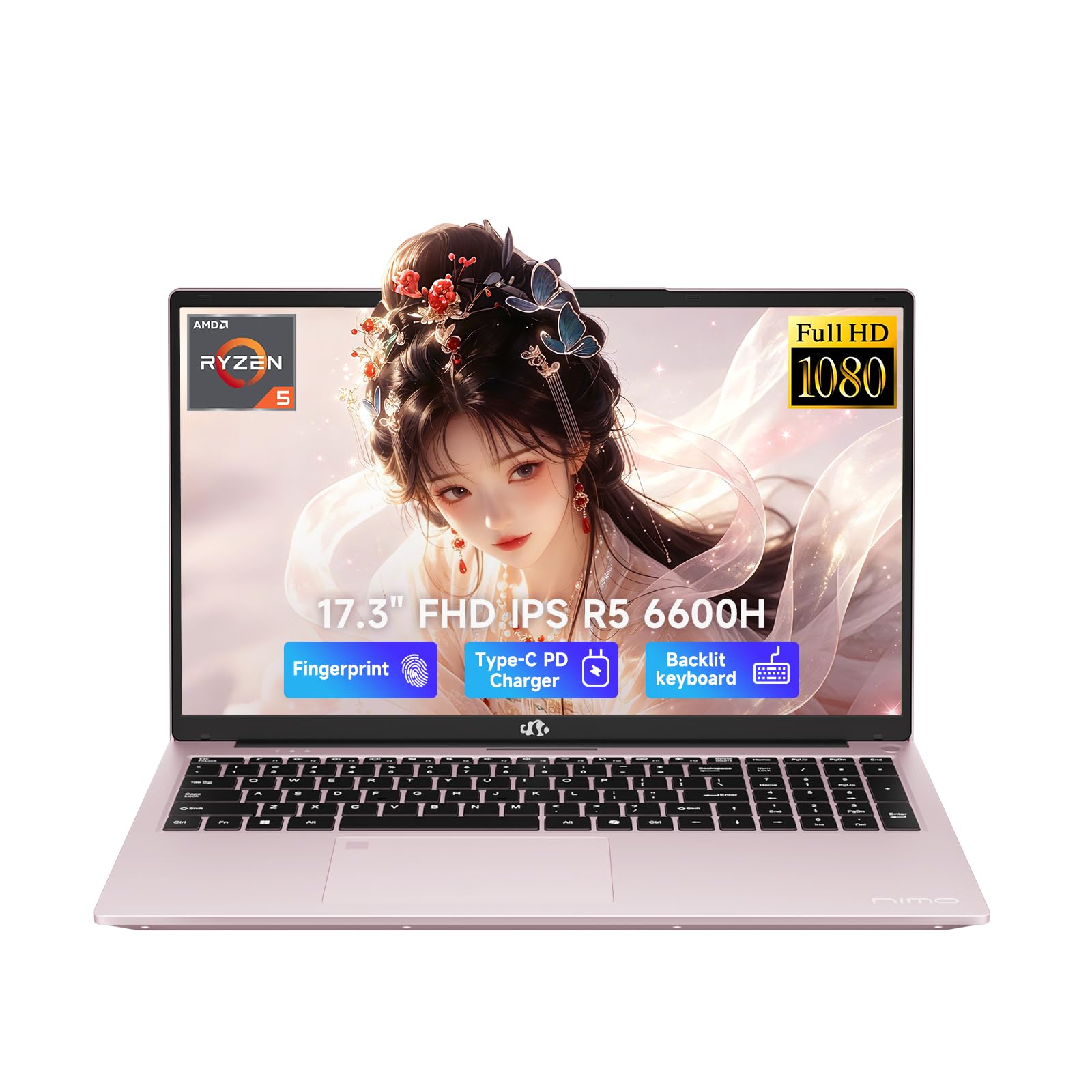
NIMO 17.3 Creator Laptop

86 /100
Studio Score Strong Evidence

Key details

CPU
Ryzen 5 6600H, 6-core
RAM
32GB DDR5
Storage
1TB PCIe SSD
Display Quality
17.3-inch FHD IPS
Check Price on Amazon

The NIMO 17.3 pairs 32GB DDR5 RAM and a 1TB PCIe SSD with a 17.3-inch FHD IPS panel at a budget-friendly price, wrapped in a chassis that feels more expensive than it is. The six-core Ryzen 5 6600H keeps Lightroom imports smooth and leaves enough memory headroom for Photoshop, a large catalog, and multiple reference images at once. Compared with the safer low-cost Windows pick in this set, the NIMO trades a bit of mainstream predictability for far more capacity per dollar.

Quality control and battery behavior vary between units, so a clear return policy is part of the purchase. Some machines run clean through a heavy import session; others may show an occasional crash, intermittent charging, or shorter-than-advertised battery runtime. The core spec package still represents strong value for photo catalogs.

This is for budget creators who want maximum RAM and storage for the money, plus a large 17.3-inch screen and a backlit keyboard for late-night editing. Students and remote workers with a desk setup get the most value, and tinkerers can upgrade memory or storage later to extend the machine's useful life.

Pros

  • 32GB RAM and 1TB SSD handle heavy Lightroom catalogs without constant external-drive juggling.
  • Build quality feels more expensive than the price suggests, with a sleek design and rose-gold finish.
  • Upgradeable memory and storage extend the usable life beyond the initial specification.

Cons

  • Battery runtime under photo-editing loads can fall short of the advertised 6-8 hours.
  • A unit can arrive with an occasional crash or charging quirk, so a return window is part of the buying process.
Our verdict

For budget photo editors who need 32GB RAM and 1TB storage, this machine delivers more headroom per dollar than the alternatives.
Check Latest Price
3

Best Budget Entry Pick

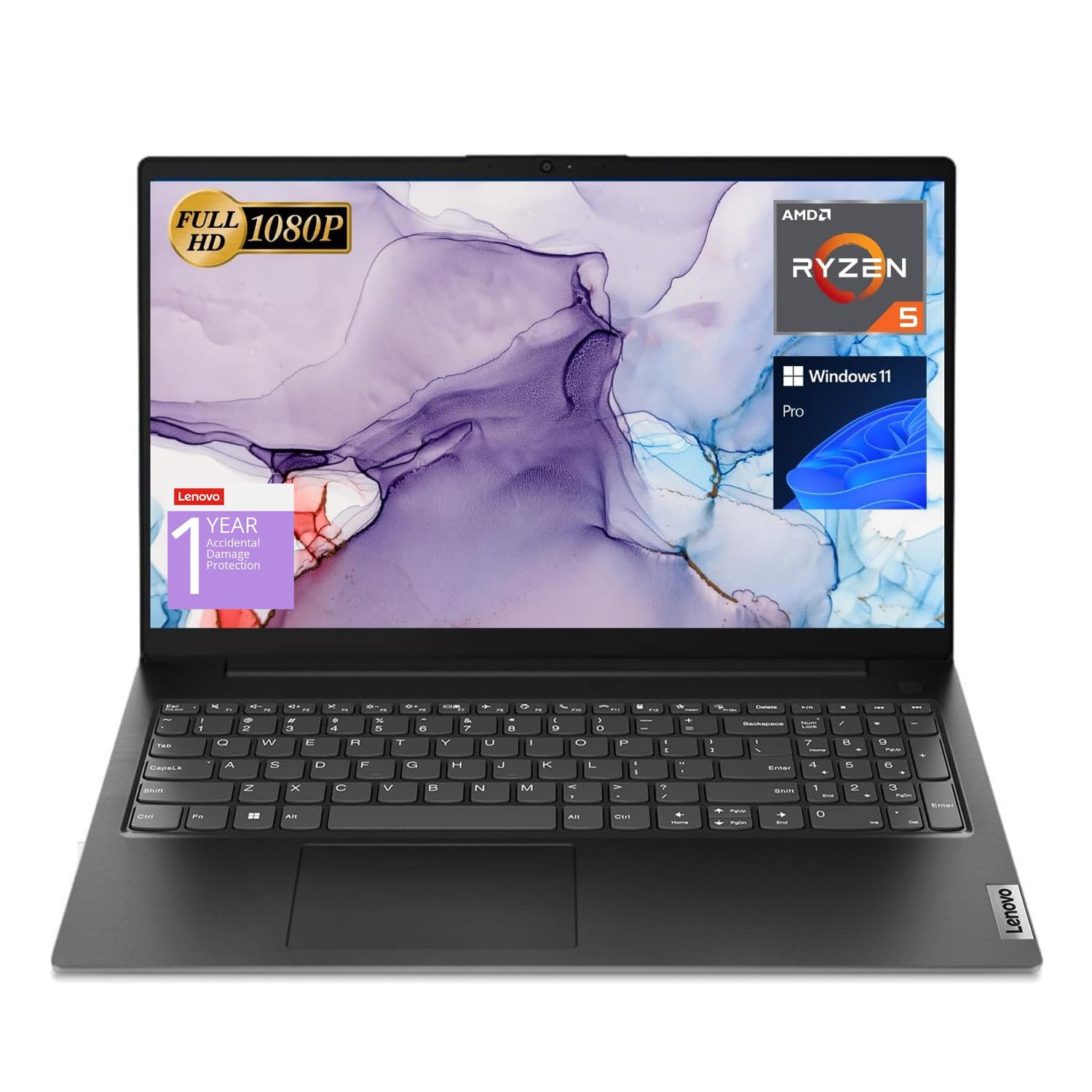
Lenovo V15 15.6

86 /100
Studio Score Strong Evidence

Key details

CPU
Ryzen 5 5500U, 6-core
RAM
16GB DDR4
Storage
512GB PCIe SSD
Display Quality
15.6-inch FHD, 500 nits
Check Price on Amazon

The V15 pairs a 16GB/512GB configuration with a six-core Ryzen 5, giving Lightroom imports and layered Photoshop edits enough headroom for smooth daily use.

Entry-level photographers and students who need Ethernet and Windows 11 Pro are the right audience, and the tradeoffs are display color, battery life, and a single USB-C port.

The 15.6-inch FHD panel has a listed 500-nit peak brightness, which helps when editing in a bright room.

Pros

  • Smooth everyday performance for multitasking, Lightroom imports, and light Photoshop work.
  • Strong value for the price, with 16GB RAM and a 512GB SSD in a budget Windows machine.
  • Windows 11 Pro and Ethernet make setup easy in campus or office networks.

Cons

  • Chassis may show visible scratches from normal backpack use.
  • Hardware issues can surface in the first months; testing the unit soon after arrival is worthwhile.
Our verdict

For entry-level photo editing on a Windows budget, the V15's 16GB/512GB package and consistent performance make it the clearest low-cost choice.

Check Latest Price
4

Large-Screen Light Editing

HP 17.3 FHD Laptop

78 /100
Studio Score Established

Key details

CPU
Ryzen 5 7430U, 6-core
RAM
16GB DDR4
Storage
1TB SSD
Display Quality
17.3-inch FHD IPS, 45% NTSC
Check Price on Amazon

The HP pairs a 17.3-inch FHD IPS anti-glare display with 1TB of SSD storage at a budget-friendly price, giving general productivity and light Lightroom edits more workspace than other entry-level laptops. Early units have been smooth through setup and daily use. The 45% NTSC color gamut is the boundary for photo work: casual edits are fine, but color-critical exports require a different panel. That limitation, plus multi-year durability that is still an open question, keeps it below the runner-ups for editing work. If bright-room use and storage capacity are the priority, this is a relevant budget pick.

Pros

  • Large 17.3-inch FHD IPS anti-glare display gives productivity apps and light photo editing room to breathe.
  • 1TB SSD and 16GB RAM at entry-level pricing make this a rare large-storage budget configuration.
  • Early units run smoothly through setup and daily use.

Cons

  • The listing alternates between 1920x1080 and 1600x900 for the display, so confirm the panel before ordering.
  • For multi-year ownership, the screen hinge may separate after about 13 months in some cases.
Our verdict

For buyers who want the biggest display and largest SSD at a budget-friendly price, this is a fitting option.

Check Latest Price

How to Choose

Display Quality

Resolution alone does not make an editing screen. A 1080p IPS panel can cover only 45% of NTSC, leaving reds and greens muted. Look for at least 100% sRGB or a wider gamut, plus good peak brightness.

When a display under-saturates colors, you push saturation in Lightroom to compensate, and the export looks overcooked on other screens. A panel with natural skin tones and accurate grays is worth more than a higher resolution number.

RAM

16GB is the workable minimum, but large catalogs need more. Adjustment layers and background sync consume memory, and when RAM runs out, the system swaps to the SSD and every edit slows down.

32GB is the practical target for 45-megapixel raw files or multiple open projects. The trade-off is price and battery draw. User-upgradeable RAM lets you start at 16GB and move to 32GB later.

Storage

512GB fills quickly when raw files run 40-80MB each and Lightroom needs space for preview caches. 1TB is the safer baseline for keeping the current year's shoots internal.

Check the SSD interface, not just capacity. PCIe NVMe imports and exports noticeably faster than SATA, which matters when you transfer a card full of files.

CPU

Modern six-core processors avoid the stutter of old dual-core laptops. Batch exports are where the gap shows: exporting 50 images on a four-core CPU becomes a waiting game.

CPU generation matters more than clock speed. A newer architecture finishes the same export faster while drawing less battery, so a Ryzen 5 6600H or Apple M5 can outwork an older quad-core.

Reliability & QC

Spec sheets do not predict whether a laptop still turns on in month four. Budget machines with huge RAM and storage sometimes have looser quality control, and one faulty batch makes a great configuration useless.

Buy through a channel with a clear return policy and confirm warranty terms before ordering. If a machine freezes during an import or refuses to charge early on, it is not right for photo work.

Frequently Asked Questions