Best Overall

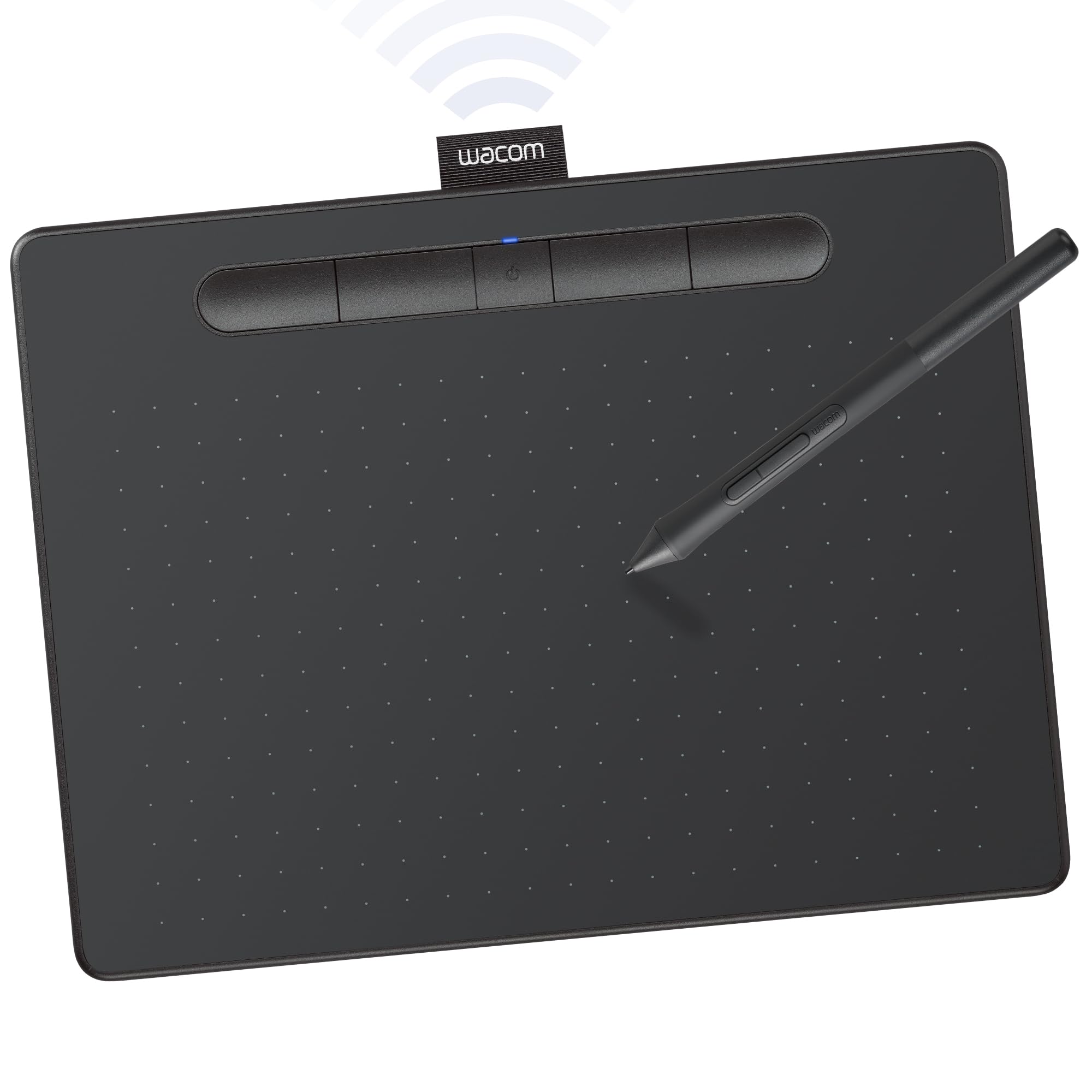
Wacom Intuos Small
Key details
- Pen & Tilt
- 4096 levels, no tilt
- Active Area
- 6 x 3.7 in
- Screen Type
- Pen tablet, no screen
- Connectivity
- Wired USB-A
The Wacom Intuos Small tracks pen input smoothly across its active surface, and the battery-free EMR pen responds to pressure without needing a charge. The pen is light and balanced, with a grip that stays comfortable through long marking sessions. The same tablet works across Windows, macOS, Android, and Chromebook machines, so it can move between a home PC and a school laptop.
Drawing, photo editing, and document markup stay fluid: the pen cursor follows the nib with no visible lag, and light and heavy strokes translate into clear line variation in beginner illustrations, annotations, and handwritten notes. For design work, quick masking and brush strokes come through without the jumpiness that cheap mice introduce. The EMR mechanism uses a magnetic resonance field between pen and tablet, so the stylus never pairs, charges, or needs a replacement battery. That makes the tablet a dependable digital pen for someone moving between a whiteboard app and a PDF.
This is the right match for a student, teacher, or budget buyer who wants a dedicated computer-connected tablet without a steep learning curve. Accept the boundaries: the active area is small, there is no tilt, and the bundled software is trial access rather than full licenses. Those limits matter especially to professionals or anyone planning long-form illustration; for a first tablet, remote tutoring, or note-taking, they are reasonable compromises. The pen needs no customization to feel usable, and the handful of settings worth adjusting are clearly labeled in the driver panel.
Within this comparison, the Intuos Small is not the feature leader. The value comes from a pen experience that stays predictable while you learn, and from a driver control panel that allows pressure-curve and mapping adjustments without fighting the interface. At a budget-friendly price, the money goes into the EMR digitizer and the pen rather than a long list of bundled apps. For a cautious buyer, that consistency is worth more than a longer spec sheet.
A beginner may take a session or two to get used to looking at the monitor while drawing, but that split attention is shared by every pen tablet in this class. Remote teaching is another natural fit: the tablet slips into a bag, and pen input makes math notation and diagram markup on slides easier than a mouse.
💡 Download the Wacom driver before first use and keep a USB-A adapter nearby if your laptop only has USB-C ports.
Pros
- Smooth pen tracking for drawing and note-taking, backed by a battery-free stylus.
- Short learning curve for first-time digital artists.
- Responsive enough for design, photo editing, and document markup.
- Budget-friendly price for a dedicated pen tablet with a major brand name.
Cons
- Wired-only connection ties the tablet to the USB cable, so desk use only.
- 4096 pressure levels trail the 8192 and 16384 counts on newer budget rivals.
For a first pen tablet, this is the entry point that keeps the focus on learning pen control rather than a long spec list.