6 Best NAS for Photographers in 2026: Match Speed to Your Workflow

The best NAS for photographers balances RAW backup capacity, multi-user sharing, and realistic network speed — without overpaying for bays you won't use.

NAS listings for photographers tend to lead with maximum capacity and empty drive bays. The trade-offs that actually shape daily use are quieter: whether the network port can keep up with large RAW transfers, whether the software accepts your existing drives, and how much noise the unit makes in a room you work in.

Capacity matters, but matching it to your workflow matters more. A solo shooter moving a few hundred gigabytes of RAW files has different network needs than a small studio sharing one archive. Most photographers are better served by a 2.5GbE mid-range unit with four bays than by a premium chassis that requires a separate adapter to reach its advertised speed.

Before buying, check whether the NAS accepts the drives you already own and whether the fan noise suits the room it will sit in. Those details decide whether a capable enclosure feels like an asset or an annoyance.

1

Best Overall

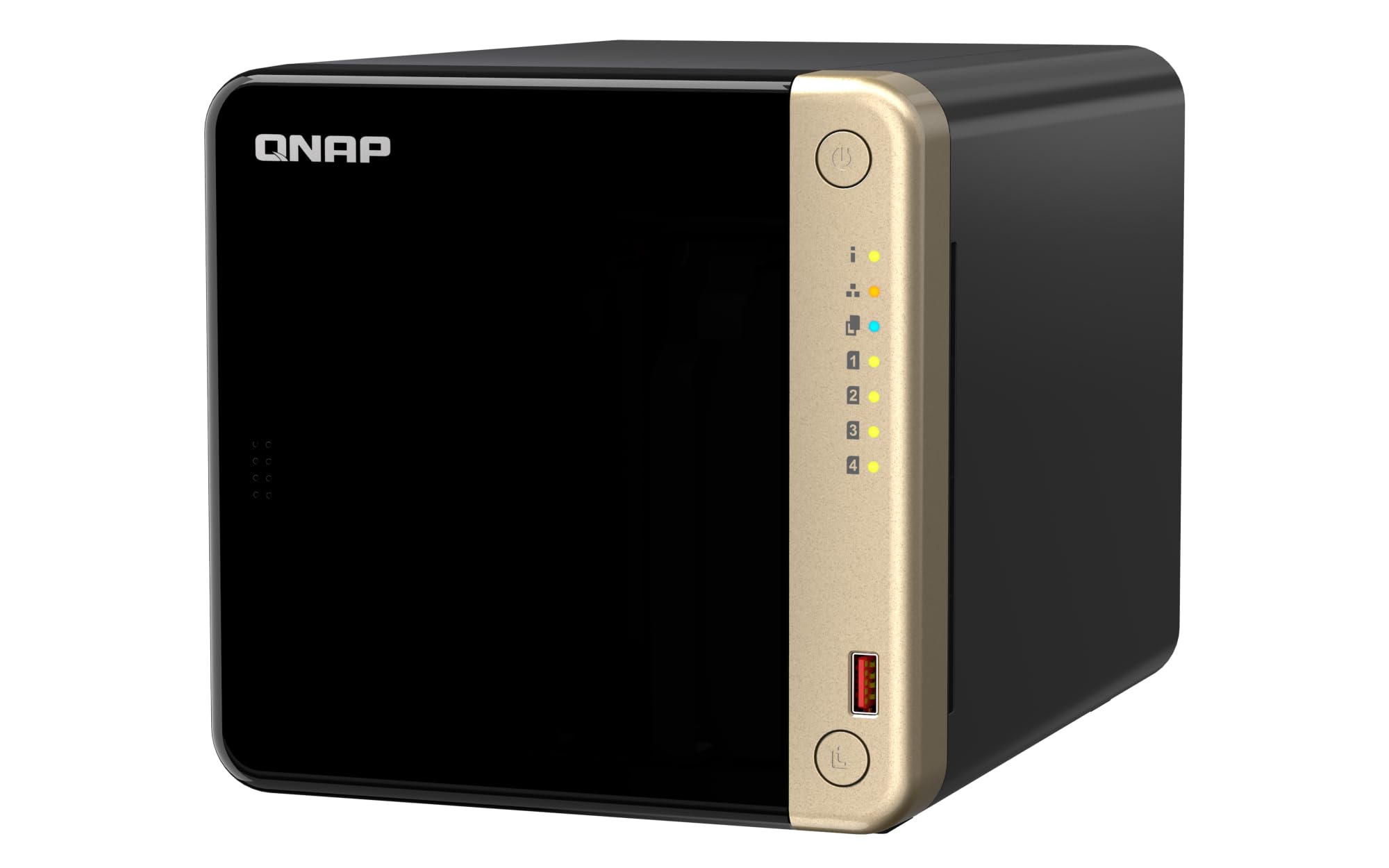
QNAP TS-464 4-Bay

85 /100
Studio Score Strong Evidence

Key details

Drive Bays
4-bay diskless
Network Speed
Dual 2.5GbE
Data Protection
RAID, snapshots
CPU / Transcoding
Intel N5105, Quick Sync
Check Price on Amazon

Dual 2.5GbE ports, two M.2 NVMe slots, and Intel Quick Sync give the TS-464-8G a clear edge over other four-bay NAS for photo and media workloads. The N5105/N5095 quad-core holds steady when Plex transcodes, Docker containers, VMs, and multi-user file transfers run on the same appliance. This is the workload mix small studios actually live with, and the TS-464 keeps it from becoming a queue.

On a 2.5GbE network, large RAW imports use the added bandwidth when the drive array can keep up, and the M.2 slots can act as cache or a scratch volume for active edits. Four SATA bays support RAID 5/6 layouts with room to expand, while 8GB DDR4 keeps the storage pool responsive during backup jobs. The M.2 slots accept PCIe Gen3 x2 NVMe modules, so folders like a Lightroom catalog can sit on faster media instead of spinning drives.

The guided initialization procedure walks through storage pools, user accounts, and shared folders without requiring deep network knowledge, so the first backup job can start soon after the drives are installed. A new user can set up a RAID pool without needing a separate utility or command line, which lowers the barrier for teams that are more comfortable with cameras than networking. The interface stays approachable for newcomers while leaving room to schedule snapshots, run container apps, and monitor drive health later.

This four-bay NAS is aimed at enthusiast and semi-pro photographers with growing RAW libraries, small studios that need centralized files and Plex, and homelab users who want Docker and VMs without buying a rack unit. The dual 2.5GbE ports and M.2 cache make it a better fit than a gigabit-only 2-bay enclosure for teams that move large files daily. If the studio already runs 2.5GbE, this box makes full use of that speed without a network overhaul.

The main compromise is acoustic: the fan has an audible presence in a silent room, and the blower may need replacement after months of use. In a closet or a room with ambient sound, that tradeoff fades; the TS-464-8G otherwise covers the four-bay, 2.5GbE, and M.2 caching checklist well.

Pros

  • Dual 2.5GbE ports move large RAW libraries faster than gigabit NAS without requiring a 10GbE network.
  • Two M.2 NVMe slots can cache random I/O or hold a scratch volume for active edits.
  • Intel Quick Sync keeps Plex transcoding and media previews smooth without a separate server.
  • Guided setup and an approachable interface get new NAS owners through first boot without frustration.
  • Four SATA bays with RAID 5/6 give a growing photo archive room to expand without immediate upgrades.

Cons

  • Budget-constrained buyers must add drive costs to the mid-range chassis before the system becomes usable storage.
  • Studios already on 10GbE or planning eight bays should look at the next tier up; this dual-2.5GbE four-bay chassis is not built for that scale.
Our verdict

For photographers and small studios that want one machine for RAW archives, Plex, Docker, and multi-user file service, the TS-464-8G is the four-bay NAS to build around.
Check Latest Price
2

Best Synology for Small Photo Teams

Synology DS425+ 4-Bay

87 /100
Studio Score Strong Evidence

Key details

Drive Bays
4-bay diskless
Network Speed
1GbE
Data Protection
RAID, snapshots
CPU / Transcoding
Check Price on Amazon

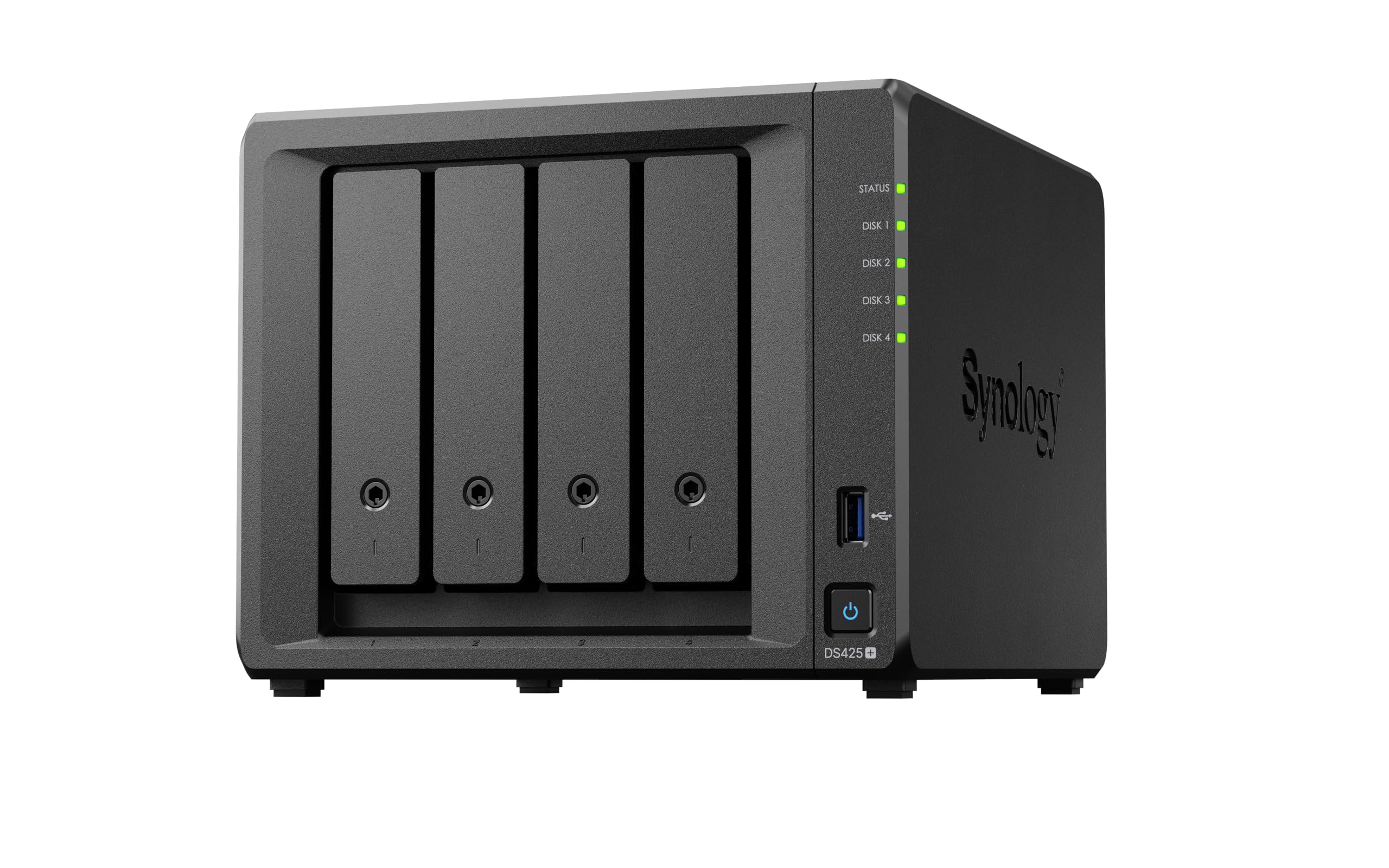
The DS425+ pairs Synology's DSM software with a 4-bay chassis and a 278 MB/s multi-user transfer rate. That makes it the team-oriented Synology in this roundup, a step above the 2-bay model for small studios that need centralized RAID and snapshot recovery. The QNAP top pick offers more connection flexibility, but the DS425+ keeps the DSM experience that many photo teams already use for shared libraries.

This unit fits a small photo team that already works in Synology DSM and values snapshots and shared folders over raw link speed. Buyers expecting a single 2.5GbE/10GbE connection for direct 4K editing should look at the QNAP alternative; the DS425+ delivers its speed through multi-user access instead. The right owner checks drive compatibility before purchase and schedules time for migrating an existing library.

Setup is one of the unit's stronger moments: 3.5-inch drives snap into tool-free sleds, and DSM handles RAID initialization and snapshot schedules without a separate management tool. The metal chassis also gives the DS425+ a denser feel than cheaper plastic NAS enclosures, which helps in a shared studio where equipment gets bumped.

Pros

  • 278 MB/s multi-user throughput keeps several editors moving on a shared library.
  • DSM includes snapshots and RAID controls in the same interface used for file sharing.
  • Tool-free 3.5-inch drive sleds make installation quick.
  • Metal chassis adds stiffness in a shared workspace.

Cons

  • Moving an existing library from older hardware can be a time-consuming process.
  • Some third-party drive models may not pass Synology's compatibility check.
Our verdict

For a small photo team already using DSM, the DS425+ is the 4-bay Synology to build around.

Check Latest Price
3

Best Entry-Level / Quiet Pick

Synology DS223 2-Bay

90 /100
Studio Score High Confidence

Key details

Drive Bays
2-bay diskless
Network Speed
1GbE
Data Protection
RAID, backup apps
CPU / Transcoding
Check Price on Amazon

The DS223 is the quiet, budget-friendly entry point to Synology's DSM ecosystem, built around two bays for simple photo backup and private cloud use. Its backup, sync, and media apps run consistently, and 24/7 operation stays stable. The guided setup wizard and intuitive interface get a new owner through installation without needing prior NAS experience.

This is for home photographers with modest storage needs who want a quiet private cloud for phone and camera backups. It is not a throughput machine: with Gigabit-only networking, large RAW transfers will be slower than 2.5GbE alternatives. If you edit 4K or RAW directly off the NAS, or you already run a 2.5GbE network, the faster four-bay units in this roundup fit better. For the intended buyer, the tradeoff is acceptable because DSM's photo and backup apps keep multi-device workflows simple.

The two 3.5-inch bays ship empty, so total cost depends on the drives you choose. Synology's software covers scheduled backups, sync tasks, and media serving, and the metal enclosure keeps fan noise low in a living space. This is a private cloud for users who want to set it once and let it run, not a platform for team storage or real-time 4K editing.

Pros

  • DSM backup, sync, and media apps run consistently for everyday photo management.
  • 24/7 operation stays stable enough for a dedicated backup box.
  • Guided installation and an intuitive interface get new owners started quickly.

Cons

  • Setup documentation is thin, so first-time NAS owners may need to lean on online guides.
  • In a mixed-device home, third-party drive and DLNA player compatibility can be finicky, so check Synology's list before buying disks.
Our verdict

For a first NAS or a dedicated home photo backup box, the DS223 pairs quiet two-bay operation with Synology's backup and photo apps at a budget price.

Check Latest Price
4

Best Compact 2-Bay

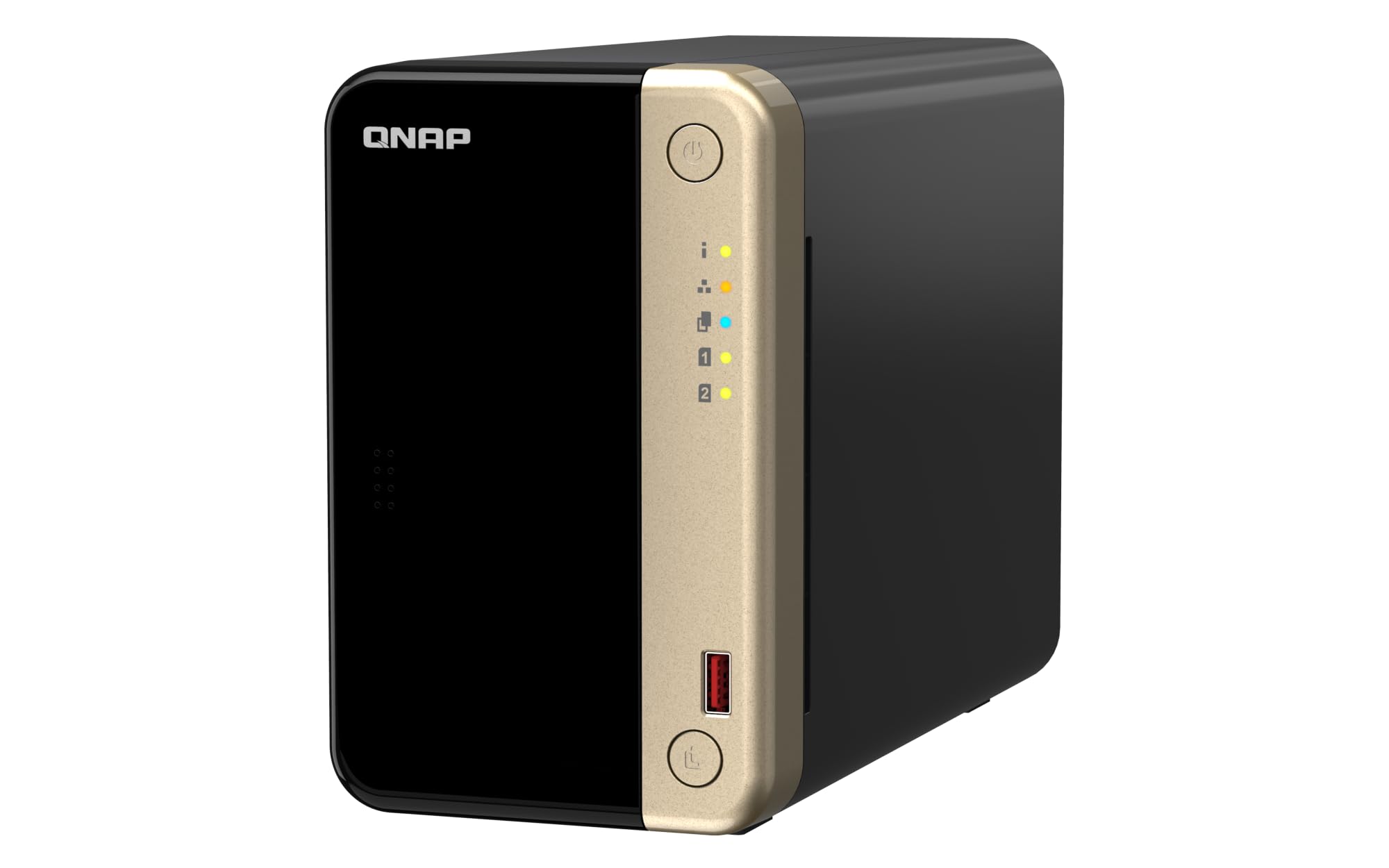
QNAP TS-264 2-Bay

85 /100
Studio Score Strong Evidence

Key details

Drive Bays
2-bay diskless
Network Speed
Dual 2.5GbE
Data Protection
RAID, snapshots
CPU / Transcoding
Intel quad-core
Check Price on Amazon

The same dual 2.5GbE and M.2 NVMe support as the four-bay top pick fits into a smaller two-bay chassis. The Intel quad-core processor up to 2.9GHz and 8GB DDR4 keep the QNAP OS responsive, and the two M.2 PCIe Gen3 x2 slots can run as cache for a pair of 3.5-inch SATA drives. Solo photographers get the fast network pipe without the extra bay weight.

Published descriptions of this series can reference the four-bay model, so check capacity claims against the two-bay spec sheet. The unit itself handles photo workloads well, but the fan can be audible in a quiet room; an office or closet placement reduces the distraction.

The natural buyer is a solo photographer who wants the network speed and cache flexibility this compact chassis offers, or anyone starting a NAS with room to expand later. Dual 2.5GbE ports connect to a switch or directly to a workstation, and the M.2 slots keep frequently accessed images responsive.

Guided setup gets a diskless unit running quickly, and the QNAP interface keeps photo folders, backups, and media apps in one place. RAID mirroring protects against a single drive failure in the two-bay layout.

Pros

  • Dual 2.5GbE ports keep large RAW transfers from bottlenecking on gigabit.
  • Two M.2 NVMe slots add cache without giving up either SATA drive bay.
  • Intel quad-core CPU and 8GB RAM keep the QNAP interface responsive during indexing.
  • Guided setup gets a diskless unit running quickly and the interface suits photo-library work.

Cons

  • Two bays cap RAID at mirroring or single-drive volumes; four-bay RAID5/6 needs the larger sibling.
  • Fan replacement can be needed after extended use.
Our verdict

For a solo photographer, this is the compact way to get dual 2.5GbE, M.2 caching, and QNAP's Intel platform without paying for four bays.

Check Latest Price
5

Best 10GbE DIY Pick

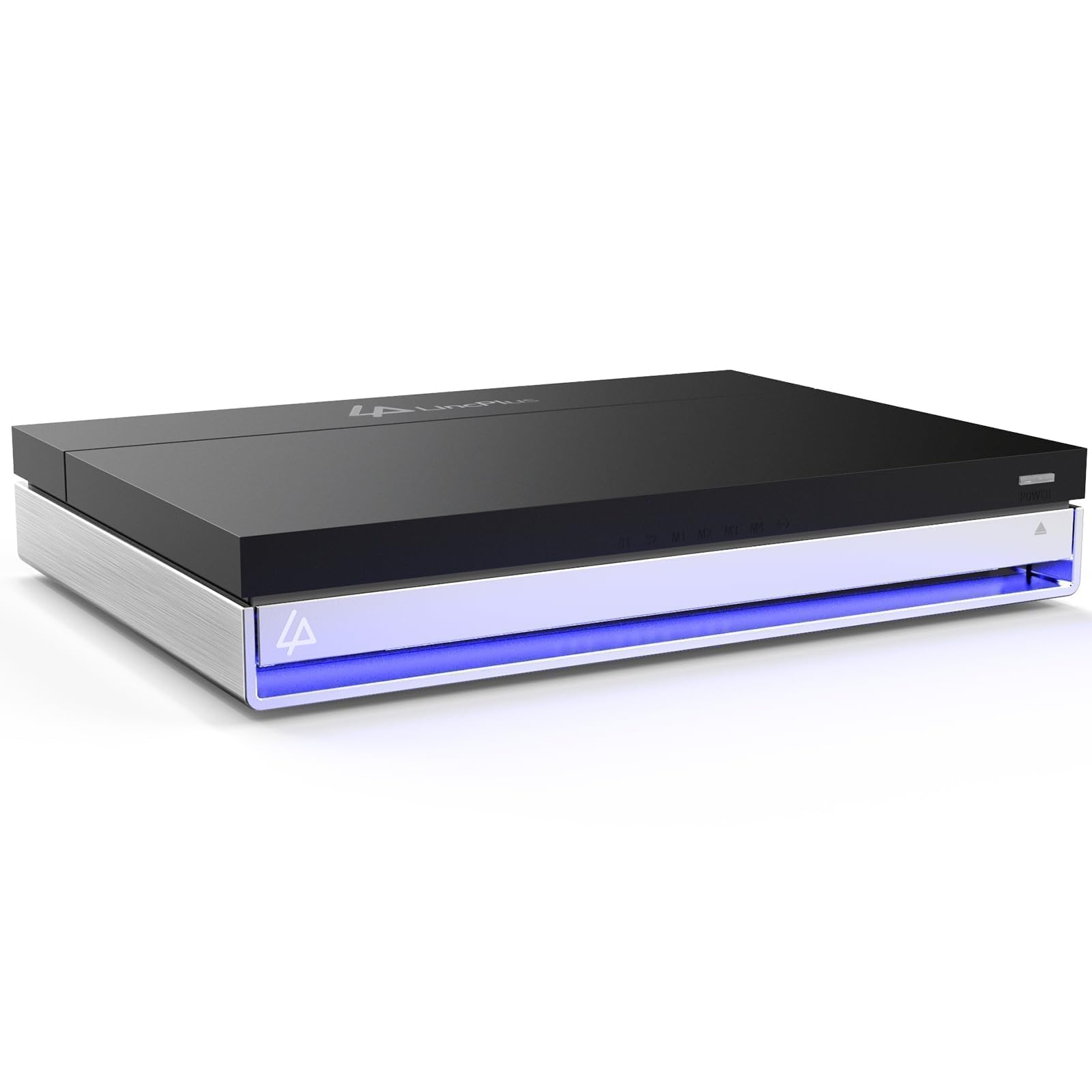
LincStation N2 6-Bay

78 /100
Studio Score Established

Key details

Drive Bays
6-bay, 4 NVMe
Network Speed
10GbE
Data Protection
Unraid flexible arrays
CPU / Transcoding
Intel N100
Check Price on Amazon

Built-in 10GbE and four M.2 NVMe slots put the LincStation N2 in a different lane from the dual-2.5GbE QNAP workhorse, and the included 16GB RAM plus Unraid Starter license make the bundle unusually complete. That hardware foundation suits photographers who already have or plan to build a 10GbE network for large RAW libraries.

Media streaming and file sharing remain stable over long 24/7 sessions, and the chassis runs quiet and cool enough for a shared room. Unraid's pooling accepts mixed drive sizes, so a larger NVMe can join the array later without forcing a rebuild. That flexibility is the product's core appeal.

The same Unraid layer that enables mixed-drive pooling also runs Docker containers and VMs, so a photo workflow can share the box with backup utilities or a media server without a separate computer. Always-on duty is practical because the system draws little power and stays cool.

The right buyer is a photographer who works in a 10GbE environment or is ready to upgrade, and who wants Unraid's drive pooling plus Docker/VM support in a compact chassis. That buyer should have patience for Unraid's setup curve and should treat the N100 as a practical throughput ceiling rather than a 10GbE guarantee. If you want an appliance-style setup or guaranteed consumer phone app compatibility, the dual-2.5GbE QNAP workhorse is the more predictable path.

💡 Budget a few hours for initial Unraid configuration, and verify your switch and cabling support 10GbE before expecting full-speed transfers.

Pros

  • Media streaming and file sharing stay stable over long 24/7 sessions.
  • Unraid pooling handles mixed drive sizes, so array expansion does not require identical drives.
  • Runs quiet and cool enough to live in a shared room during continuous use.

Cons

  • On sustained NVMe transfers, the N100 can become the bottleneck, so speeds will not always reach 10GbE.
  • For a buyer new to Unraid, RAID and network-stack setup can take multiple sessions before shares work as intended.
Our verdict

For a photographer running 10GbE and comfortable managing Unraid, the N2 delivers a rare mix of NVMe capacity and network speed without the usual add-on card or license cost.

Check Latest Price
6

Budget 4K Media

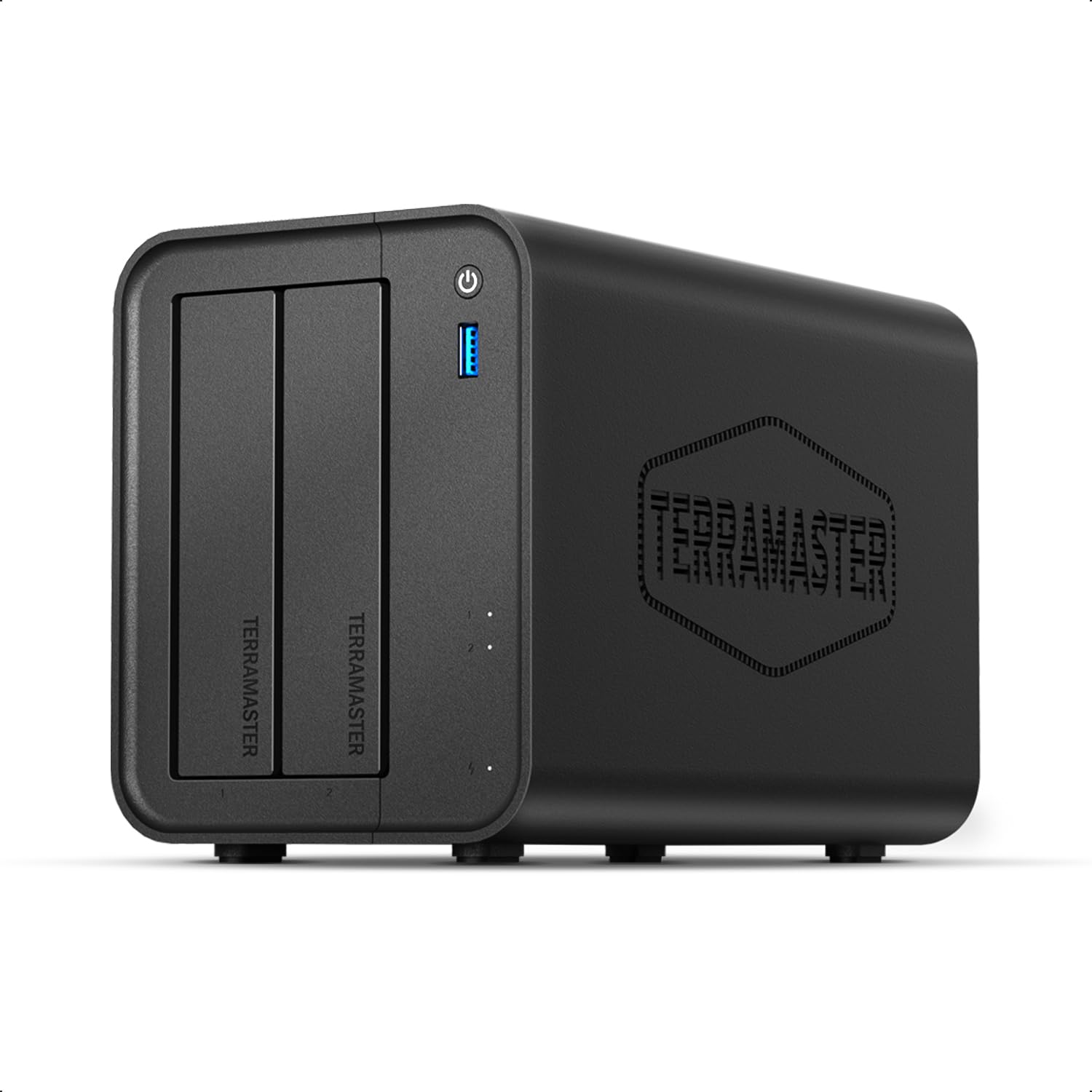
TerraMaster F2-425

76 /100
Studio Score Established

Key details

Drive Bays
2-bay diskless
Network Speed
2.5GbE
Data Protection
TRAID, CloudSync
CPU / Transcoding
Intel x86, 4K transcode
Check Price on Amazon

The TerraMaster F2-425 is the cheapest way into 2.5GbE file transfers and 4K H.265 transcoding in a 2-bay NAS, with tool-free drive installation and an app store that covers Emby, Plex, and backup tasks for a modest photo workflow. Boot can take 15-20 minutes and the OS can feel sluggish, which points this at an always-on secondary archive rather than an impatient shooter's primary edit store. Build quality also varies between units, so a quick inspection after delivery is reasonable. Software polish trails the mainstream leaders, but the hardware value is hard to beat.

Pros

  • 2.5GbE and 4K H.265 transcoding deliver high hardware value at an entry-level price.
  • Emby, Plex, and backup tools inside the app store cover a basic photo setup.
  • Tool-free drive installation gets disks into the chassis without extra hardware.

Cons

  • Chassis assembly can vary between units, so physical fit and finish may be inconsistent.
  • Original RAW files still need a separate backup; a single 2-bay NAS is not a complete archive plan.
Our verdict

Keep it as an always-on Plex and RAW-transfer box on a tight budget; for a primary photo archive, the four-bay Synology and QNAP options with smoother software are worth the extra cost.

Check Latest Price

How to Choose

Drive Bays and Capacity

Bay count sets your protection ceiling. A 2-bay unit mirrors one drive, protecting against a single failure but leaving no room to expand. A 4-bay unit can run RAID 5 or RAID 6, so one or two drives can die without losing the library.

Migrating a full NAS is more painful than filling a partially empty one. If your RAW library grows a few terabytes a year, leave room for two more drives.

Network Speed

Network speed decides whether editing off the NAS feels like a local drive or a progress bar. Gigabit moves about 110 MB/s, enough for backup but slower than a single SATA drive. 2.5GbE roughly doubles that ceiling, making culling and light editing practical.

10GbE is faster still, but it needs a matching switch, cabling, and often an adapter that is not included. Unless your chain is already 10GbE, a mid-range 2.5GbE NAS delivers the most useful speed for the least total cost.

CPU and Transcoding

The CPU controls transcoding, thumbnails, and interface smoothness when several users browse large catalogs. Intel Quick Sync transcodes 4K video without spiking power or slowing file transfers.

ARM chips handle basic file sharing but struggle with previews for a large RAW folder or 4K streaming. Mostly stills? CPU matters less. Client video or Docker? Choose Intel/N100/N5105.

Data Protection

RAID protects against dead drives, but it is not a backup. Snapshots, versioning, and off-site backup tasks cover deletion, surges, and ransomware. Schedule them before you need them.

Drive compatibility is the overlooked part. Synology and QNAP reject some third-party drives during initialization, so check your exact model before building the array.

Software Ecosystem

The OS decides how much daily friction you live with. Synology DSM and QNAP's QTS have mature mobile apps and photo indexers; TOS and Unraid are bare-bones but customizable.

A polished photo app sorts by camera, lens, and date automatically; a less developed one leaves you managing folders manually. For a set-and-forget archive, prioritize software maturity; for DIY control, pick an OS you enjoy configuring.

Frequently Asked Questions